Organization/Visualization point clouds
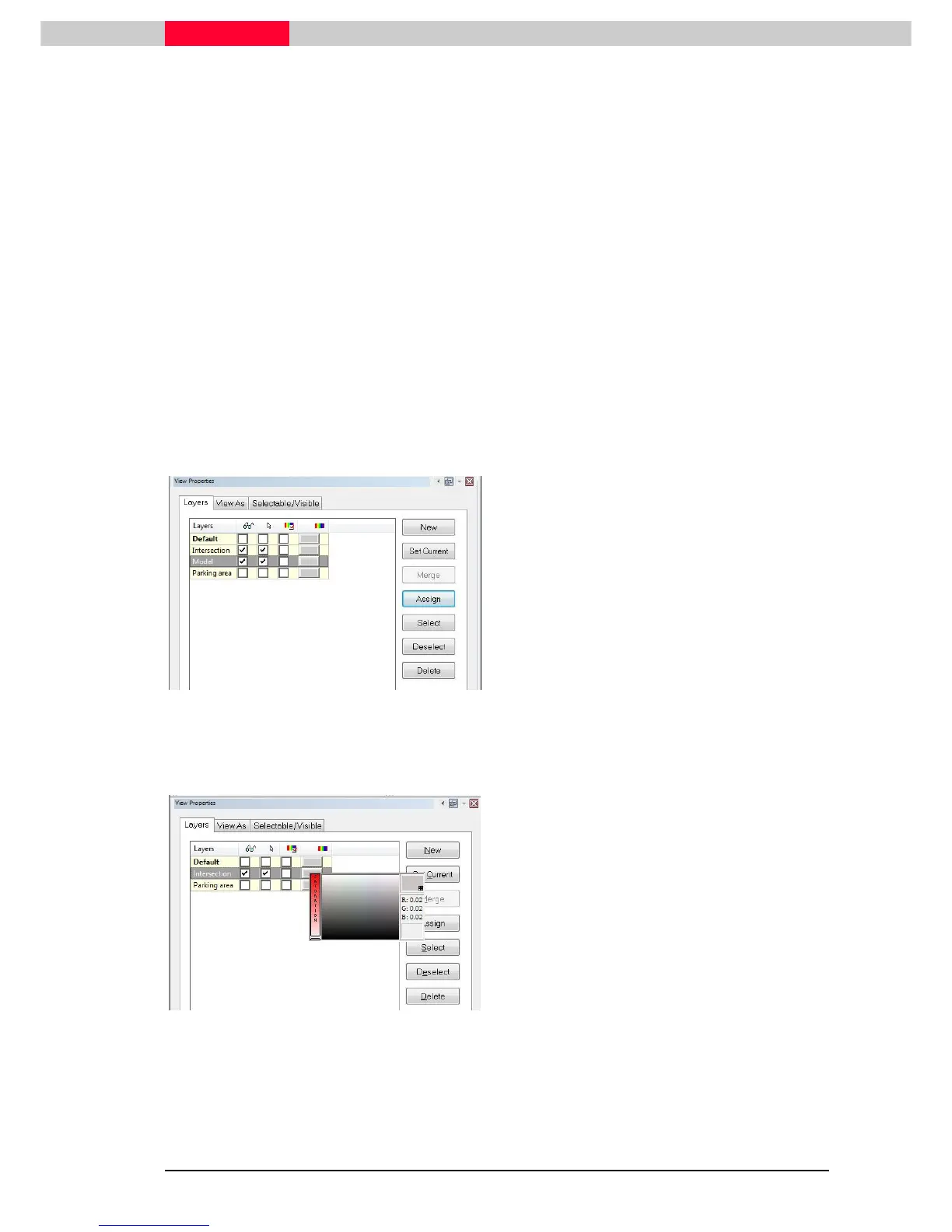
Now assign the intersection to another layer:
•
Select the lines representing the intersection by clicking Selection | Select All
Selection | Select AllSelection | Select All
Selection | Select All
•
Click the New
NewNew
New button in the Layers interface
•
Type
TypeType
Type in “Intersection”
•
Enter
EnterEnter
Enter
•
Highlight
HighlightHighlight
Highlight the new layer
•
Click the A
AA
Assign
ssignssign
ssign button
Delete layer
The layer “Model” can now be deleted since all objects of this layer have been re-assigned to
new layer.
When trying to delete a layer which still contains objects, a message will ask
whether these objects can be deleted as well or whether they should be moved
to the “Default” layer.
Figure 13
•
Highlight
Highlight Highlight
Highlight the layer “Model”
•
Click the button Delete
Delete Delete
Delete
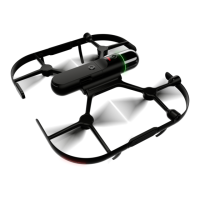
Assign a color to a layer
Figure 14
•
Click
ClickClick
Click in the color field (last field in the
row).



 To Next Page