11 - 12
4 COE – Cyclone Object Exchange
Open the ModelSpace from Database
Quickstart
, from which also the Screenshot in Section 1
was created.
Go to Files | Export
Files | ExportFiles | Export
Files | Export and the
Export to File
dialogue appears.
Identify a location for the file, name the file to be created, then select
COE format
(*.coe)” from
the
Save as
type field.
On pressing the
Save
button the
Export Options
dialogue is coming up. Choose the preferred
option and click OK
OKOK
OK to create the COE file.
Conditional on the selected Export Options all objects or a part of them within the Cyclone
ModelSpace are translated to COE format. This step may take some time, depending on the
complexity of the ModelSpace being translated.
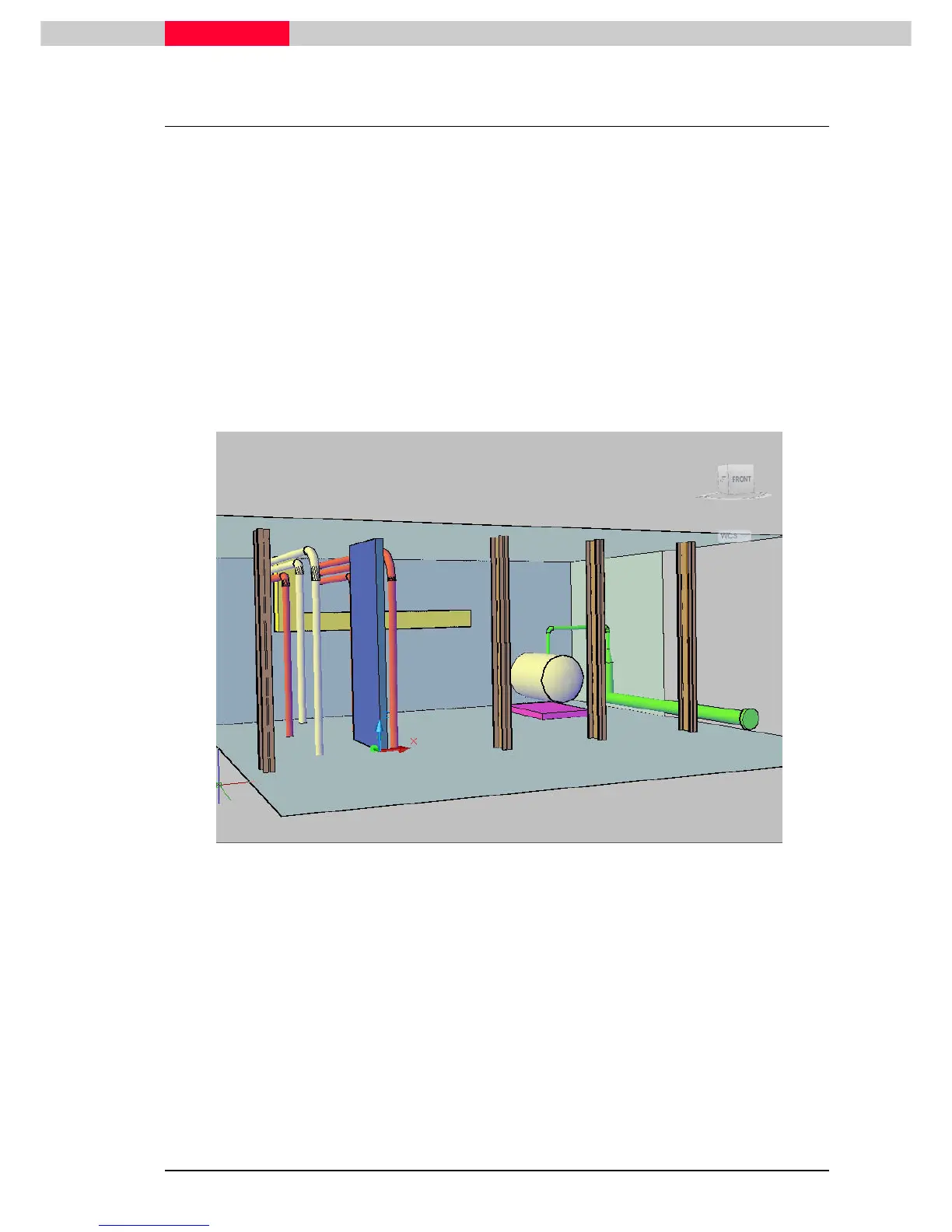
See below the model from Section 1 – Image Export - Snapshot which was exported via coe and
imported to AutoCAD
Figure 13
COE files are brought into Cyclone via Cyclone’s Navigator window, where a new ModelSpace is
created for the imported file. Most objects, as well as layer functionality, can be brought into
Cyclone from AutoCAD. Complex objects (e.g., cubes with rounded corners, objects with notches,
etc.) may not be translated as objects, but may instead be translated as a collection of lines and
arcs.
COE files can only be imported into Cyclone via the Navigator window – not from
inside ModelSpaces.



 To Next Page