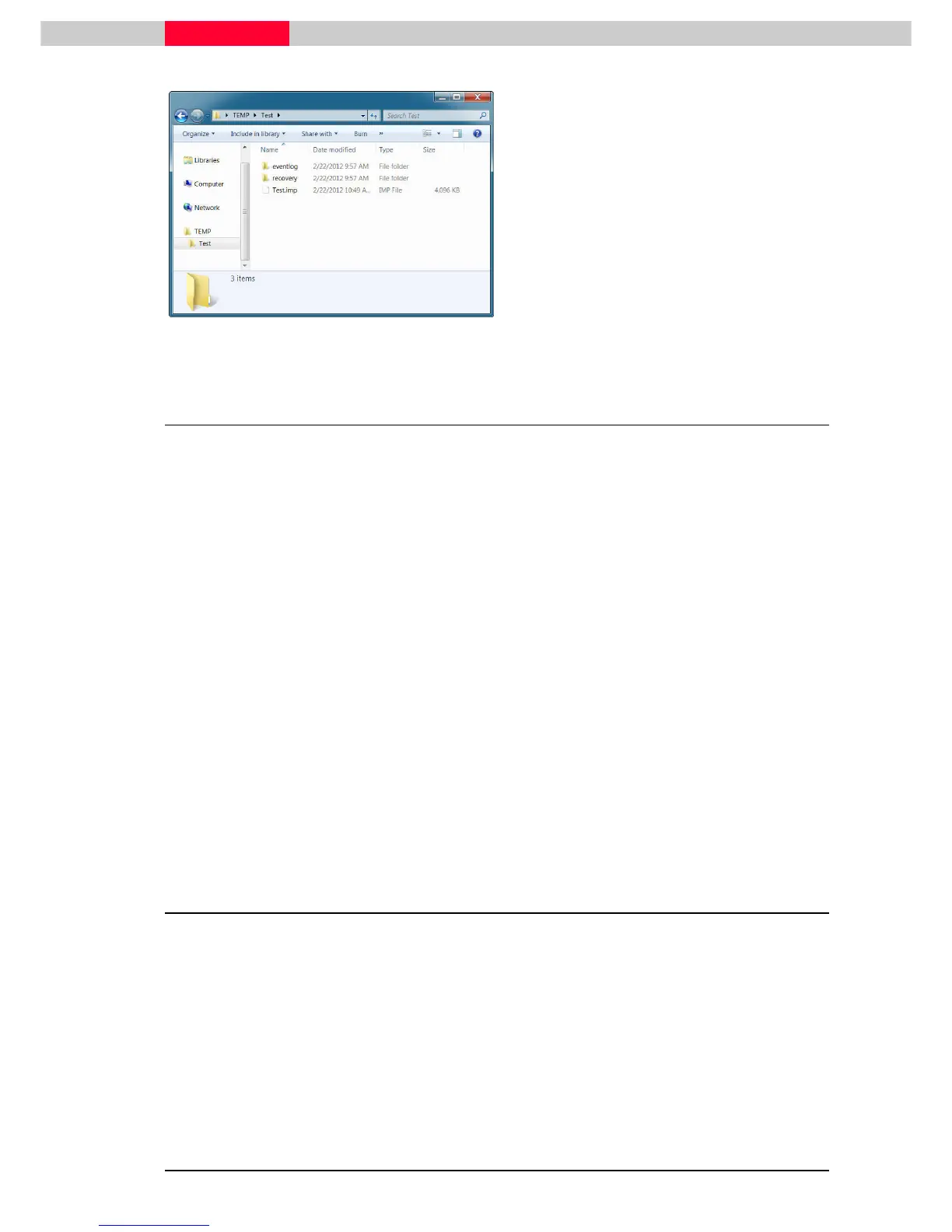
subfolder also called “Test” and contains the
actual database as well as two subfolders.
2.2 Remove / Destroy a Database
Remove the link to database Test.imp
Select the Test database in the
Configure Databases
dialog (
Figure 9
). Click on the Remove
RemoveRemove
Remove
button and then the Close
CloseClose
Close button to close the
Configure Databases
dialog. The Test database is
removed from the
Navigator
window.
In Windows Explorer, browse to the folder where your database was created and stored, or the
default location – for example:
C:\Program Files\Leica Geosystems\Cyclone\Databases
to see that the file has not been deleted – it still exists, but is now not linked to Cyclone.
Notice that the actual database file Test.imp still resides on your hard drive. This
is because the database file has not actually been deleted; it is only the active
link between Cyclone and the databases that has been cut.
Destroy a database
To actively delete the Cyclone database, use the Destroy command. If you select Destroy
DestroyDestroy
Destroy in the
Configure Databases
dialog, the Test database will be deleted from your hard drive.
The file is then permanently deleted!
3 Linking to / Loading an Existing Database
You are now going to link an existing database to Cyclone.
In the
Navigator
window, find Configure | Databases
Configure | DatabasesConfigure | Databases
Configure | Databases and click Add
AddAdd
Add…
……
…
Alternatively
right click on the local server (the name of your computer) to which you want to
add a database. From the pop up menu, pick Databases (
Figure 12
).



 To Next Page