Introduction to Cyclone Module 2.0 – Na
vigator & Navigator’s Objects
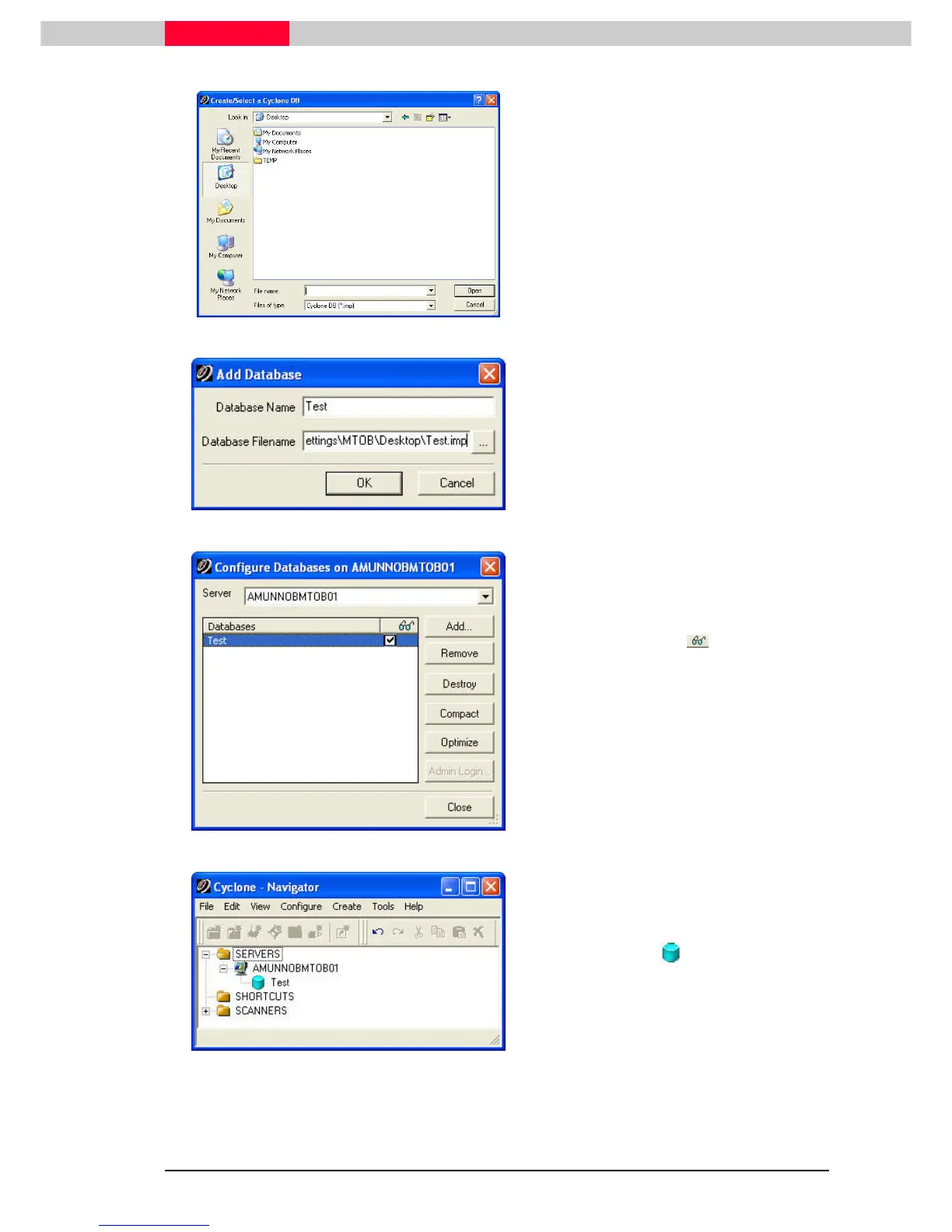
Figure 7
Select a new file location in your computer
where you want the new database file to
reside. In the File Name field type in “Test”
and click Open
Open Open
Open to verify the file name as
*.imp
and Open
OpenOpen
Open again to create the file.
Figure 8
Confirm again
Database Name and Location
with OK
OKOK
OK.
Database Name is the name that will be
used to display the database in the
Navigator
. It can be different from the
actual file name.
When the Database Name field is empty,
Cyclone will automatically use the name
from the Database Filename.
Figure 9
The Test database is now shown in the
Configure Database list. It is possible to
‘hide’ databases from the list displayed in
the
Navigator
window by toggling the
checkbox beneath the icon OFF.
This can be useful when you are not
working with a database but wish to have it
remain accessible.
Notice that the Test database is no longer
visible in the list of databases in the
Navigator
Window. Keeping unused
databases hidden is a good idea to keep
the
Navigator
window less cluttered.
Toggling the checkbox on the Database will
be available in the
Cyclone Navigator
.
Figure 10
The new database is now available in
the
Navigator
below the server chosen
before.



 To Next Page