Organization/Visualization point clouds
5.2 Set User Coordinate System from Points
You can set a UCS by using pick points. With this method, you can assign new coordinate values
to a pick point, and assign a new azimuth and elevation.
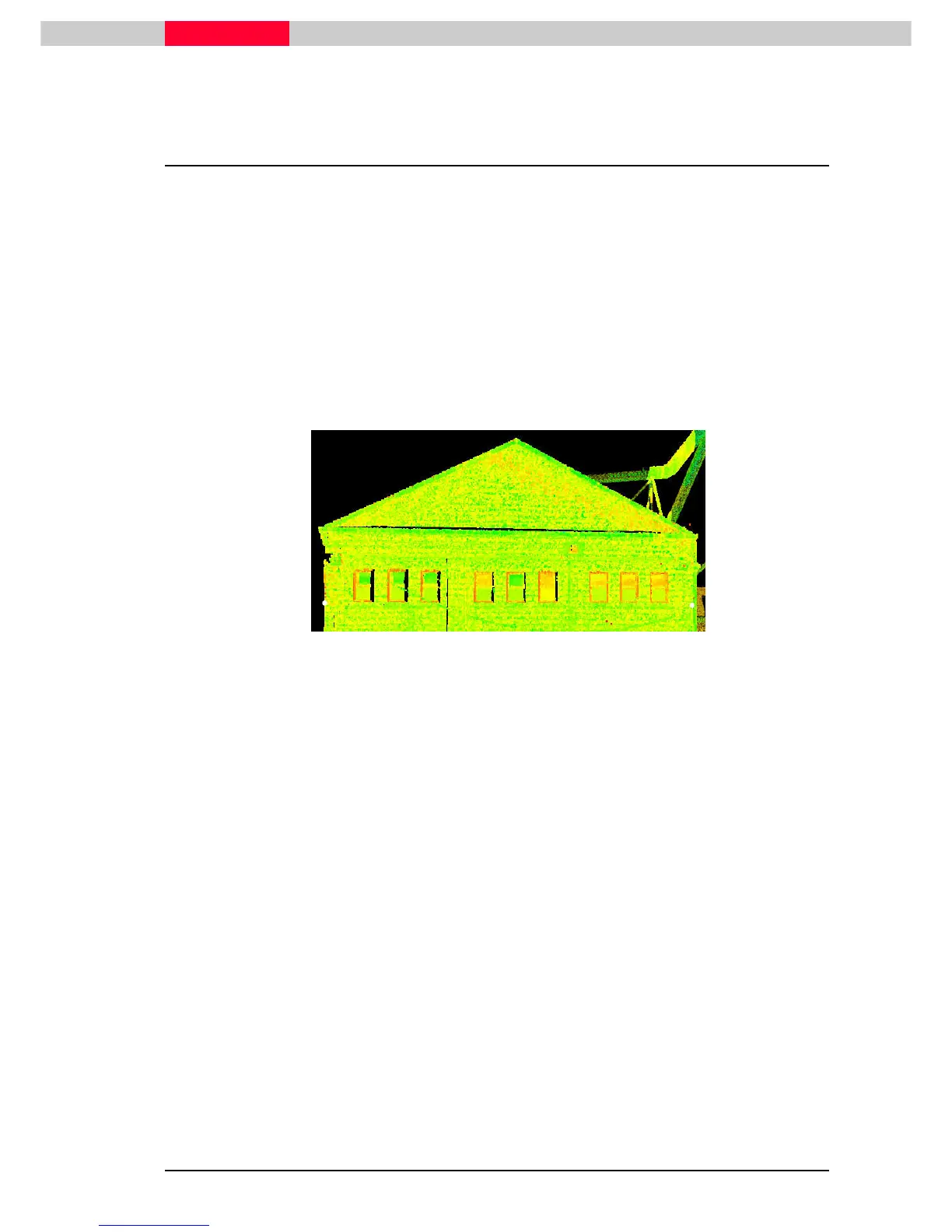
In this lesson you will set the User Coordinate System aligned to a facade, by placing the origin
on the facade and have the coordinate system rotated to align the y-axis with the front of this
building. View alignment can then be done straight onto the façade and possible line work
extraction can be created easier.
Make sure the coordinate system axes are displayed
•
View | Coordinate System | Show Coordinate System Axes
View | Coordinate System | Show Coordinate System AxesView | Coordinate System | Show Coordinate System Axes
View | Coordinate System | Show Coordinate System Axes
•
Pick 2 p
Pick 2 pPick 2 p
Pick 2 points
ointsoints
oints representing the front of the façade. One on the left, the other on the right.
The height is not important. (Figure 29)
Figure 29
•
Go to View | Coordinate System | Set from Points...
View | Coordinate System | Set from Points...View | Coordinate System | Set from Points...
View | Coordinate System | Set from Points...
This command opens a dialog which is used to set any or all of the following: a reference point,
the azimuth (horizontal orientation), and the angle.
Depending on the number of pick points, more or less options are enabled.



 To Next Page