Optimize a Group
So far only pair-wise alignments have been executed. But a complete registration involves the
adjustments of all constraints to achieve a best-fit of all ScanWorlds involved in the network.
(least square adjustment).
One benefit of working with Groups is the ability to optimize the relation between members of a
group only, ignoring any additional Stations also loaded into the Registration. We will use this
function to align all ScanWorlds in Group1.
•
In the Registration Window open the ScanWorlds´ Constraints tab
•
Select Group 1 if not already selected
•
Execute Registration | Optimize ScanWorld Groups from the Registration
window menu
Note the cloud alignment window coming up again now optimizing all Cloud
Constraints created via Auto-align during import. These previously had no
Error
Vector
displayed but simply stated not aligned (Figure 37)
.
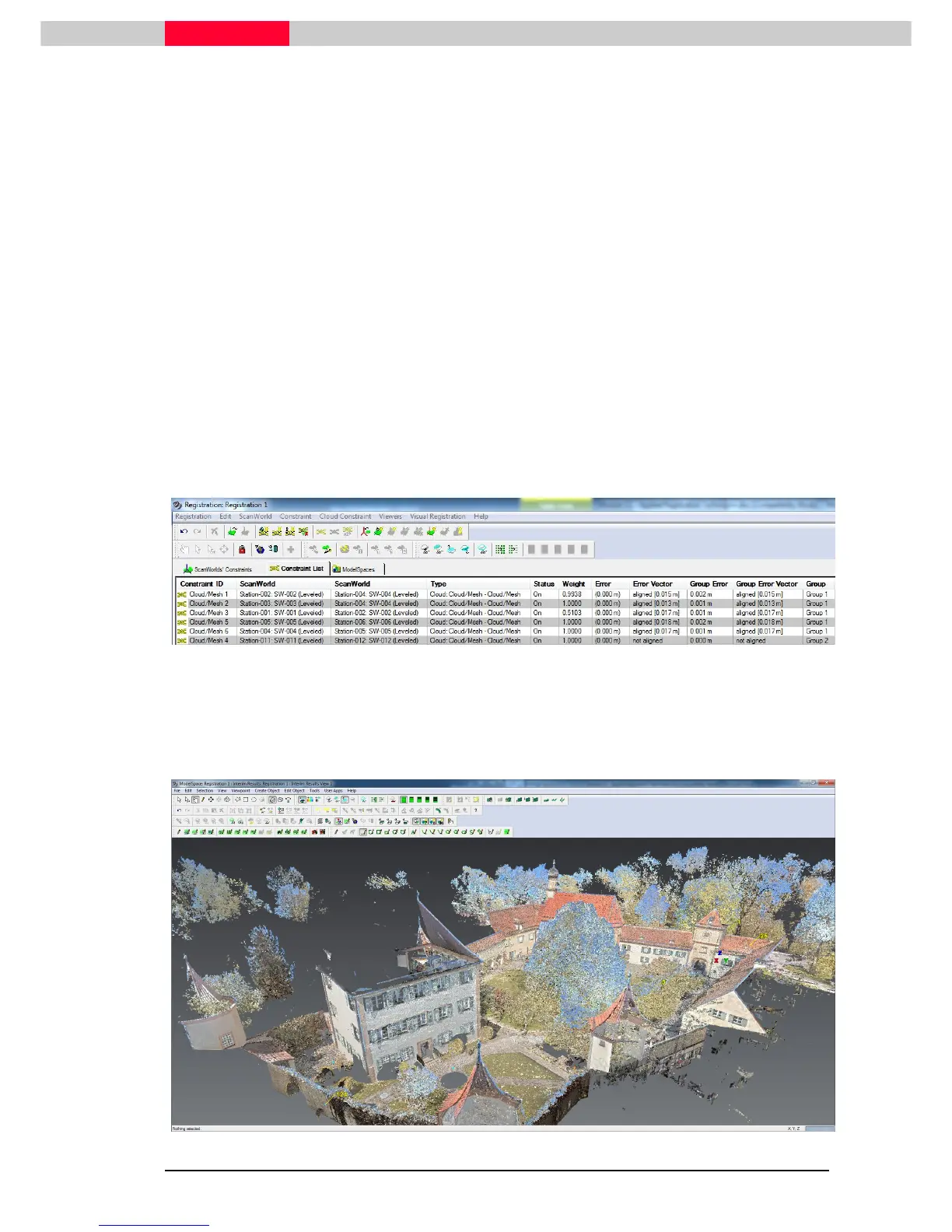
After optimization all
cloud constraints belonging to
Group1
are displaying an
Error Vector
and in
addition a
Group Error Vector
(Figure 38).
Cloud/Mesh 4
, which belongs to
Group 2
was not involved in the optimize
process, hence no errors are calculated for this constraint.
Figure 38
Now, this Group can be visually inspected in a new ModelSpace:
•
Go to ScanWorlds´ Constraints tab
•
Select Group 1
•
Execute Registration | View Interim Results…
Figure 39



 To Next Page