6 - 14 Module 4.3 – Cyclone TruSpace Organization/Visualization Pointcloud
2 Tools and Functions within TruSpace
The following chapter will explain some additional functions of a TruSpace.
2.1 Change TruSpace range filter
From within a TruSpace a user can jump to another TruSpace. You can set by range which
TruSpace icons are visible.
1) Open a TruSpace from a Keyplan with at least two neighbour ScanWorlds.
2) Rotate view until you see the icon for the other TruSpace.
3) Double click on the icon to jump to that TruSpace.
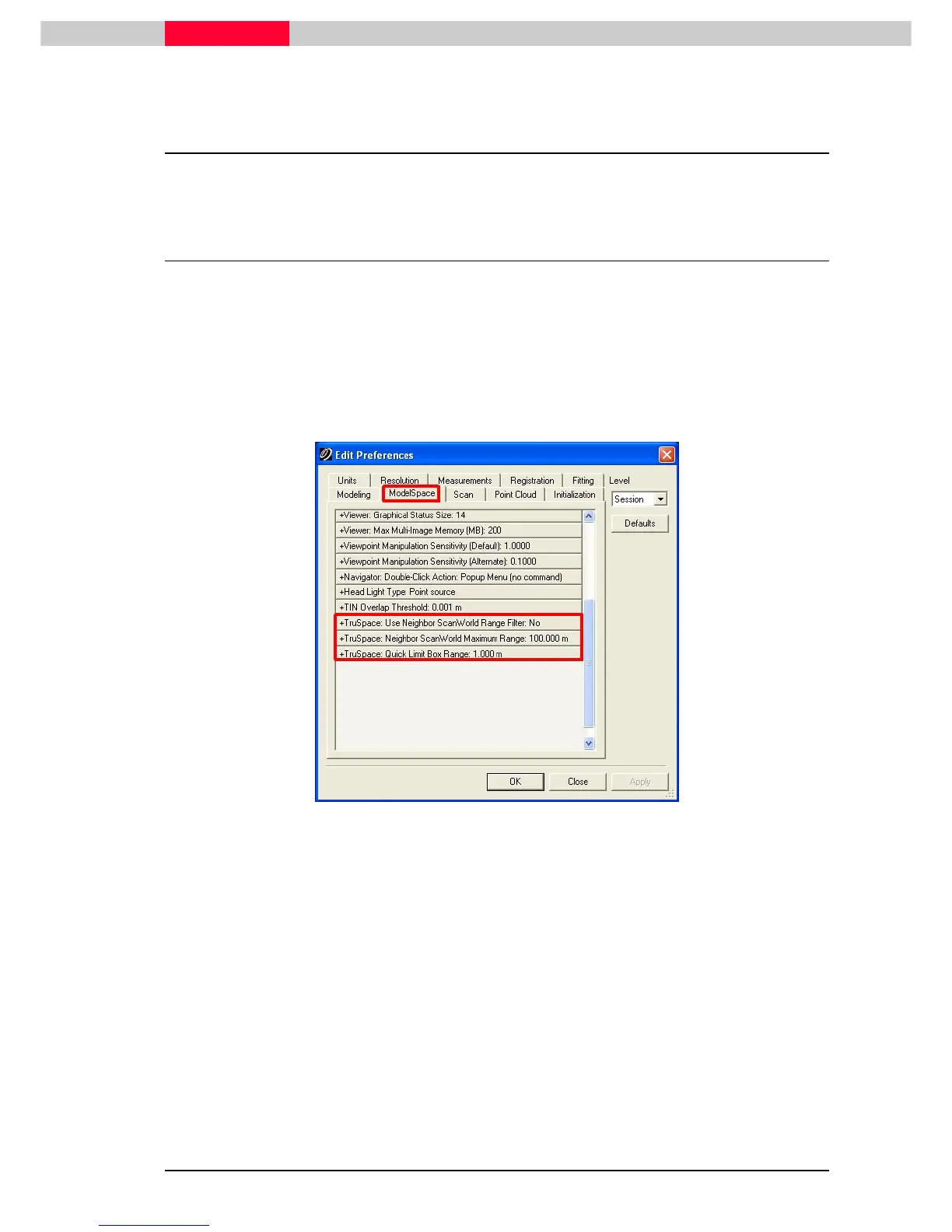
4) Go to Edit | Preferences | ModelSpace
Edit | Preferences | ModelSpaceEdit | Preferences | ModelSpace
Edit | Preferences | ModelSpace tab.
Figure 6
5) Under TruSpace: Use Neighboring ScanWorld Range Filter:
TruSpace: Use Neighboring ScanWorld Range Filter:TruSpace: Use Neighboring ScanWorld Range Filter:
TruSpace: Use Neighboring ScanWorld Range Filter: Set to Yes
YesYes
Yes
6) Under TruSpace: Neighbor ScanWorld Maximum Range:
TruSpace: Neighbor ScanWorld Maximum Range:TruSpace: Neighbor ScanWorld Maximum Range:
TruSpace: Neighbor ScanWorld Maximum Range: set to a distance you prefer
7) Reopen TruSpace to view changes



 To Next Page