Quickslice
A simple visual quality check can be done with the Quick Slice function. This will cut out a
horizontal slice through the point cloud and hence allow for better viewing the overlap of point
clouds on features like walls of a building or house edges.
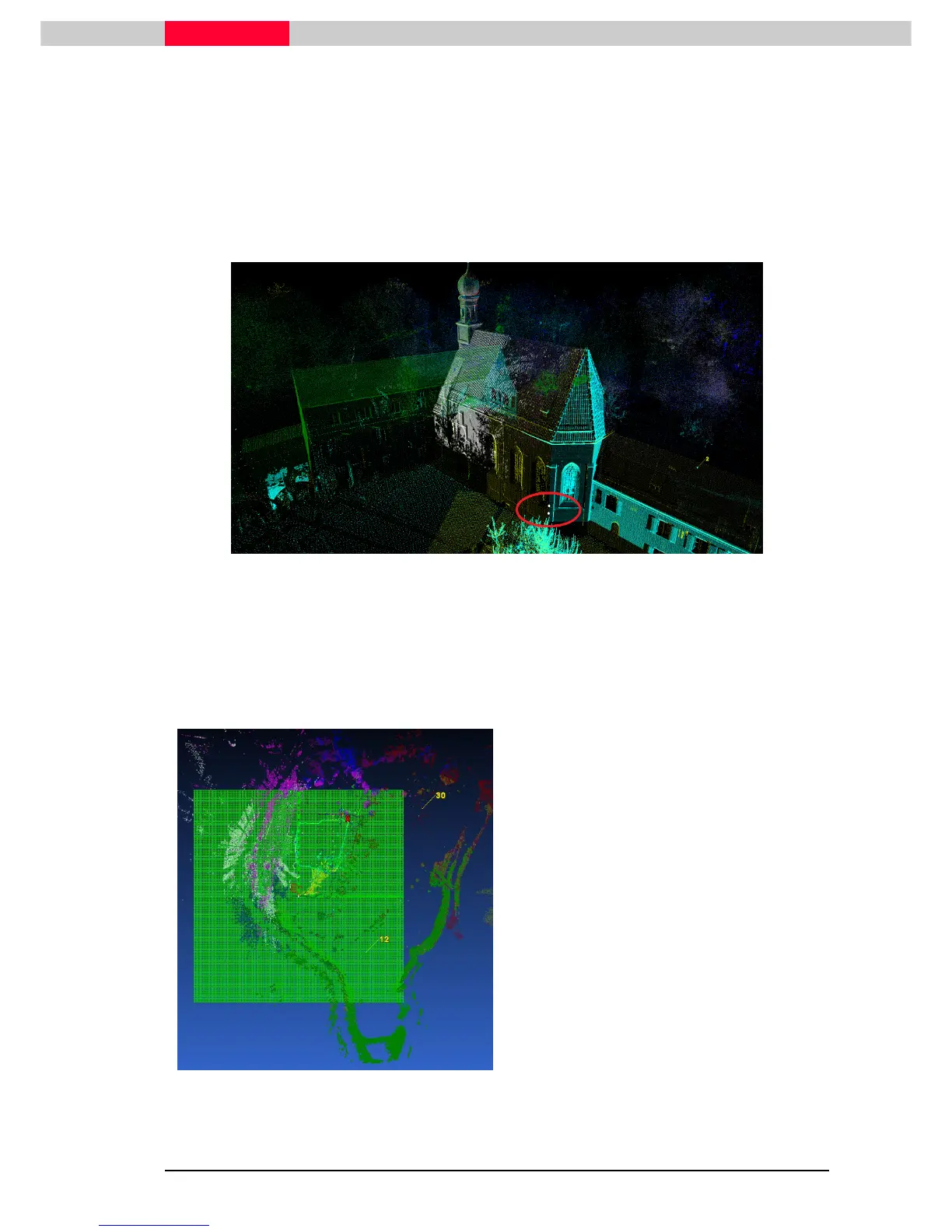
We will use this tool to create a horizontal slice through the buildings.
•
Navigate to the Church in the courtyard and pick two points on the wall, about
1m apart at about 1.5m height
Figure 48
•
Go to
Tools | Quickslice
The slice is created, the ModelSpaceView will change to a top view and a reference plane is
activated and positioned on the selected location.
If only one point is picked, the Quick Slice tool will automatically set a Reference
Plane (XY) at the pick point and create a slice 0.5 m above and below this plane.
By picking two points the user defines the thickness of the slice.
Figure 49
•
Visually switch off the Reference Plane via
Tools | Reference Plane | Show Active
Plane…
•
Uncheck
Show Active Plane



 To Next Page