33 - 34
6.8 Managing Cutplanes
Only one Cutplane/ Half-Space is visible or active at a time. By default each Cutplane will
overwrite the previous. But it is possible to save several Cutplanes.
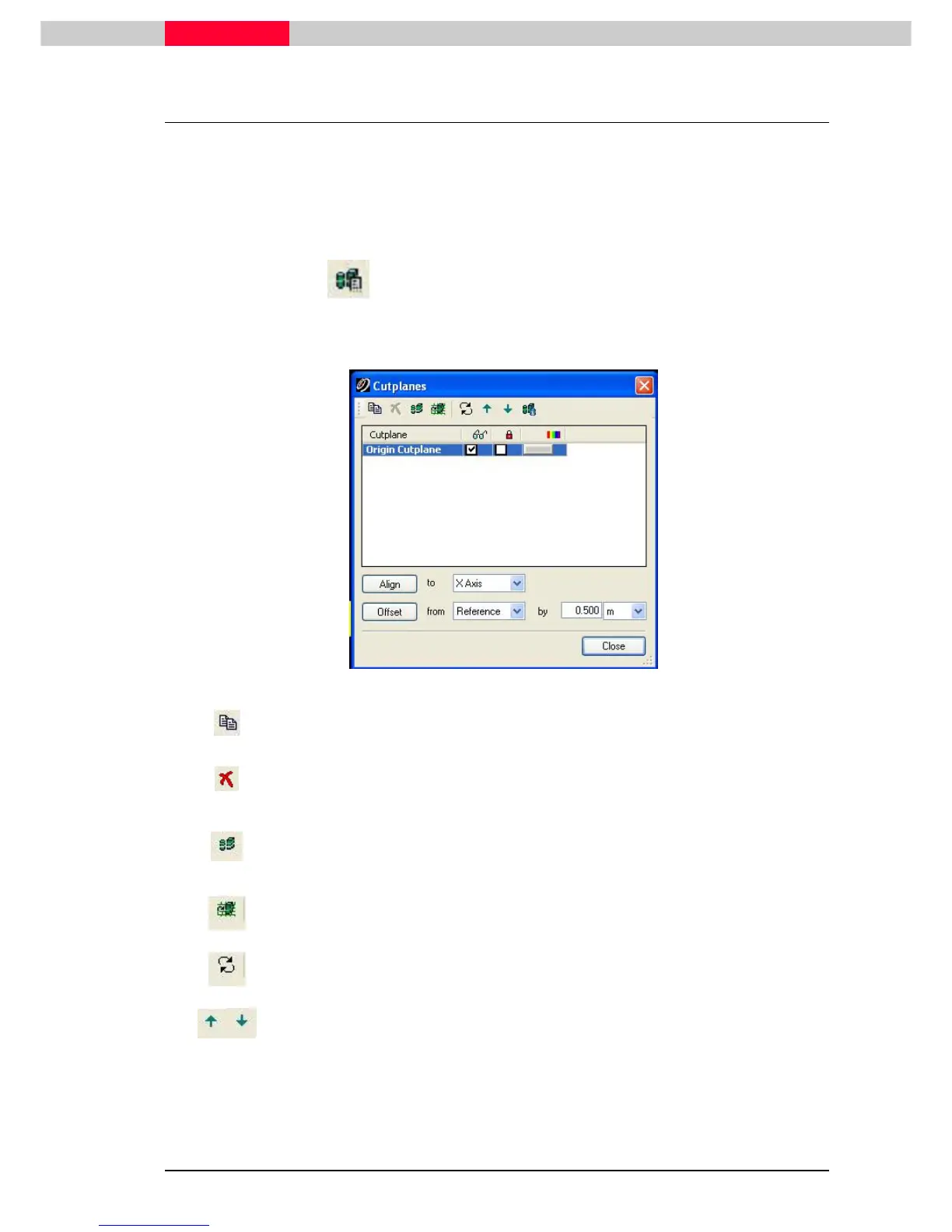
Cutplanes can be controlled from the Add/Edit Cutplanes dialog box.
•
Tools | Cutplane |
Tools | Cutplane |Tools | Cutplane |
Tools | Cutplane | Add/Edit Cutplanes
Add/Edit CutplanesAdd/Edit Cutplanes
Add/Edit Cutplanes.
..
.
Or use the toolbar icon . This command displays a dialog that is used to edit Cutplanes
and Cutplane attributes.
•
Click
ClickClick
Click on the Origin Cutplane to activate the buttons.
Figure 49
Copy Cutplane. This copies the selected Cutplane in the Manager dialog box. It
then can be renamed, moved, applied to different objects, etc.
Delete Cutplane. This deletes the selected Cutplane.
It is not possible to delete the active Cutplane
Set Active Cutplane. This activates the selected Cutplane in the ModelSpaceView
Create Reference Plane. This creates a new Reference Plane from the selected
Cutplane.
Flip Cutplane Normal. This reverses the "up" or "top" side of the selected
Cutplane. It reverses the "move forward" and "move backward" directions.
Rearrange Higher/Lower . This moves the selected Cutplane up/down in the
Cutplane dialog box.



 To Next Page