Data Extraction
2.3 Region Grow
Region Grow commands can be used to fit objects to a point cloud without having to first sub-
select or segment the points. All that is required is a pick point on the cloud. However, in the
following example, we will make a general point cloud sub-selection to limit the region grow.
The following example follows a typical process for region growing a patch. We will work again in
the ModelSpace previously created in section 1.2 called East Facade.
Open the ModelSpace named East Facade.
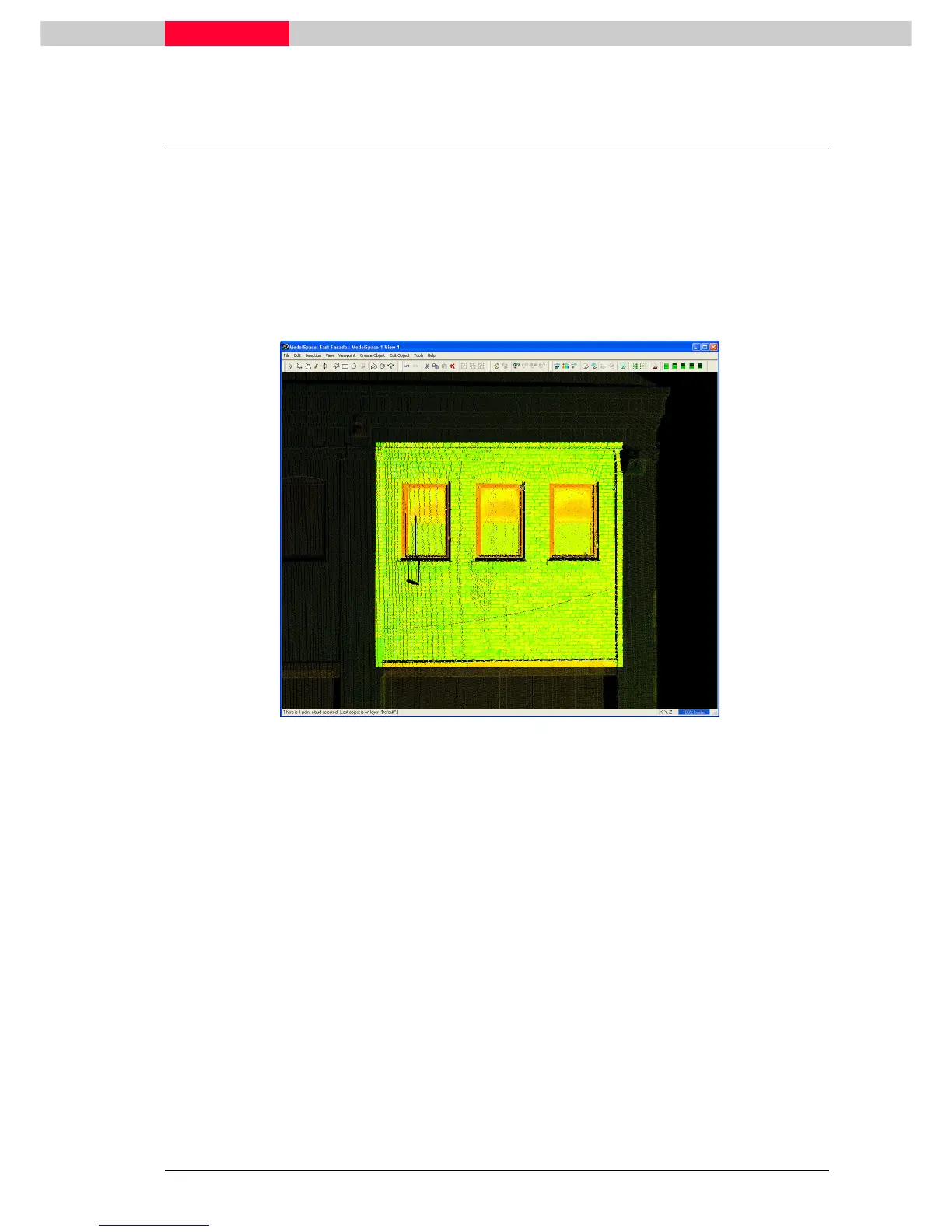
Make a sub-selection encompassing a region as shown in Figure 12.
Figure 12
3) In Multi-Pick mode, pick a point in the centre of the area that represents the wall surface we
wish to model.
4) Click Create Object | Region Grow | Patch…
Create Object | Region Grow | Patch…Create Object | Region Grow | Patch…
Create Object | Region Grow | Patch…
5) The Region Grow Patch dialog will open (Figure 13) and the candidate patch points will draw
white (Figure 14).



 To Next Page