5.2 Visual Quality Check
The errors in the
Constraints List
tab from the registration window and the
Registration
Diagnostics
give a statistical overview of the registration quality of the project. However, it is
recommended to also do a visual quality check of the point clouds once registered.
There are several possible ways which can help us to have a better visual overview to do a
quality check.
Apply different colors to ScanWorlds
One of them is to color every ScanWorld point cloud in a single color to quickly identify
overlapping areas using the ScanWorld Explorer.
Open the ModelSpace View
•
Go to
Tools | Scanner | ScanWorld Explorer…
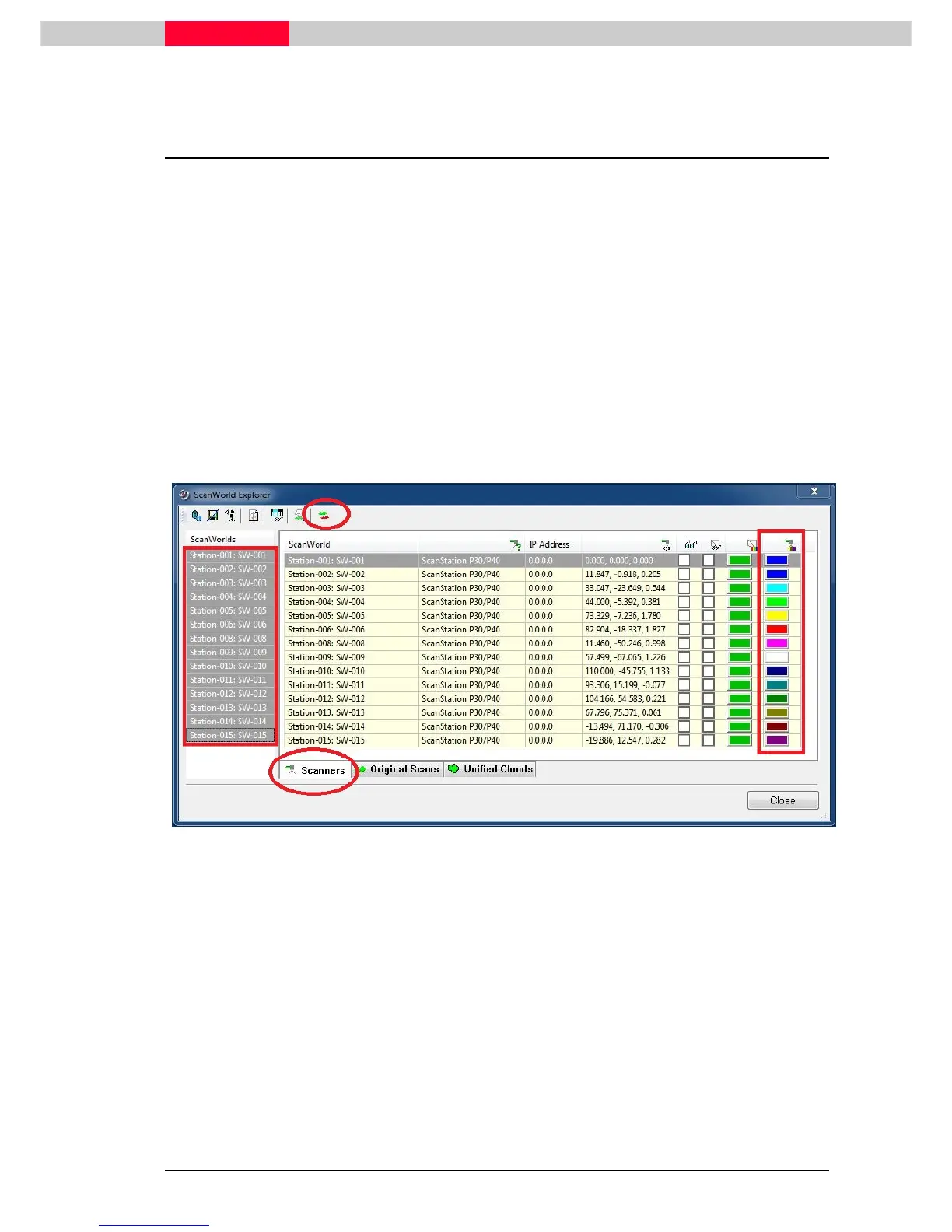
Figure 47
In the
ScanWorld Explorer
(see Figure 47):
•
Go to Scanners tab
•
Select all ScanWorlds on the left side (shift + left mouse click)
•
Press the Apply ScanWorld Colors to Scans button from the menu
All Scans are now displayed in a single color as indicated in the ScanWorld Color column. You can
also manually change the color by clicking into the color palette.
This command in combination with the Quickslice tool is a powerful tool to quickly review a point
cloud for large registrations mistakes.



 To Next Page