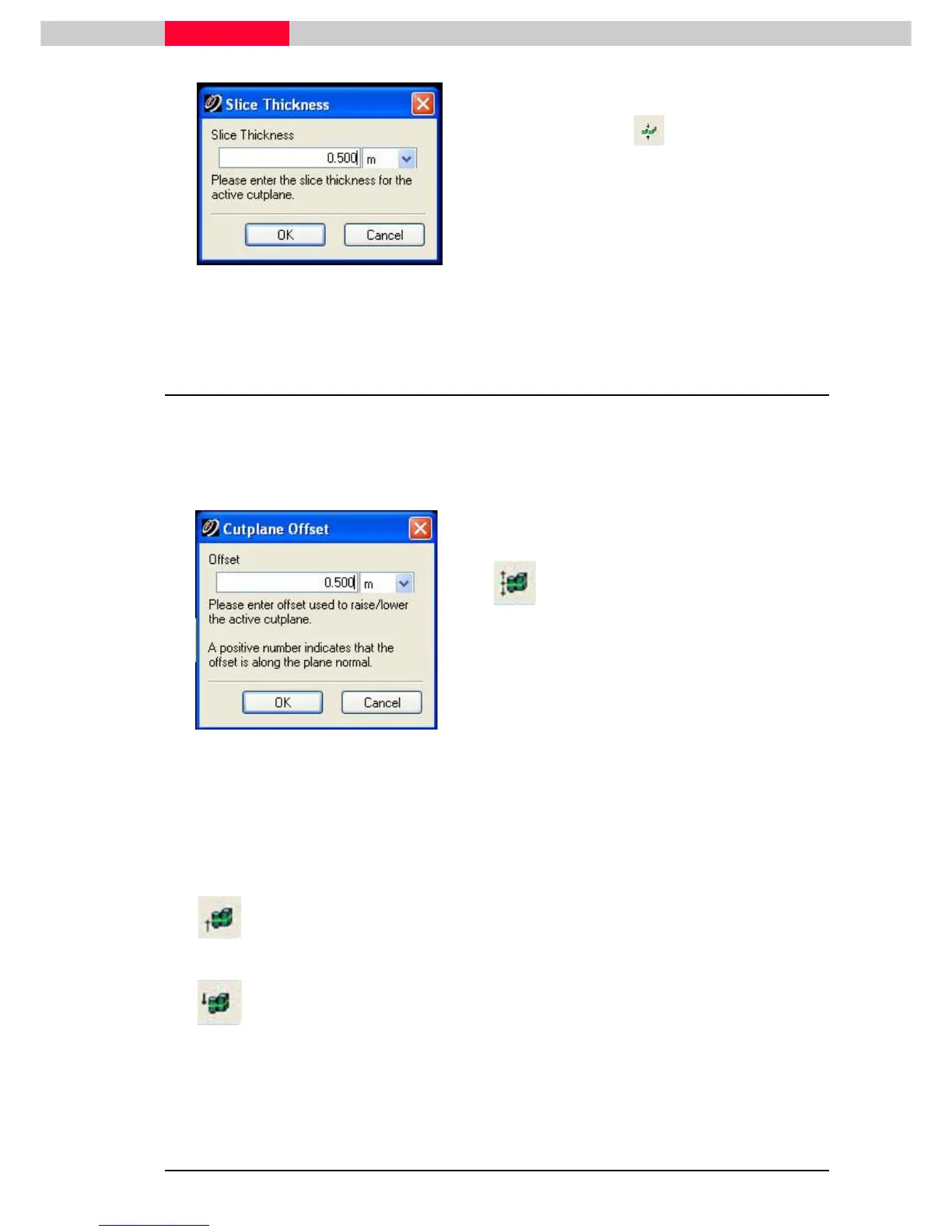
use the toolbar icon
The Set Slice Thickness dialog appears.
•
In the Slice Thickness field, enter a value
enter a valueenter a value
enter a value.
•
Click OK
OKOK
OK. The slice thickness is adjusted.
6.4 Raise or Lower an active Cutplane
A Cutplane can be raised or lowered by user-defined increments using the Raise Active Cutplane
and Lower Active Cutplane commands. The increment by which the active Cutplane is raised and
lowered using these commands is set in the Cutplane Offset dialog. This offset is used each time
you raise or lower the Cutplane.
Figure 47
•
Define the step interval via
Select Tools |
Select Tools | Select Tools |
Select Tools |
Cutplane | Set Offset...
Cutplane | Set Offset...Cutplane | Set Offset...
Cutplane | Set Offset... or use the toolbar icon
The Cutplane Offset dialog appears.
•
In the Offset field, en
enen
enter a value
ter a valueter a value
ter a value of 0.5m for the
distance by which the Raise Active Cutplane or
Lower Active Cutplane commands raise or lower
the active Cutplane. A positive value indicates
that the offset is in the same direction as the
Cutplane’s normal vector.
•
Click OK
OKOK
OK. The offset is set.
•
Now move the Cutplane by the defined increment via
Tools | Cutplane | Lower Active
Tools | Cutplane | Lower Active Tools | Cutplane | Lower Active
Tools | Cutplane | Lower Active
Cutplane
CutplaneCutplane
Cutplane. Alterantively
use the toolbar icons.
Raise Cutplane
This command raises the Cutplane by the amount specified in the Set Offset
command.
Lower Cutplane
This command lowers the Cutplane by the amount specified in the Cutplanes
dialog offset parameter
When manipulating a Cutplane repeatedly, it can be more efficient to assign
hotkeys (see Customize Hotkeys) to the Raise Active Cutplane and Lower Active
Cutplane commands or use the Add/Edit Cutplanes dialog box.



 To Next Page