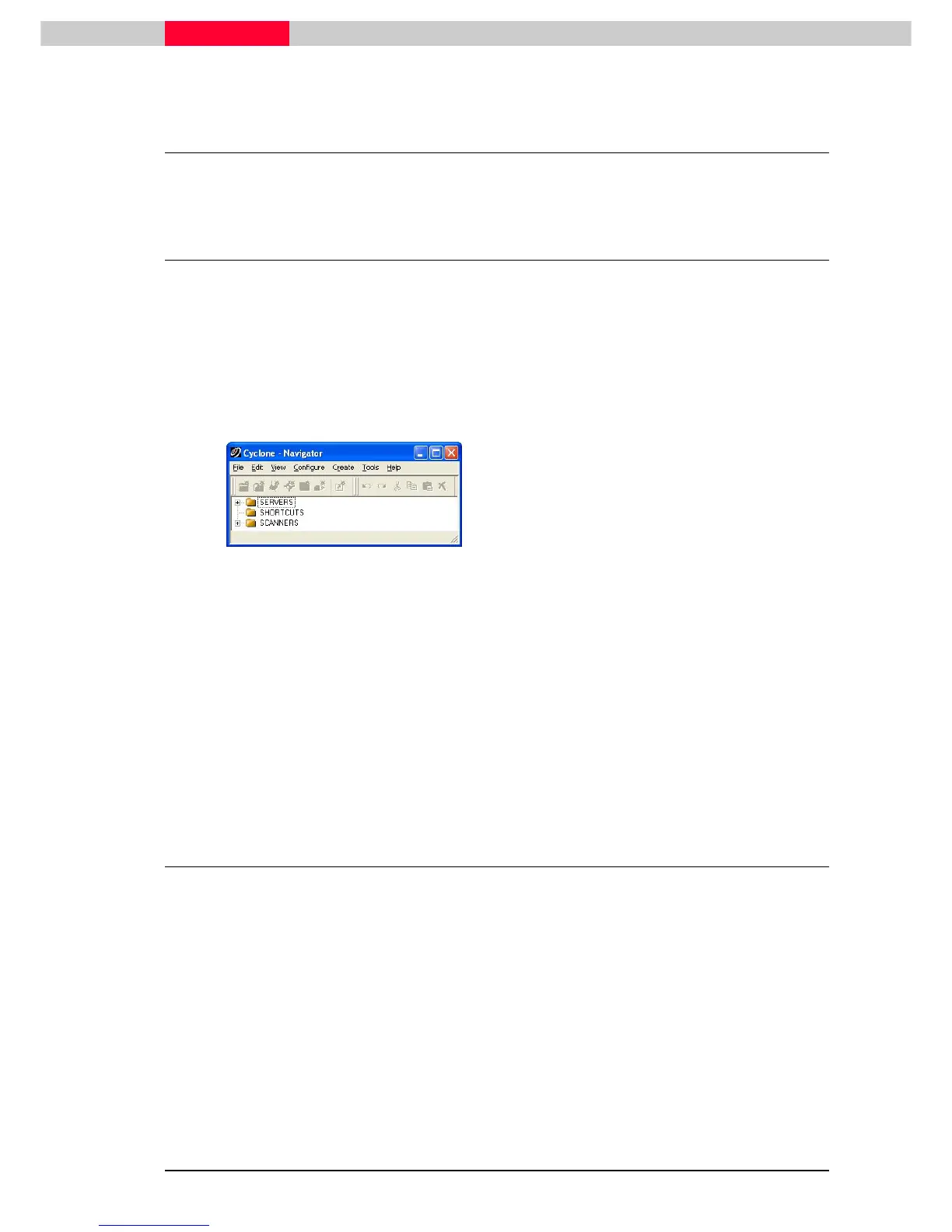
1 Cyclone Navigator Window
Using the workflow functions of Cyclone.
1.1 Start Cyclone
Double
DoubleDouble
Double-
--
-click
clickclick
click on the Cyclone shortcut on your Desktop or the Cyclone.exe file in the Cyclone
Programs directory.
When you launch the Cyclone application, the first window appearing is the
Cyclone Navigator
window. The
Navigator
is the main window of the application and serves as a basis for operating
all scanners and for navigating databases on your local computer and remote servers.
The Navigator Window
Figure 1
The
Navigator
organize all of your data. It is also used to
start or exit the Cyclone application.
The
Navigator
window is used to create objects such as:
•
Projects
•
ModelSpaces and ModelSpace Views
•
ScanWorlds
•
Registrations
•
KeyPlans
1.2 Edit Preferences
While working in Cyclone, the user has the ability to adjust various parameters in the
Edit
Preferences
dialog. From any Cyclone window, click Edit | Preferences to open this dialog (
Figure
2
). Preferences can be changed to offer a customized working environment or to specify a
desired output. For example, one might want to work in feet rather than meters or change the
way the point clouds are displayed.
While there are many adjustable preferences in Cyclone, this lesson covers those which might be
changed at the initial use of the system. For more information on any of the preferences, please
refer to Cyclone’s online help.



 To Next Page