9 - 12
If you have pre-defined ASCII file formats available, select the desired format from the Format
pull-down list and click Import
ImportImport
Import.
Predefined formats can also be imported / exported as *.afr file.
Select either Fixed Width or Delimited display as appropriate.
•
If you select Delimited, you are offered a variety of delimiter options. Select
the delimiters used in your file. A delimiter separates one column of data from
the next.
•
If you select Fixed Width, an extra row of numbers appears beneath the
column headers (e.g., 1-10 11-16 17-24), which represents the extents of
each column. Click a pair of numbers to set the left-most border of that
column (note that the first column is adjusted by selecting the second column
and editing the beginning number).
The Number of columns field is populated automatically, based on your display choices in steps
before. You can change this value as necessary.
Indicate any initial rows (e.g., headers) to be skipped during the import by entering a number in
the # Rows to skip field.
Note: The bottom half of the screen allows you to see the results of your
settings/selections immediately. Columns can be resized as needed, and the
dialog box can be widened as necessary to view additional columns.
When you are satisfied with the settings, click the
Save as
button next to the Format field and
enter a name for this ASCII file format. This makes the format available for future use.
To complete the import process, click the
Import
button.
Import an ASCII file as geo reference file
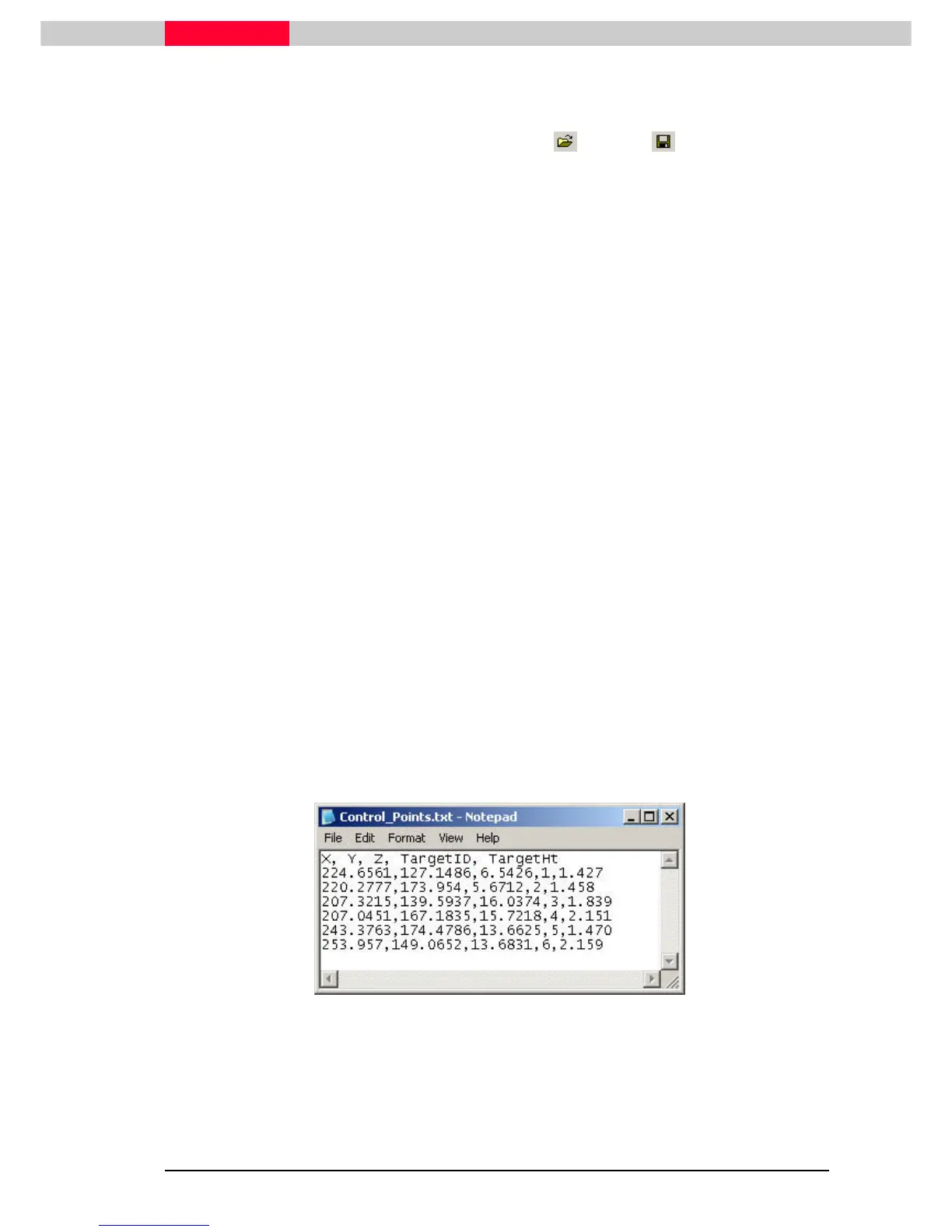
A file which contains coordinates with targeted can be imported with the ID information and be
used as a geo reference file.
Choose the import from e.g. the mouse sub menu (right click) and select the text file. Again the
Import dialogue (Figure 9) is coming up. Select a predefined format or set the columns to the
correct value. Most text files will have a header where you can find the column information.
Figure 10



 To Next Page