RGB values
•
Type in the values for white (1, 1, 1)
•
Click OK
OKOK
OK
•
Click again the highlighted Layer
Intersection
It is also possible to select a
color by first changing the
Saturation slider and then
clicking in the color field
next to the slider bar.
Figure 16
•
Check the box „use color“ (3rd box in
the row)
The lines of the intersection are displayed
in the selected color.
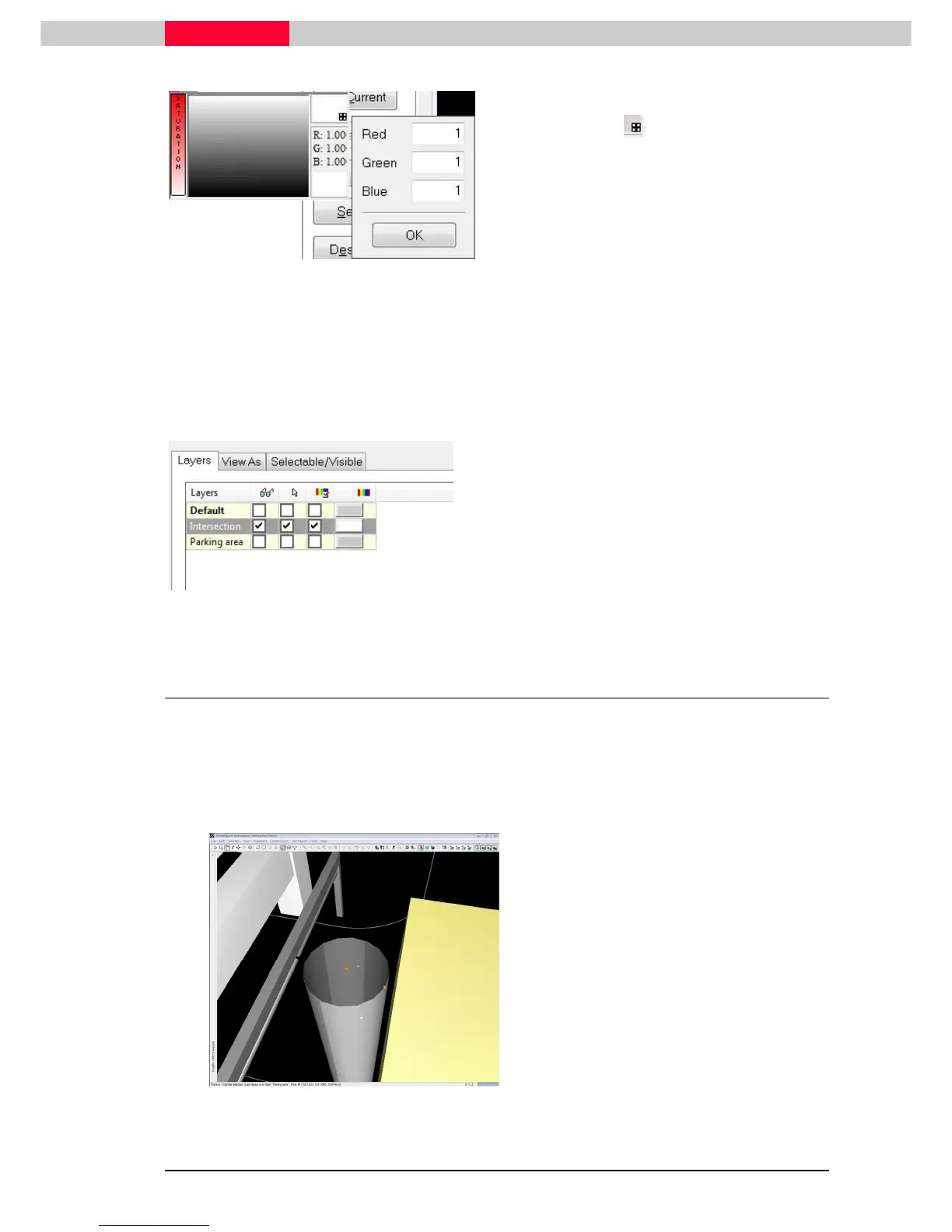
2.3 View As
For each object or object group the level of detail, LOD, can be set. The lower the LOD is set, the
higher the performance of your system will be while navigating through the point cloud.
Changing the level of detail can be done in the
View Properties dialog.
The View As tab can be
used to set various viewing and rendering properties
Figure 17
•
Switch on
Switch on Switch on
Switch on the visibility of the Parking
area again
•
Zoom
ZoomZoom
Zoom into the modelled lamp



 To Next Page