4 - 14 Module 4.3 – Cyclone TruSpace Organization/Visualization Pointcloud
Coordinate System
The TruSpace will adopt the coordinate system of the ScanWorld where it was created from and
also if opened from a KeyPlan it will adopt the coordinate system from where the KeyPlan was
created.
•
If a TruSpace is opened from a ScanWorld, outside of a registration, then the coordinate
system will be the original or default coordinate system (typically the scanners original
coordinate system)
•
If a TruSpace is opened from a KeyPlan and the KeyPlan is made for a registered ScanWorld
then the TruSpace will have the coordinate system from the registration.
Note: It is very important to remember which coordinate system you are in when
you use the synchronizing function from ModelSpace to TruSpace;
The coordinate systems have to match for the following tools to work properly:
•
Quick Limit Box
•
Synchronizing view from TruSpace to ModelSpace
•
Copying modeled objects from a ModelSpace to a TruSpace
•
CloudWorx synchronization
1.2 Viewing a TruSpace
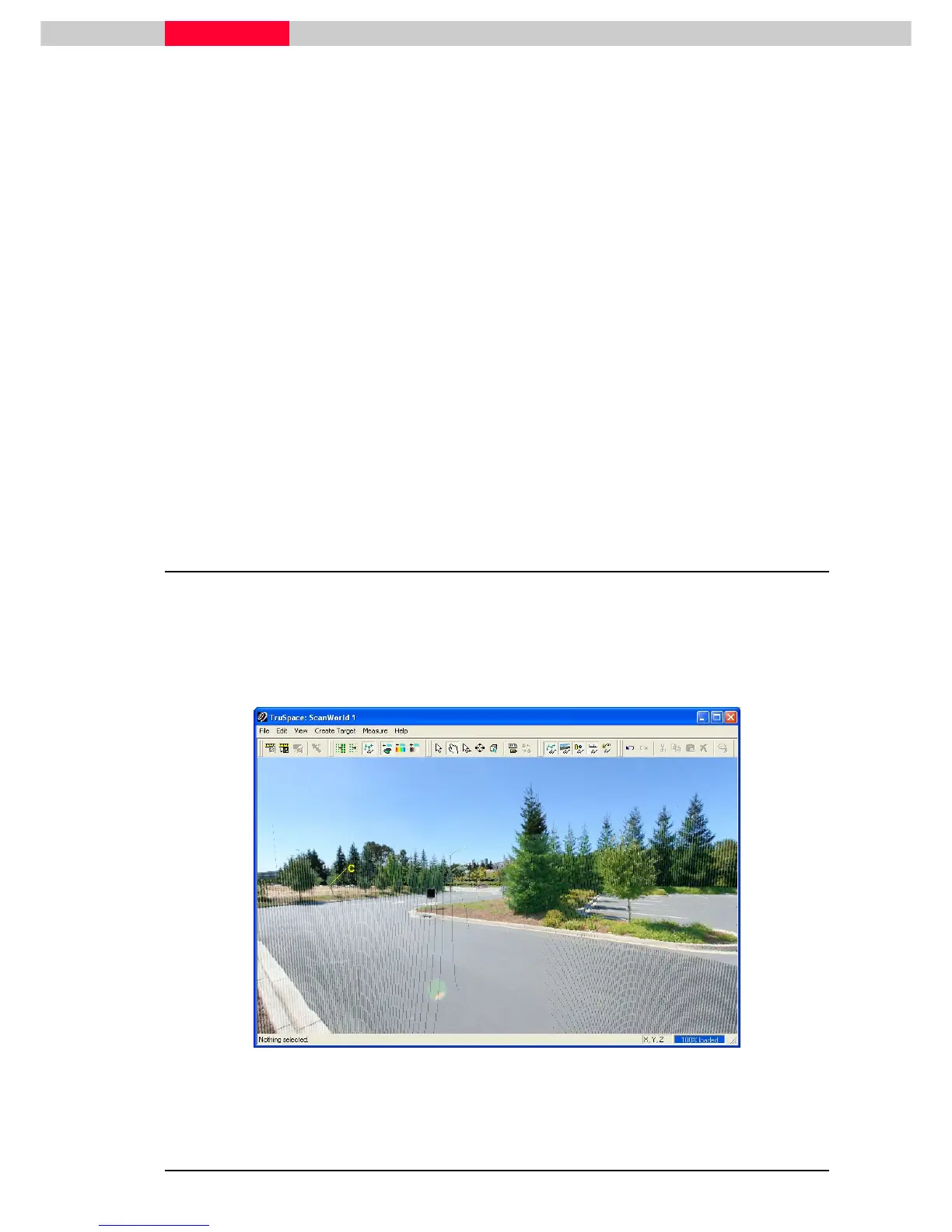
TruSpace uses a new view mode called Panoramic. This mode is exactly like the view mode in
ScanControl where the view is constrained to the scanner location. It allows even novice user to
easily view, rotate and pan without getting “lost in Space” or lost in the point cloud.
Go to menu View | Show Images
View | Show ImagesView | Show Images
View | Show Images to turn on the multi-image or texture map (if available). Figure 3
shows a TruSpace with the image turned on and the point cloud is showing Colors from Scanner.
Figure 3



 To Next Page