3 - 32
Multi Pick Mode
1) Multi-Pick mode allows the user to pick multiple points/objects in a scene without having to
press Shift.
2) In Multi-Pick mode, pick the white dotted point again to deselect this single point.
Watch the status bar at the bottom to check your selection (number of objects
selected, layers, coordinates, or distances).
Figure 2
To model features within a point cloud, we need to select those points that represent the
features we are trying to model. We are able to do this by means of point cloud sub-selection.
1.2 Point Cloud Sub-Selection
The point cloud sub-selection commands are useful for isolating and modelling points in the
scene that may or may not be of the same scan. The point cloud sub-selection tools work in
conjunction with the
•
polygonal fence mode
•
rectangular fence mode
•
circular fence mode
In the following exercise we will separate points that represent a building facade from the whole
registered set. In doing so, we will also create a separate ModelSpace View containing only the
points representing the facade.
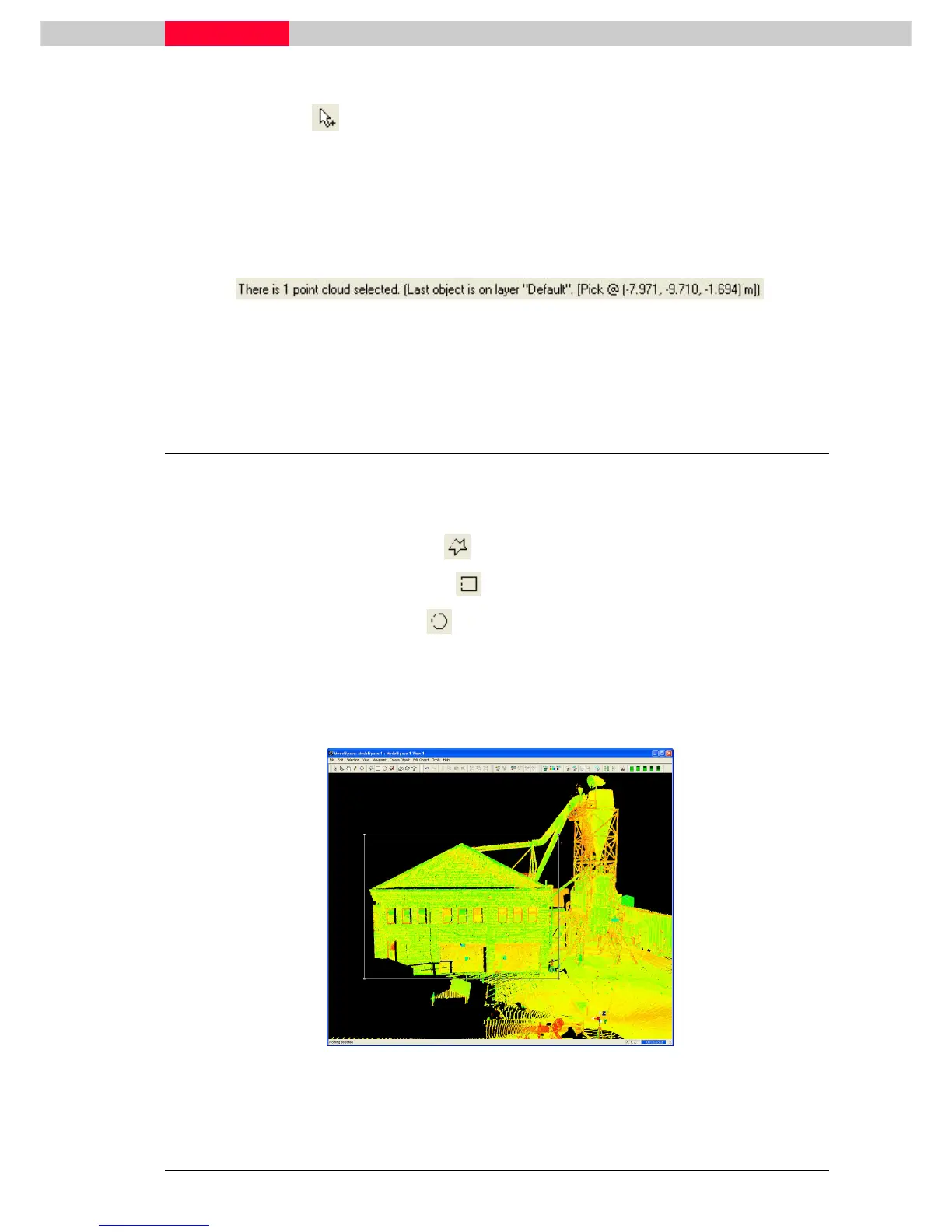
1) With a viewpoint similar to Figure 3, draw a fence using the rectangular fence mode.
Figure 3
2) Click Selection | Point Clo
Selection | Point CloSelection | Point Clo
Selection | Point Cloud Sub
ud Subud Sub
ud Sub-
--
-Selection | Add Inside Fence
Selection | Add Inside FenceSelection | Add Inside Fence
Selection | Add Inside Fence.



 To Next Page