Data Extraction
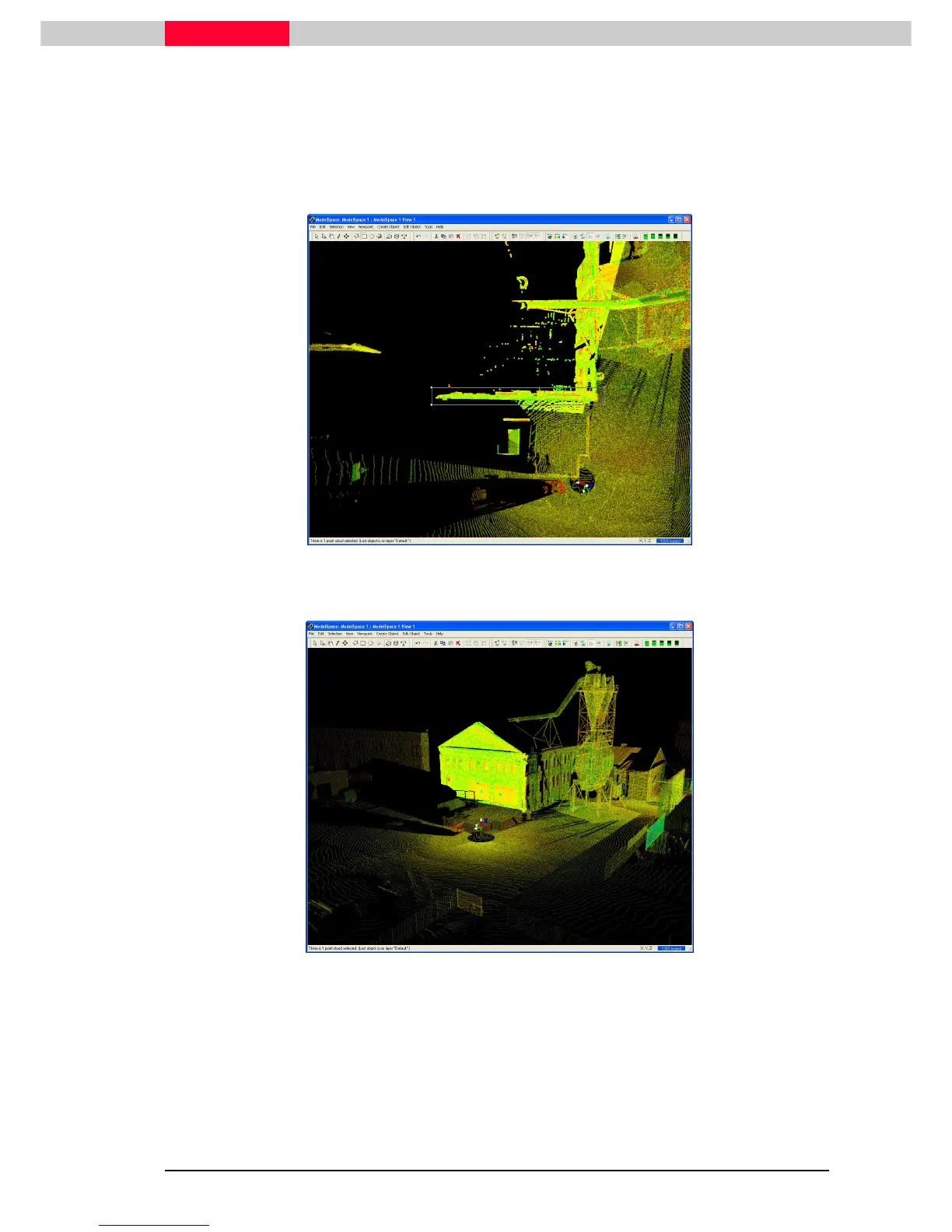
All point clouds within the fence are selected and drawn bright and all outside remain deselected
and drawn dim. Note the status bar reads that one point cloud is selected.
3) Now, rotate the viewpoint to a top view. This top view will be advantageous as it will reveal
points that are now sub-selected but hard to see from the previous viewpoint.
4) Create a new fence around the points we want to remain selected (see Figure 4).
Figure 4
5) This time click Selection | Point Cloud Sub
Selection | Point Cloud SubSelection | Point Cloud Sub
Selection | Point Cloud Sub-
--
-Selection | Remove Outside Fence
Selection | Remove Outside FenceSelection | Remove Outside Fence
Selection | Remove Outside Fence.
Figure 5
Now we have the points that represent the east facing wall sub-selected (see Figure 5). This is a
temporary selection in that pressing ESC or the spacebar to deselect will clear the selection. A
useful method to save a selection of points such as this and to better visualize the data for
modelling is to launch the selection to its own ModelSpace.
6) Click File | Launch | Copy Selection To New ModelSpace
File | Launch | Copy Selection To New ModelSpaceFile | Launch | Copy Selection To New ModelSpace
File | Launch | Copy Selection To New ModelSpace.



 To Next Page