Create a Project
Every scan must be stored in a project. If no user defined project is created the default one is
used. The default project cannot be deleted and is always available.
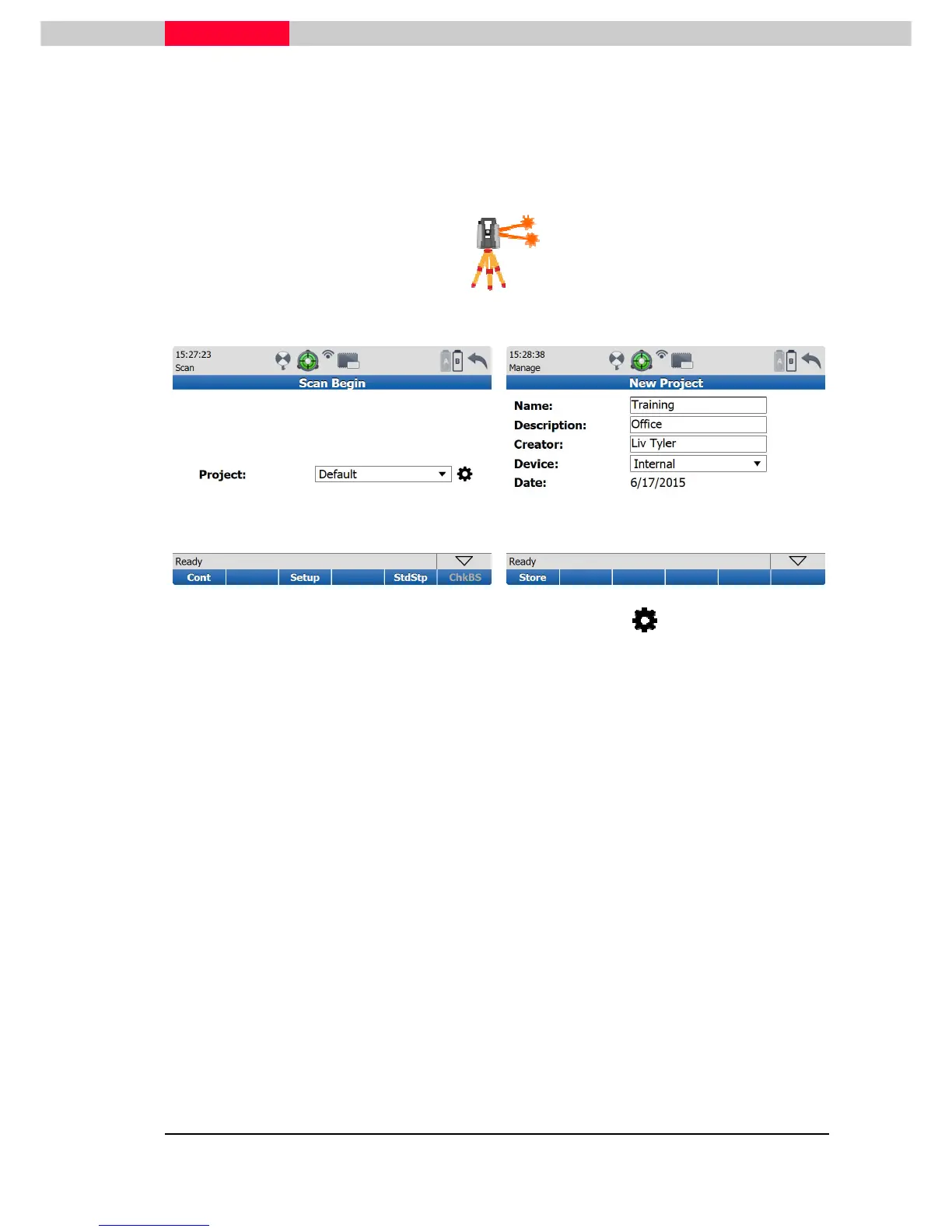
To create a new project, go to “Scanning” in the main menu:
Figure 24
Figure 25
From there choose an existing project or create a new one pressing
and then the
New
soft key.
Enter the Name, Description and Creator information into the empty text boxes in the New
Project menu by using the onboard keyboard. Make sure to use only characters A-Z and numbers
0-9 and ‘-‘ without special characters. Otherwise a message will pop up in the information line,
saying that the given name is invalid.
When done, pick the Store button. The newly created project is shown in the project’s list. Then
hit the Cont button and the display is switching back to the Scan Begin Menu showing the newly
named project. With pressing the softbutton Cont again, you will enter the Scan Parameters
mask.
If you want to change the project just pick into the text box and a drop down list comes. Choose
a project and press Cont to continue in this project with the Scan Parameters window.
•
Pressing Cont will write the subsequent scanned data in the current Station.
•
Pressing StdStp a new Station object will be created and the following scanned data will be
stored in this station.
From the following Scan Parameters menu, a single scan, image, or scan & image can be started.
Targets can also be acquired from this menu.



 To Next Page