3 - 10
1 Create a Keyplan
The KeyPlan displays the locations and orientations of scanners relative to a background image
that provides context. The background image will typically be a 2D-drawing or model. From the
KeyPlan, convenient navigation to individual scanner positions is possible.
A KeyPlan can be created in the Cyclone Navigator at the top level of the database, any project
folder and from a ModelSpace.
1.1 Create a Keyplan from a database / project folder
Use the Database
Bishop Drive - San Ramon.imp
provided to complete the exercise.
Right click the blue cylinder database, any project folder or a user created folder and go to
Create | Keyplan
Create | KeyplanCreate | Keyplan
Create | Keyplan. Otherwise highlight the database or folder and go to menu bar
Create | Keyplan
Create | KeyplanCreate | Keyplan
Create | Keyplan.
In the upcoming dialog choose the preferred ScanWorld or Registration and click ok.
The next dialog will ask you to select the background. You can select an image (an image of a
map from AutoCAD, Microstation or any CAD program or an arbitrary image e.g. from Google
Earth) by selecting Image File and clicking the browse button. You can also pick single solid
colour by selecting Single Colour.
Browse for the image, click O
OO
Open
penpen
pen, and then Create
CreateCreate
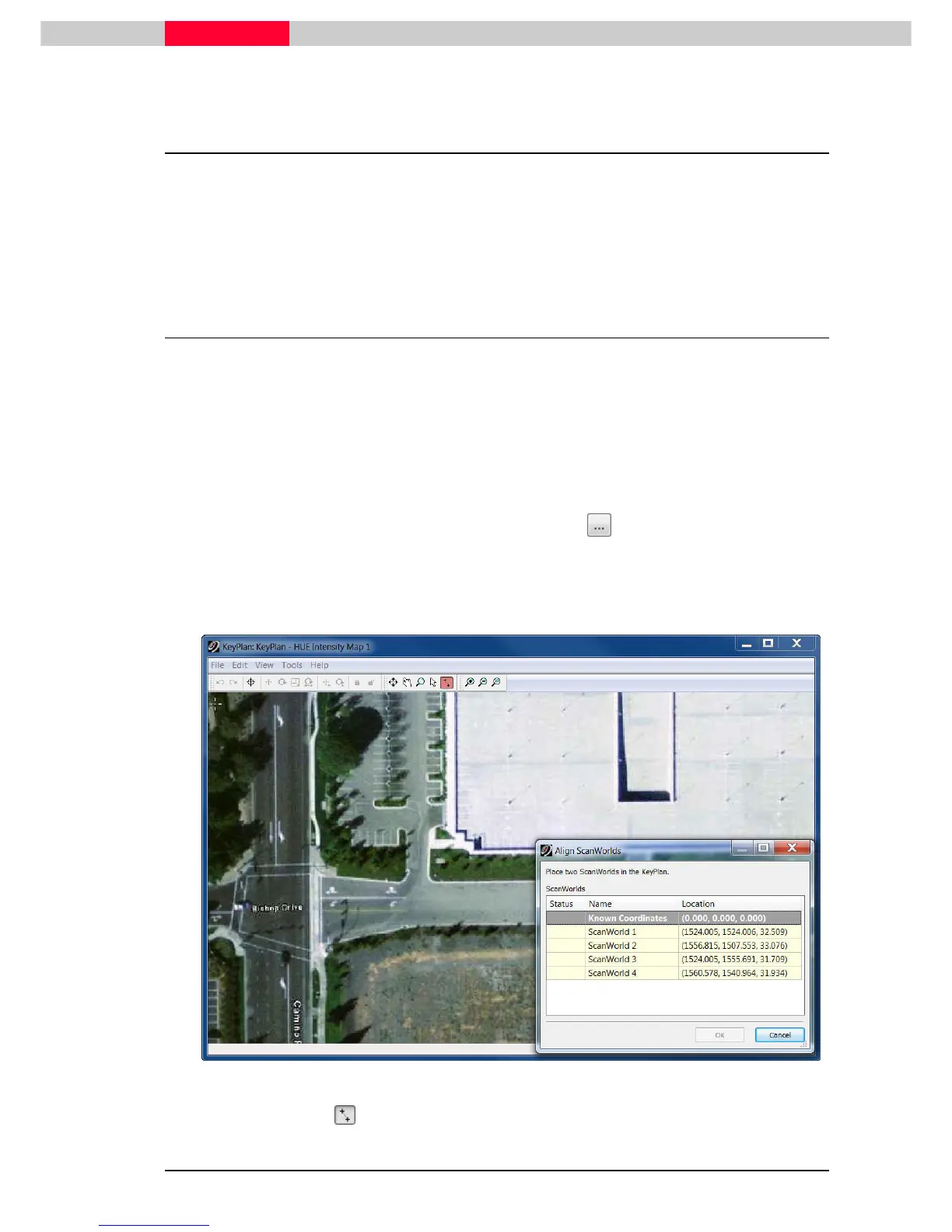
Create. The image will show up along with a dialog
asking you to select where 2 scanner locations are located. The rest will be automatically
calculated
Figure 2
Choose the Align pointer and select the ScanWorld in the Align ScanWorlds
Align ScanWorldsAlign ScanWorlds
Align ScanWorlds dialog (Figure 2).



 To Next Page