1 Importing Leica ScanStation data
There are multiple ways to import Leica ScanStation data which was scanned via the MMI and
stored onboard.
1.1 Before Import – Set Preferences
Survey Mode
Before importing the data from the ScanStation make sure to set the preferences for Survey
Mode.
Under Edit Preferences, if
Scan | Survey Mode
is set to "Yes", Cyclone creates
Stations
as part
of the Navigator project structure. If it is set to "No", Stations are not created, but the Station
name is prefixed to the ScanWorld name.
1.2 Import via Cyclone Navigator
This requires that the data has previously been downloaded from the scanner either through
copying to USB or using the Data Copy Tool. (see
Module 1 - Scanner & Scanning Features
)
Select the project
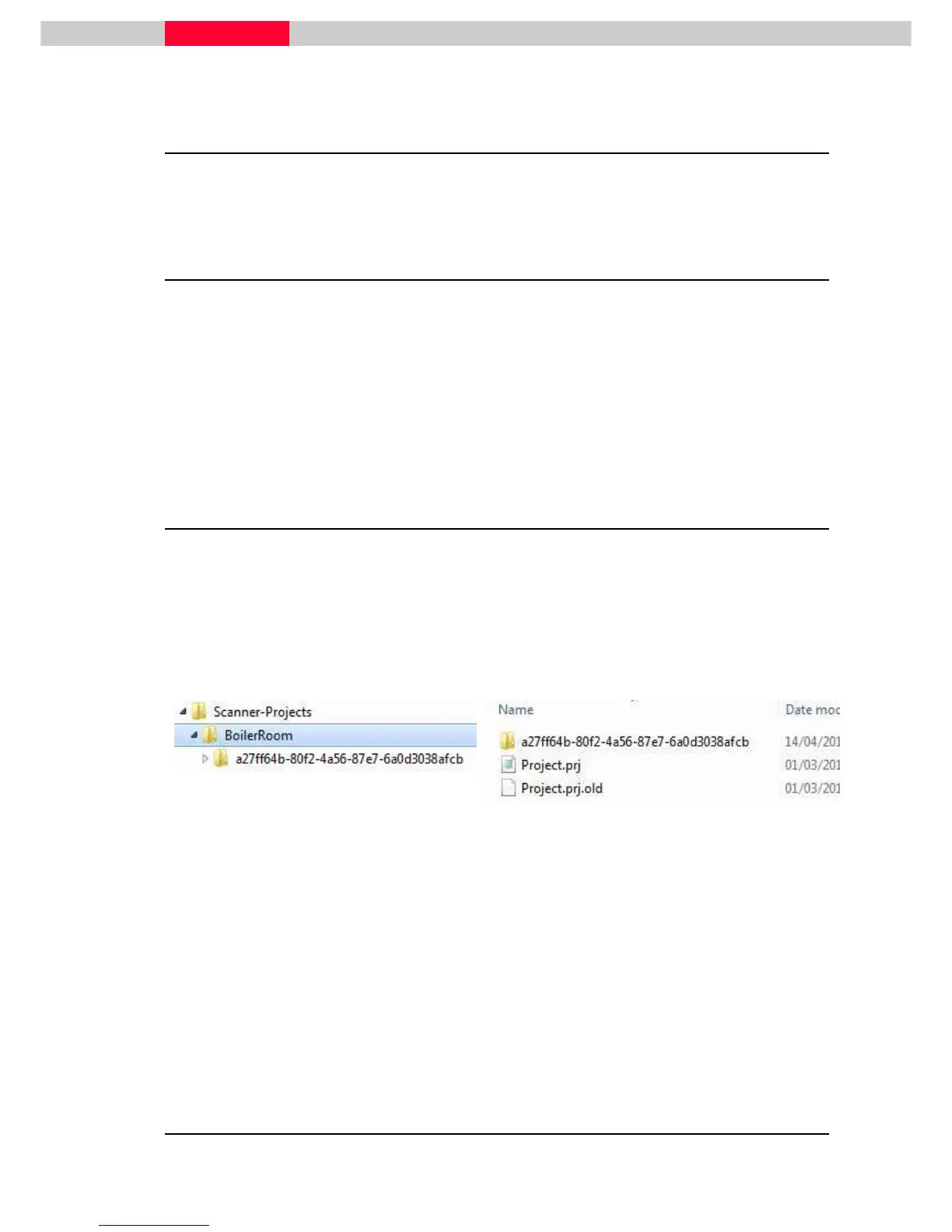
Once the data has been downloaded, it is available on the USB or local hard disk in the following
structure. Now the collected data can be imported into Cyclone.
Figure 1
•
If you download via USB, connect the USB device to your computer.
•
Open Cyclone and create a new database for the project to be imported into. Also an already
existing database can be chosen.
•
Highlight the database by a single click in the Navigator and go to
File | Import ScanStation Data
•
Depending on whether you want to import the whole Project or only part of the project
choose
Import ScanStation Project
or
Import ScanStation Partial Project



 To Next Page