9 - 32
2) Click Create Object | Fit to Cloud | Patch
Create Object | Fit to Cloud | PatchCreate Object | Fit to Cloud | Patch
Create Object | Fit to Cloud | Patch.
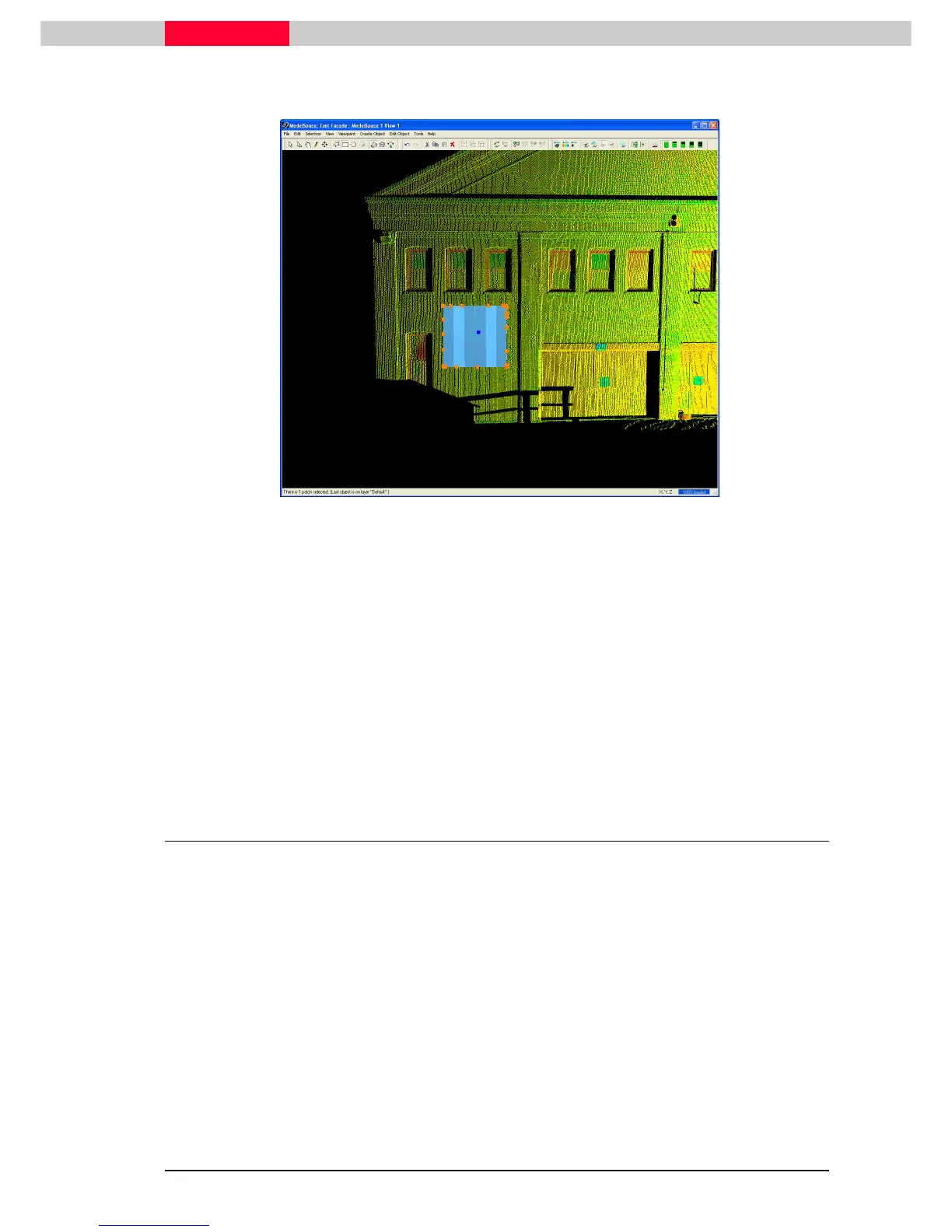
Figure 11
As seen in Figure 11:
•
A blue patch will be fit to the sub-selected points and will be drawn with dark
and light blue tiles.
•
Orange handles will define the perimeter of the patch with a blue handle in
the middle.
•
The status bar will read that the patch is selected.
•
Pressing ESC or Spacebar will deselect the patch. The colour will change to
solid blue and the handles will not be visible.
2.2 Fit Fenced
The Fit Fenced command bypasses the need to sub-select the point cloud and fits the patch to
points within a drawn fence.
1) Use the rectangular fence mode and create a fence on the facade that includes the points
representing a planar surface on a wall.
2) Click Create Object | Fit Fenced
Create Object | Fit FencedCreate Object | Fit Fenced
Create Object | Fit Fenced.
A patch is created in the fenced area.



 To Next Page