4 - 8 Module 6.1 - Animation Data Export
1.3 Set the animation path
If the cameras and path are all still selected from step 2, select Tools |
Tools |Tools |
Tools | Animation | Set Path
Animation | Set Path Animation | Set Path
Animation | Set Path.
The cameras and spline are now marked as the animation path.
Figure 3
If the cameras or the path were deselected
before this step, reselect all (in any order) or
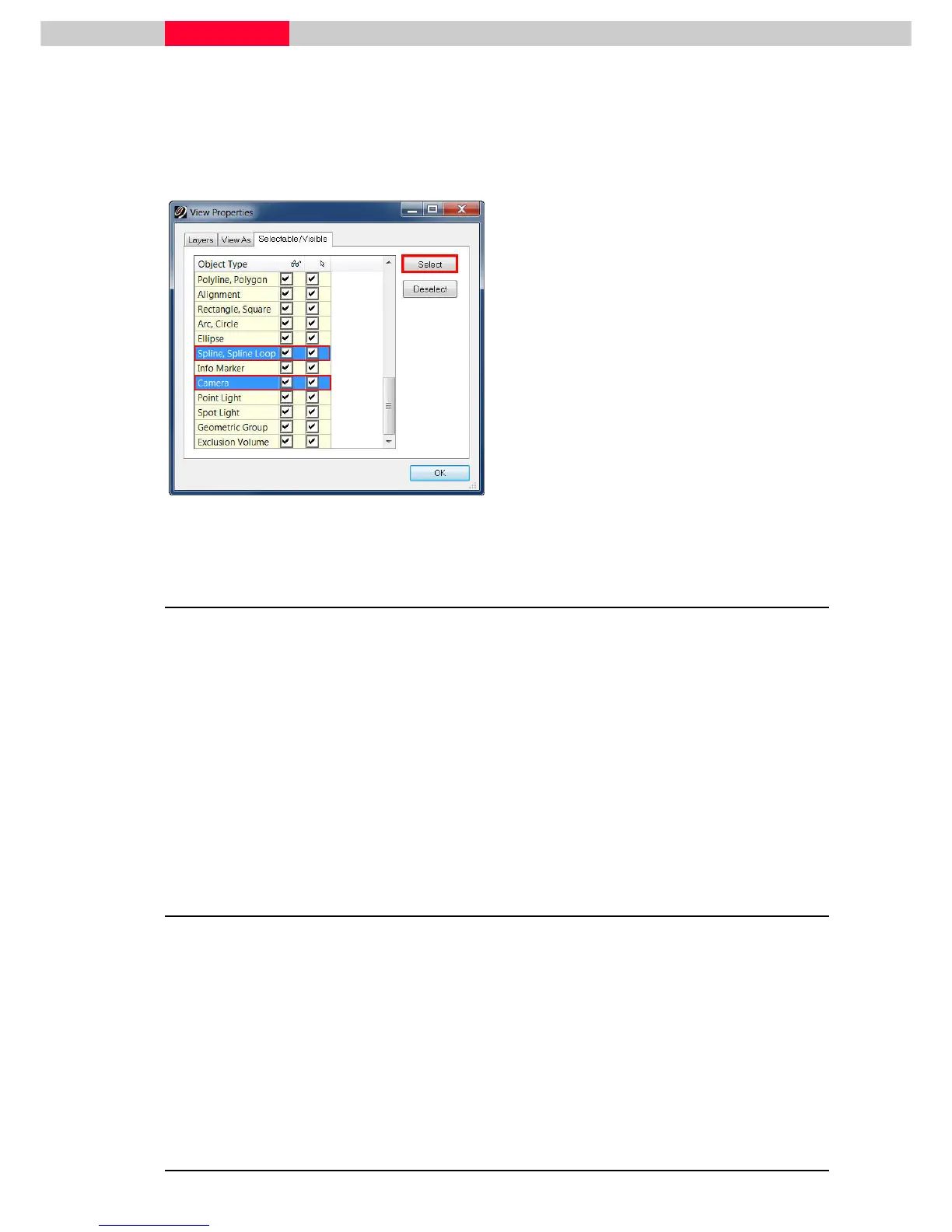
open Selectable/Visible dialogue:
•
Selection | Set Selectable
Selection | Set SelectableSelection | Set Selectable
Selection | Set Selectable
•
Mark
Spline
and
Camera
•
Press Select
SelectSelect
Select
before choosing Tools | Animation | Set Path
| Animation | Set Path| Animation | Set Path
| Animation | Set Path.
2 Editing the Path
Once the animation path has been set, the cameras and spline may be edited to alter the
flythrough.
Edit the path’s shape
Manipulate the animation path’s handles by moving them to adjust the smoothness of the curve.
Manipulate the positions and orientations of the camera objects to update the associated
animation path. Edit Objects | Handles | Show Rotation Handles can be useful here to change the
view orientation of a camera.
A change to a camera updates the spline path and vice versa.
3 Editing the Frames
Editing the frames created along the path determines how long the animation lasts. For
example, if a path has 30 frames (basically these are single images) and the compiled animation
will be a standard 30 frames per second, fps, then the animation will last 1 second. If the path
has 300 frames, then the compiled animation will be 300f/30fps=10 seconds.
1) Invoke the Animation Editor dialog by choosing Tools
ToolsTools
Tools | Animation | Animation Editor
| Animation | Animation Editor | Animation | Animation Editor
| Animation | Animation Editor
2) Adjust the number of frames between keyframes using the upper half of the animation
editor
For an even spacing along the whole path, leave the number “1” in the “From” field, change the
number in the “To” field to the highest keyframe in the animation.



 To Next Page