8 - 12 Module 6.0 -
Export / Import
Data Export
Import an ASCII file as a point cloud
If you are in the Navigator window, select the Database, Project, ScanWorld, or ModelSpace into
which you want to import the file.
Select File | Import...
File | Import...File | Import...
File | Import... (for both the Navigator and ModelSpace windows).
In the
Files of type
field, select
All ASCII files
(or a specific text file format), then navigate to the
location of the desired text file, and select the file to be imported. If the text file has a TXT, SVY,
or XYZ extension, the
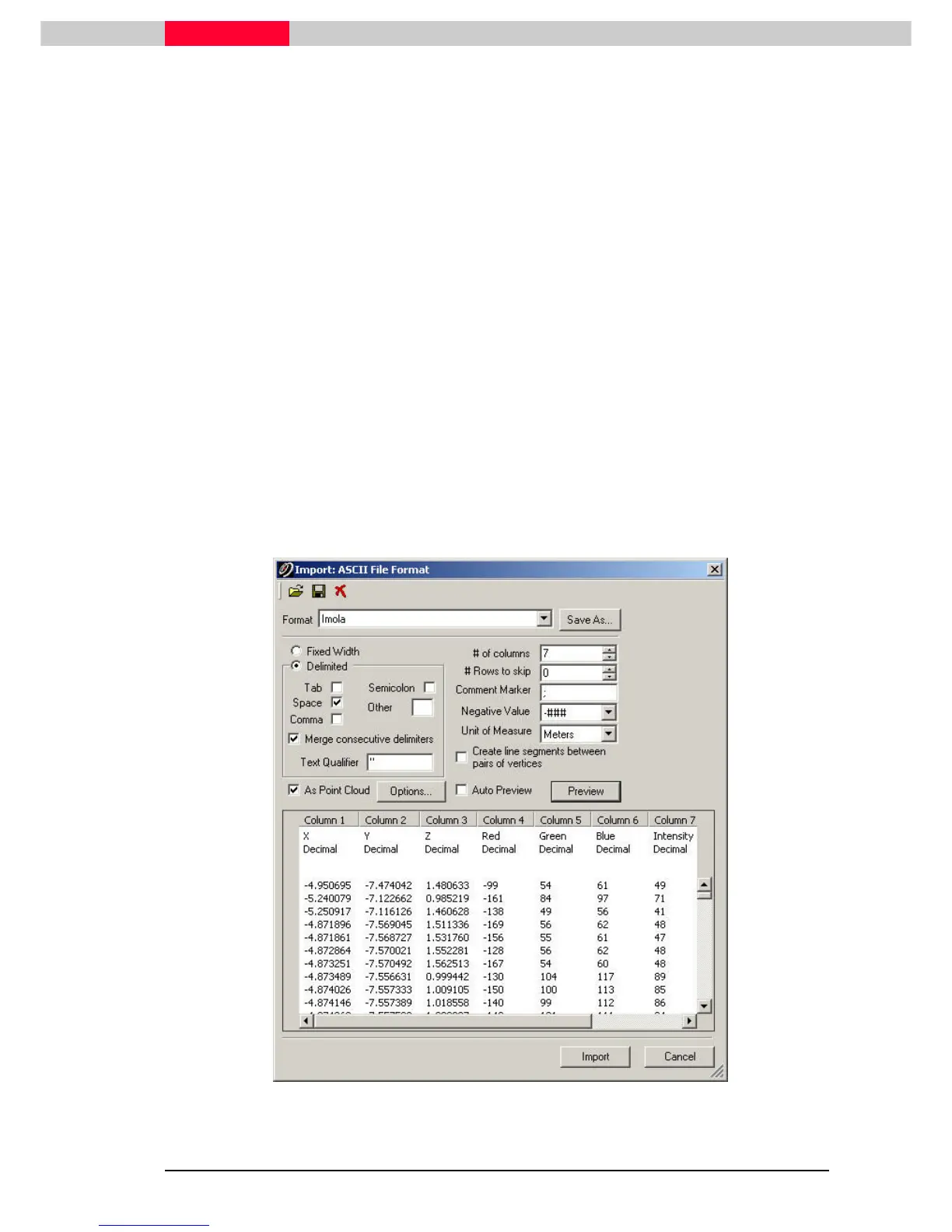
Import: ASCII File Format
dialog is displayed.
Select the
As Point Cloud
checkbox to enable the import of the coordinates in the ASCII file as a
single point cloud, instead of as individual vertices. The column names reserved for use by point
cloud import (e.g., “Intensity”) become regular column headings. Configure the column headings
based on the contents of the ASCII file.
•
If the file specifies a red-green-blue color for each point, assign the “Red”,
“Green”, and “Blue” headings to the corresponding columns.
•
If the file specifies a grayscale value for each point, assign the “Gray” heading
to the corresponding column.
•
If the file specifies an intensity for each point, assign the “Intensity” heading
to the corresponding column.
•
If the file specifies a normal vector for each point, assign the “NormalX”,
“NormalY”, and “NormalZ” headings to the corresponding columns.
Figure 9



 To Next Page