13 - 34
The unification takes only effect on to the parent ModelSpace and there is no
undo function for the Unify Clouds command.
•
In the upcoming information window click “Unify
UnifyUnify
Unify” to go on or “Cancel” to abort the process
to create a backup of the ModelSpace.
•
Checkmark the
Reduce Cloud Average Point Spacing
checkbox. Then enter a value of 10mm.
•
Click Unify
UnifyUnify
Unify and the algorithm starts.
The point-reduction will try to maintain an average spacing of 10mm between
points and hence remove points closer together. This can be useful when a lot of
overlap areas are present. Note that this is not an exact value – but an average
spacing.
Any points not included in the unification process are removed from the
ModelSpace when the cloud is unified.
•
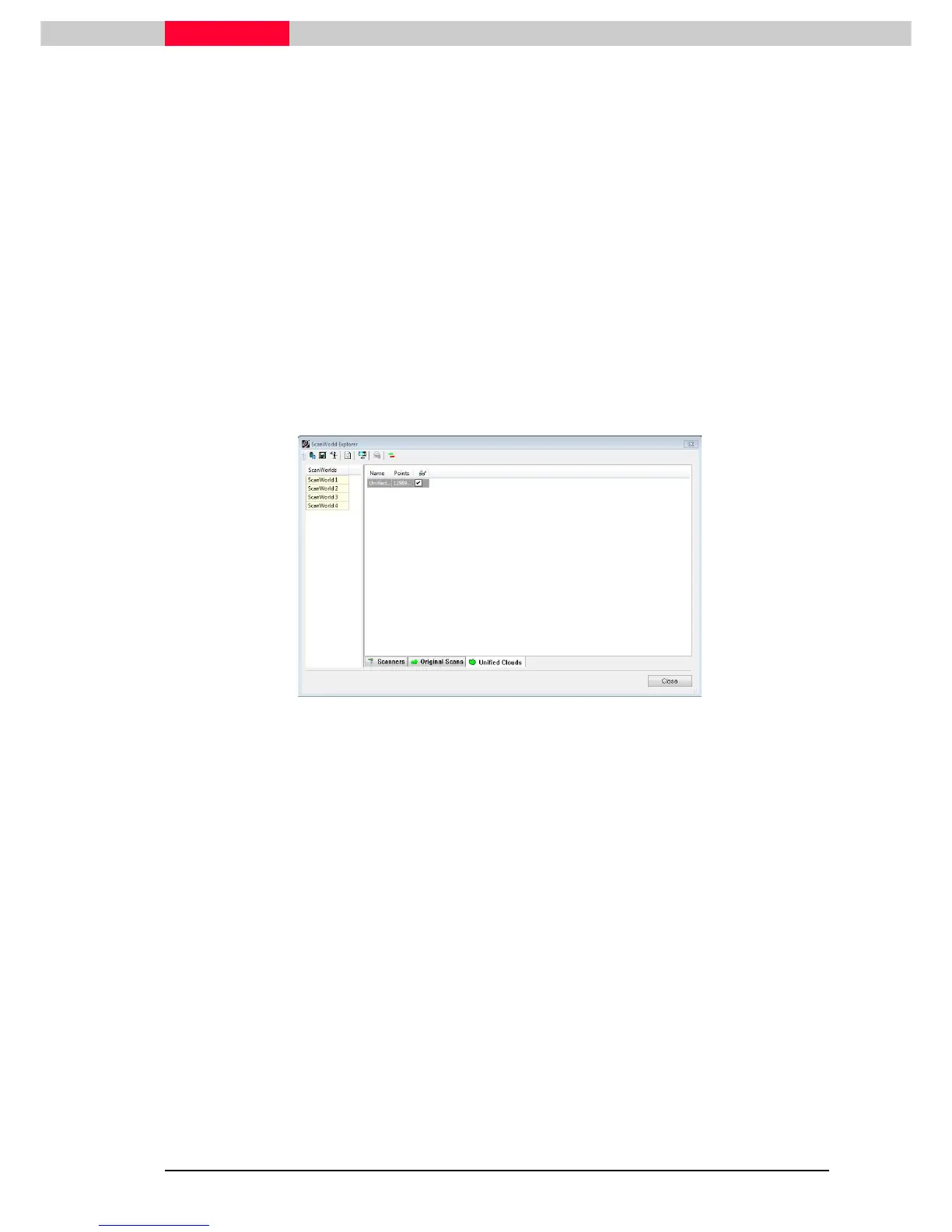
Inspect the
ScanWorld Explorer
by clicking Tools | Scanner | ScanWorld Explorer
Tools | Scanner | ScanWorld ExplorerTools | Scanner | ScanWorld Explorer
Tools | Scanner | ScanWorld Explorer. In the Unified
Clouds tab, you will see the newly unified cloud listed.
Figure 19
Note the tab Original Scans. The 4 individual ScanWorlds cannot be reloaded
separately anymore. Furthermore, if you select the point cloud within the
ModelSpace View
one point cloud only will be highlighted.



 To Next Page