5 - 32
•
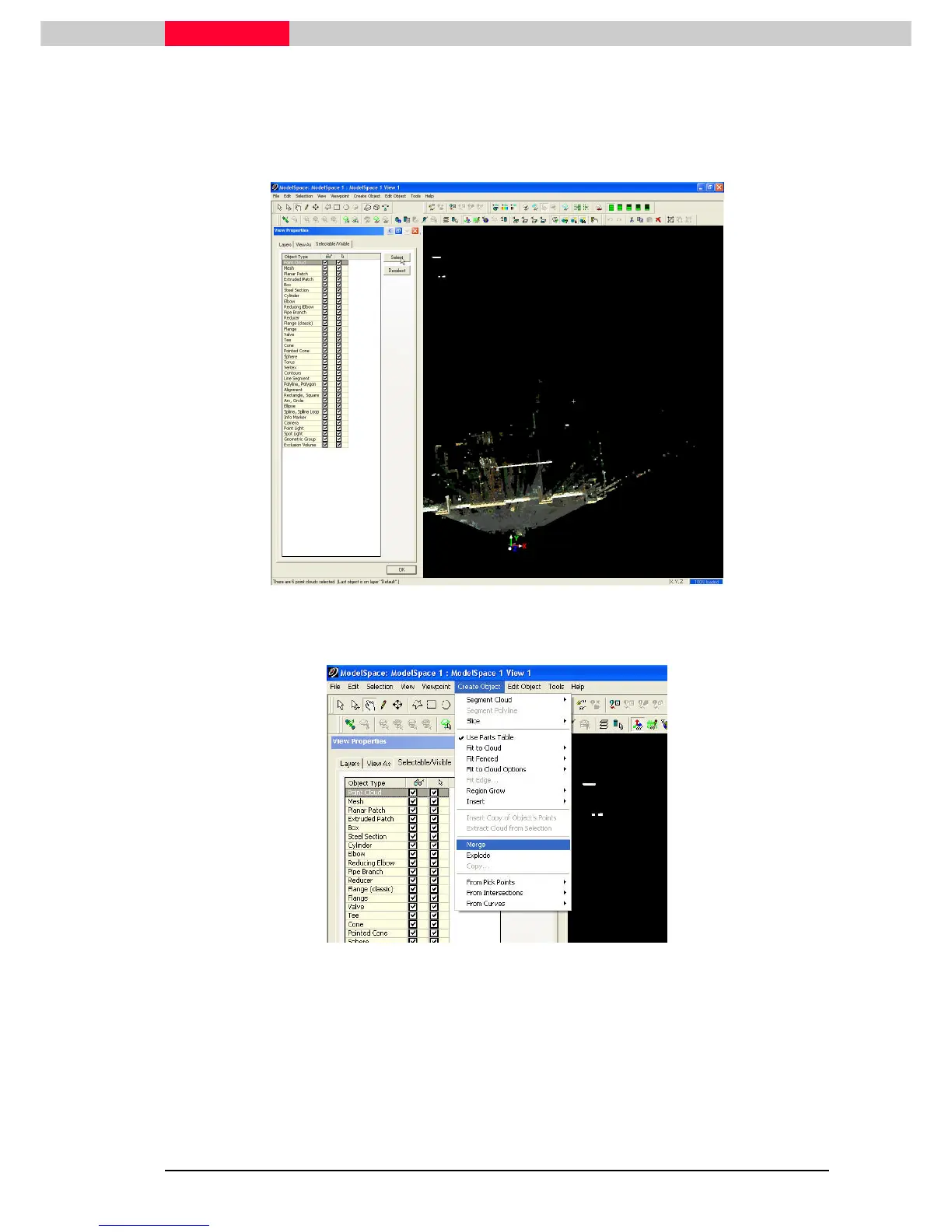
Click Selection | Set Selectable...
Selection | Set Selectable...Selection | Set Selectable...
Selection | Set Selectable...
•
H
HH
Highlight
ighlightighlight
ighlight the Point Cloud and click Select
SelectSelect
Select
Note the Status Bar There are 6 point clouds selected.
Figure 5
•
Go to Create
Create Create
Create Object | Merge
Object | MergeObject | Merge
Object | Merge
Figure 6
The Merge command combines two or more selected objects of the same type. In
the process of creating a single new object, the merging function fills in space
between the selected objects. Use this command to create objects such as wide
floors and ceilings and long pipes. This feature is particularly useful when filling
areas that have not been scanned directly. If the objects were created from point
clouds, the merged object is refit to the original point clouds. The current
settings and Object Preferences for use of Parts Table, Fit Tolerances, and Fit
Constraints are used in this fit.



 To Next Page