7 - 32
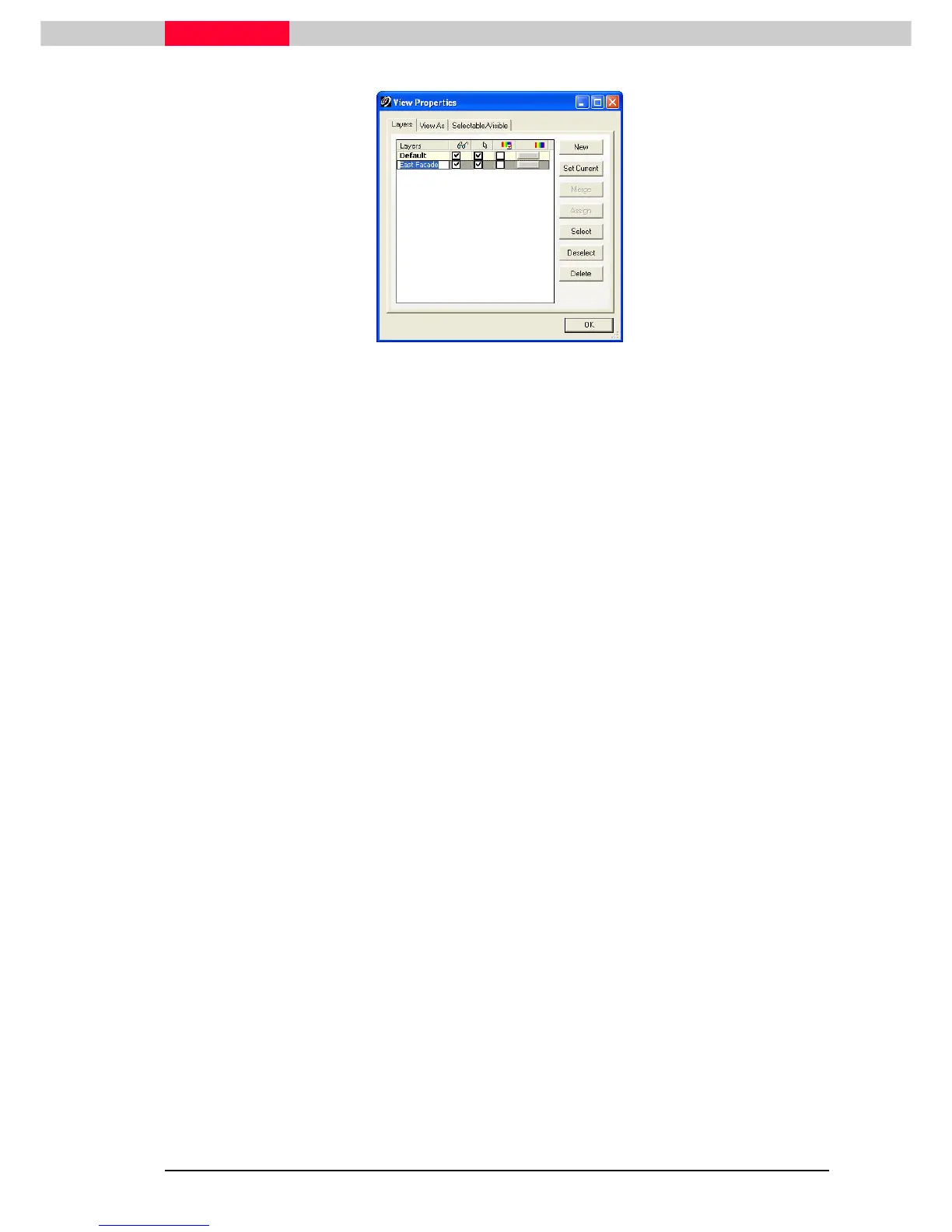
Figure 9
6) Select the segmented point clouds on the façade wall.
7) Click Assign in the Layers tab. Clicking Assign in the Layers tab will assign any selected
objects in the ModelSpace to the selected layer.
With objects assigned to layers, in this case the segmented point clouds, it is easy to toggle the
visibility or select the objects within the Layers tab.
As seen in this section, segmenting a point cloud will create two distinctly
separate objects. The visibility checkmark in the ScanWorld Explorer will
automatically become unchecked when an original scan is segmented. The two
separate point cloud objects are now disassociated with their original scan and
stand alone as point cloud objects.
Due to this fact, take care not to “recheck” the visibility box for a scan in the
ScanWorld Explorer. Doing so will reload the points which might already exist in
the viewer as separate segmented point clouds.
Summary
When modelling, it is crucial to be able to select the proper group of points that a geometric
object will then be fit to. Point cloud sub-selection allows us to isolate/select a specific group of
points across all point clouds in a scene in an additive/subtractive process. Point cloud sub-
selection can be thought of as a temporary selection. Alternatively, segmenting will cut point
cloud(s) into separate point cloud objects. The result is more permanent in that there are two
new objects as a result of the cut.
We will use point cloud sub-selection for a majority of the modelling process in the following
sections.



 To Next Page