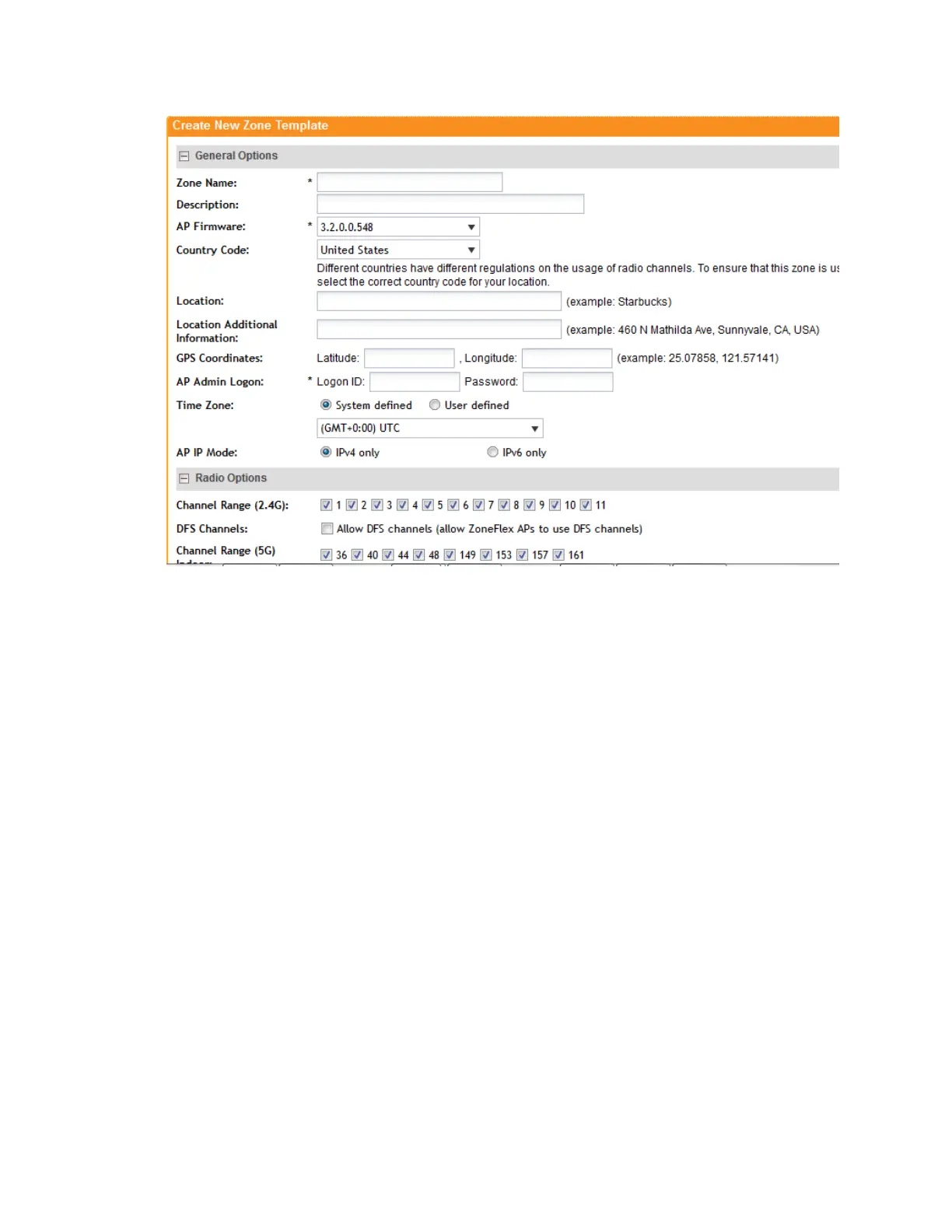
Figure 46: The Create New Zone Template form
Step 2: Configure the AP Model-Specific Configuration
Follow these steps to configure the AP model-specific configuration of the zone template.
1. Click Configuration > AP Zones.
2. On the sidebar, click Zone Templates.
The Zone Templates page appears.
3. Click the name of the zone template for which you want to configure AP model-specific
settings.
4. On the sidebar, click AP Model-Specific Configuration.
5. In Select an AP Model, select the AP model that you want to configure, and then click Apply
to display the configuration option for the selected AP model.
6. In General Options, configure the following options (depending on the selected AP model,
some of the options listed below may not be visible):
• PoE out port: To enable the PoE out port on the AP model, select the Enable the PoE
out port (requires custom PoE injector) check box.
• Status LEDs: To disable the external status LEDs on the AP model, select the Disable
status LEDs check box. This can be useful if your APs are installed in a public location
and you do not want to draw attention to them.
• External Antenna (2.4GHz): To enable the external 2.4GHz antenna on the AP model,
select the Enable external antenna with [x] dBi (0-90) check box, and then a value for
the dBi.
SmartCell Gateway 200/Virtual SmartZone High-Scale for Release 3.4.1 Administrator Guide
113
Managing Global Configuration, AP Tunnel Profiles, Templates, and AP Registration Rules
Working with Zone Templates



 To Next Page