Printing the Guest Pass
After you generate the guest pass, you can print the guest pass information, which contains the
guest user information and instructions on how to connect to the hotspot, and give it to the
guest user.
NOTE: If your browser is blocking pop-ups, make you temporarily disable the pop-up blocker
so you can view and print the guest pass.
Follow these steps to print a guest pass.
1. Select the guest passes that you want to print by selecting the check boxes before them.
2. In Guest Instruction HTML Template, select a printout template to use.
The default printout template (default.html) is selected by default. If you created custom
printout templates (see Creating a Guest Pass Printout Template on page 335), they will appear
in the drop-down menu.
3. Click Print Selected.
A new browser page appears, which displays the guest pass and available printing options.
4. Configure your printer settings, and then print the guest passes.
You have completed printing the guest passes.
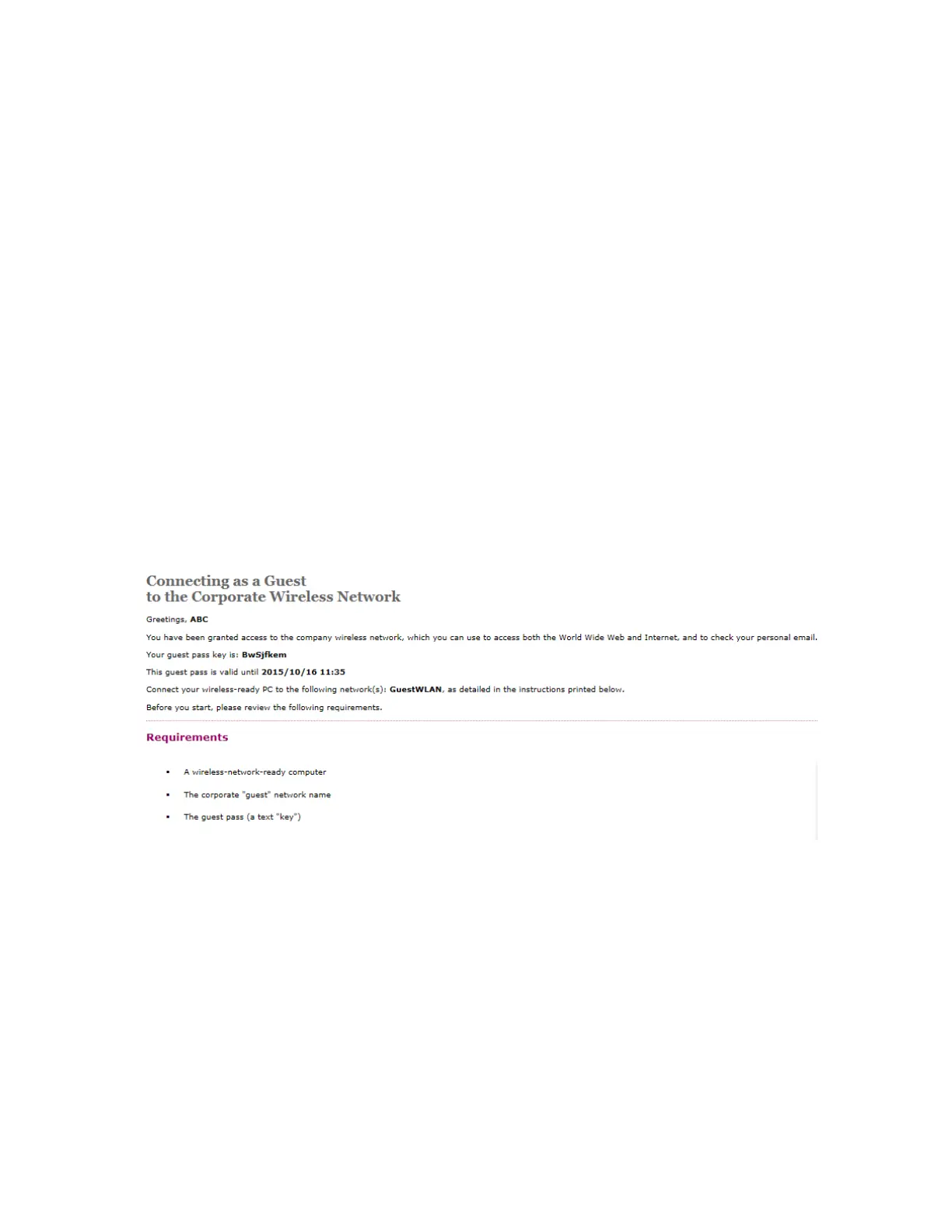
Figure 183: What a guest pass printout looks like
Exporting the Guest Pass to CSV
Follow these steps to export the last generated guest passes to a comma-separated value (CSV)
file.
1. Select the guest passes that you want to export to CSV by selecting the check boxes before
them.
2. Click Export CSV.
Your web browser downloads the CSV file to its default download location.
SmartCell Gateway 200/Virtual SmartZone High-Scale for Release 3.4.1 Administrator Guide
329
Working with Local, Guest, and Remote Users
Working with Local, Guest, and Remote Users



 To Next Page