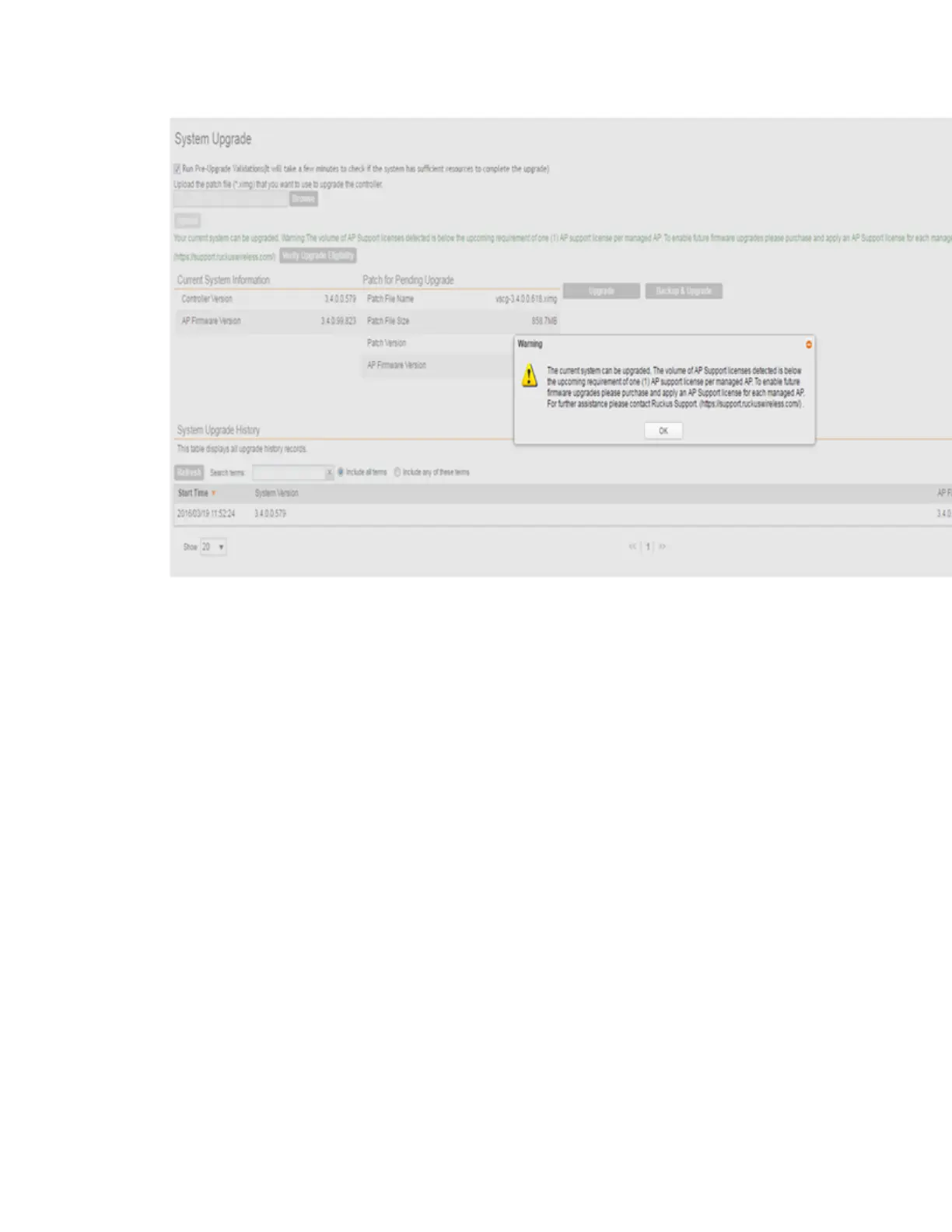
Figure 223: The Upgrade and Backup & Upgrade buttons appear on the right side
6. Start the upgrade process by clicking one of the following buttons:
• Upgrade: Click this button to start the upgrade process without backing up the current
controller cluster or its system configuration.
• Backup & Upgrade: Click this button to back up the controller cluster and system
configuration before performing the upgrade.
CAUTION: Ruckus Wireless
®
strongly recommends usage of backup and upgrade icon
while performing the upgrade. If the upgrade process fails for any reason, you can use
the latest backup file to restore the controller cluster. See Backing Up and Restoring
Clusters on page 341.
A confirmation message appears.
7. Click Yes.
The controller starts the process that you selected. The screens that appear next will depend
on the process that you selected to upgrade immediately or to back up and then upgrade
the controller.
SmartCell Gateway 200/Virtual SmartZone High-Scale for Release 3.4.1 Administrator Guide
362
Performing Administrative Tasks
Upgrading the Controller



 To Next Page