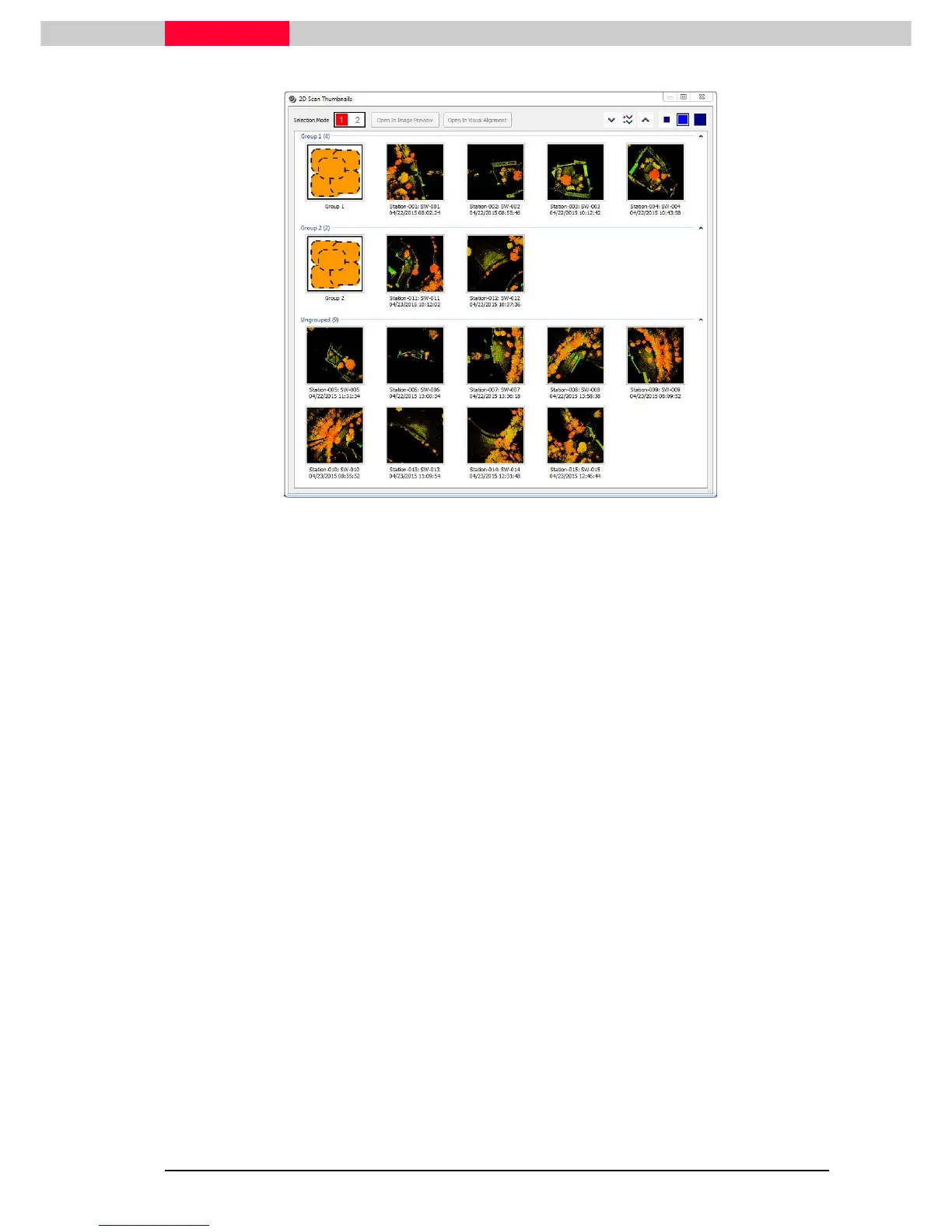
Figure 25
The 2D Scan Thumbnails window displays all Stations which are loaded into the Registration. It
provides a top-down view of the scan captured from each Station. This is particularly helpful in
cases where the user is not exactly sure which Stations have sufficient overlap to create a cloud
constraint. The interface is also displaying all Stations sorted into their corresponding Groups.
We will now align Station 5 and Station 6:
•
From the
Ungrouped
Section, select
Station 5
•
Press
Shift
and select
Station 6
•
Execute
Open In Visual Alignment
The Visual Alignment window opens and displays the clouds of the selected Stations in different
colors. The commands in this window allow to manually align the scans to each other.
•
Move and rotate the blue cloud until it is visually aligned as good as possible to the orange
colored one.
•
Figure 26 shows the overlapping area marked as a red ellipse, which need to be aligned with
the Visual Alignment function.
•
Figure 27 and Figure 28 show the alignment in top and 3D view.
The Visual Alignent can also be started directly by selecting two ScanWorlds/
Stations in the Registration window and executing Visual Registratrion | Visual
Alignment .
See Module 3.0 Basic Registration for details on how to use the visual alignment
tools



 To Next Page