Figure 39
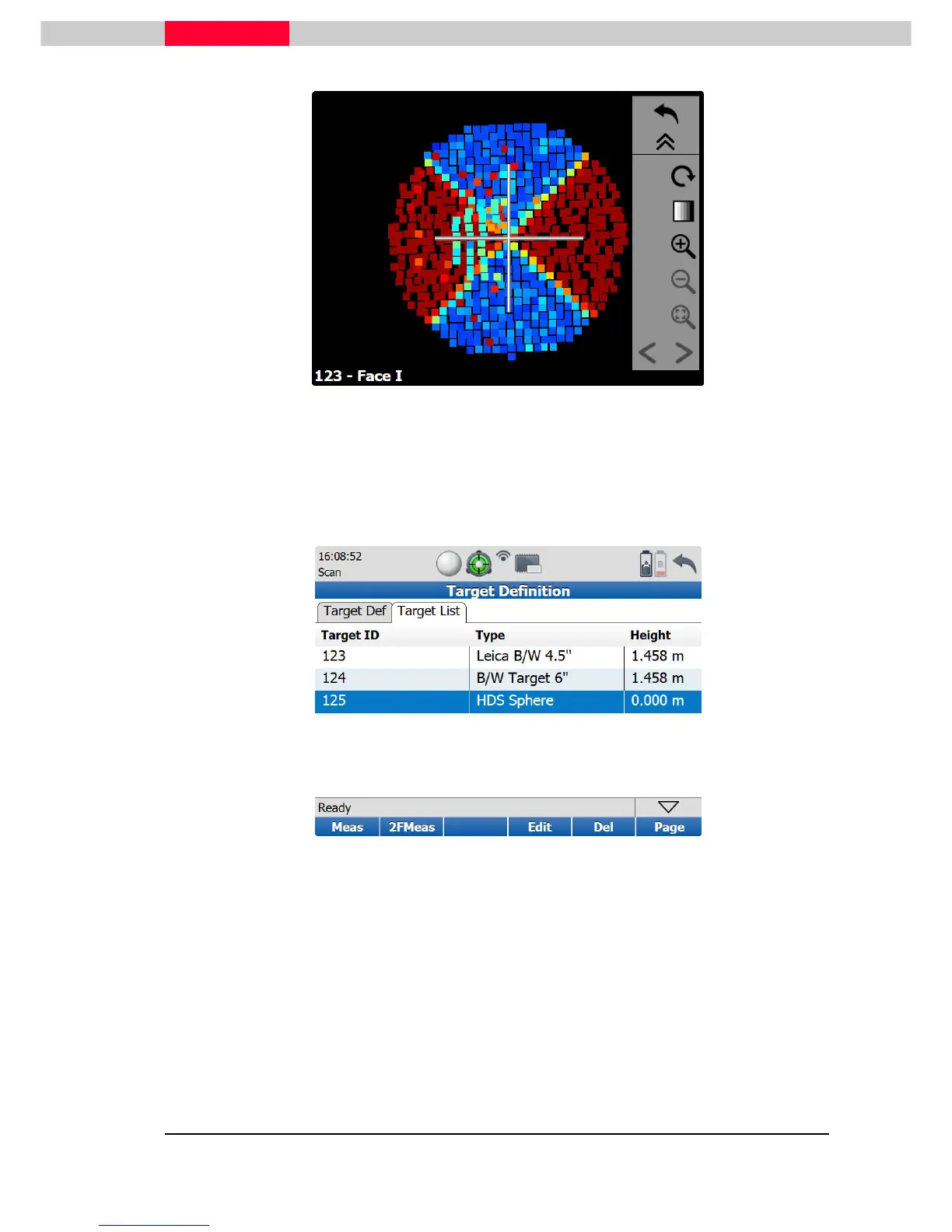
Acquire many targets
To add more targets, go again to the
Target Def
tab and repeat the steps described above until
all needed targets are picked and added.
Switch to the
Target List
tab to get control of the entered targets.
Figure 49
If the target was not acquired correctly through environmental influence the target can be
deleted by using the
Del
soft key.
The Targets have to be saved by pressing the Store button. Then the targets are removed from
the list and stored on the internal SSD.
When setting up the scanner on the next station and going to the
Target Definition
menu, the
previously acquired targets are available in the target ID pull down list. To acquire them, just
select the target ID and go to
PickT
soft Key. Navigate to the target with the chosen ID in the
real time image and hit enter when done. Continue until all targets are picked and click at least
the
Continue
button. The targets from the list will be scanned.
When all needed data is captured from this station the scanner can be shut down by clicking the
escape button until the shutdown dialogue is coming up. Choose
yes
to switch off the system.



 To Next Page