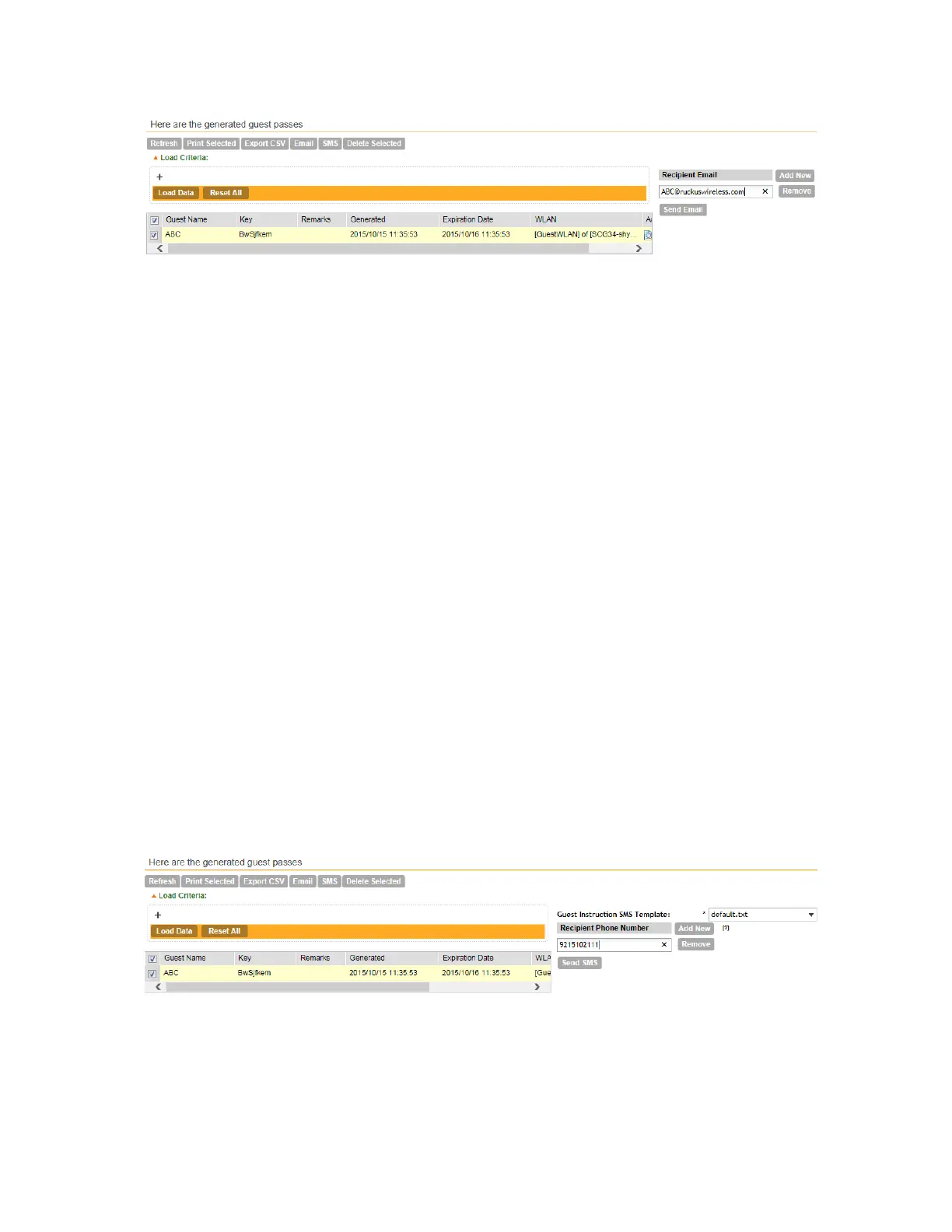
Figure 185: Use the Recipient Email form to specify who will receive the guest passes via
email
Sending the Guest Pass via SMS
Follow these steps to send the guest pass via SMS.
NOTE: To send guest passes via email, you must have added an external SMS gateway to the
controller. For more information, see Configuring an SMS Server on page 170.
1. Select the guest passes that you want to send via SMS by selecting the check boxes before
them.
2. Click SMS.
SMS options appears on the right side of the page (see Figure 186: Options for sending guest
passes via SMS on page 331).
3. In Guest Instruction SMS Template, select the SMS template that you want to use.
4. Click Add New.
5. In the box that appears below, type the phone number to which you want to send the guest
passes via SMS.
6. To add another SMS recipient, click Add New again, and then type another phone number.
7. When you have finished adding all the SMS recipients, click Send SMS.
A dialog box appears and informs you that the SMS messages have been sent to the message
queue successfully
8. Click OK to close the dialog box.
You have completed sending guest passes via SMS.
Figure 186: Options for sending guest passes via SMS
SmartCell Gateway 200/Virtual SmartZone High-Scale for Release 3.4.1 Administrator Guide
331
Working with Local, Guest, and Remote Users
Working with Local, Guest, and Remote Users



 To Next Page