Generating Guest Passes from an Imported CSV
You can also manually define the guest passes that you want to generate in a comma-separated
value (CSV) file (a sample of which is available for download from the Guest Pass page).
Follow these steps to generate guest passes from an imported CSV file.
1. Click Configuration > Identity > Users.
2. Click Guest Pass > Guest Pass Service.
The Guest Pass page appears.
3. Click Import Guest Pass, and then click Next.
4. Look for the following text under Browse:
To download a sample guest pass, click here.
5. Click the here link to download the sample CSV file.
6. Using Microsoft Excel
®
or a similar application, open the CSV file.
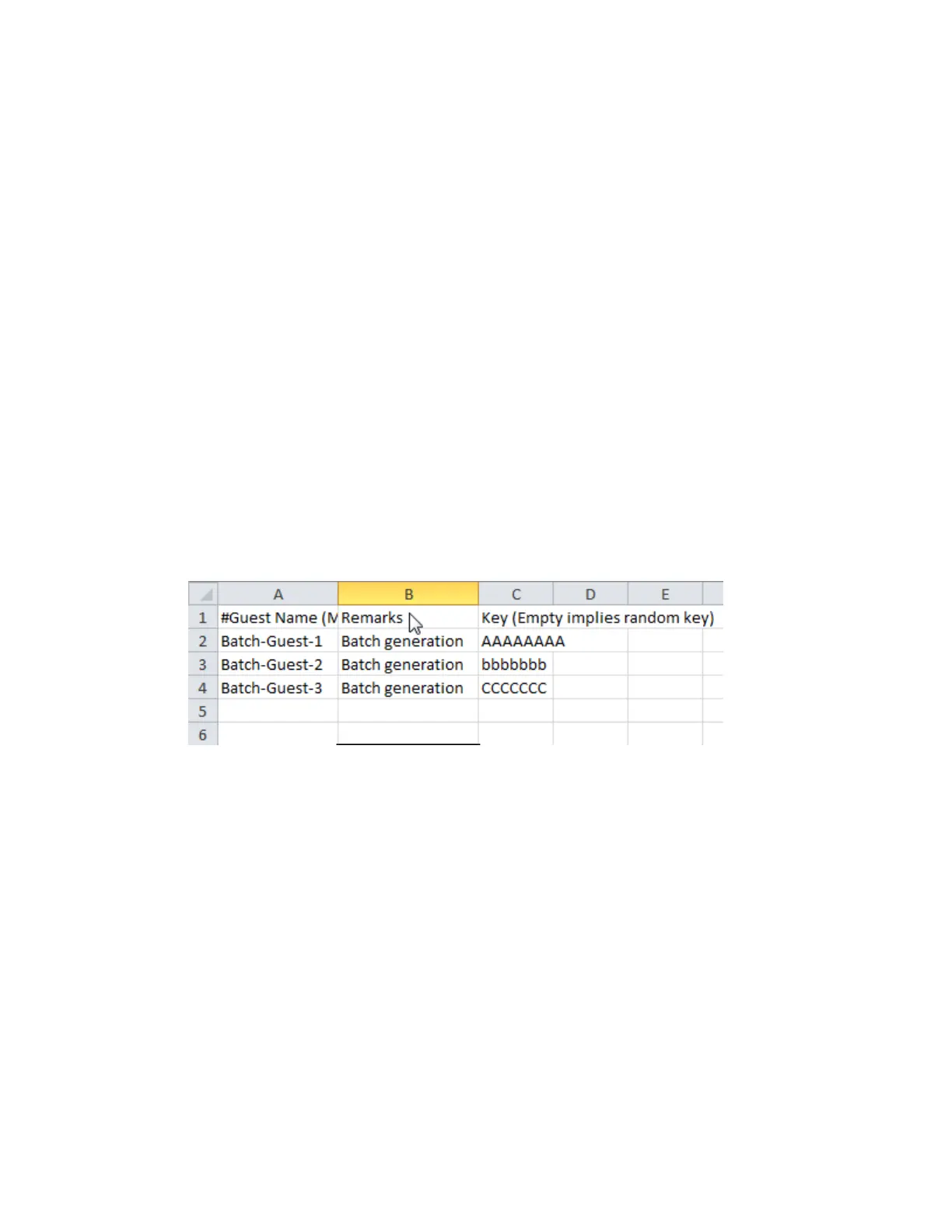
7. In the CSV file, fill out the following columns:
• #Guest Name (Must): Assign a user name to the guest pass user.
• Remarks (Optional): Add some notes or comments about this guest pass.
• Key: Enter a guest pass key or leave it blank so the controller can generate the key
automatically.
Figure 187: The sample CSV file when opened in Excel
®
8. Save the CSV file.
9. Go back to the Guest Pass page, and then configure the following settings on the Common
Guest Pass Settings:
a) Guest WLAN: Select the guest WLAN that you created in Step 2: Create a Guest Access
WLAN on page 326.
b) Pass Valid For: Set the validity period for the guest pass by filling in the two boxes. For
example, if you want the guest pass to be valid for seven days, type 7 in the first box, and
then select Days in the second box.
10. Configure the advanced options:
a) Pass Effective Since: Set the guest pass validity period by selecting one of the following
options:
• Effective from the creation time: This type of guest pass is valid from the time it is
first created to the specified expiration time, even if it is not being used by any end user.
SmartCell Gateway 200/Virtual SmartZone High-Scale for Release 3.4.1 Administrator Guide
332
Working with Local, Guest, and Remote Users
Working with Local, Guest, and Remote Users



 To Next Page