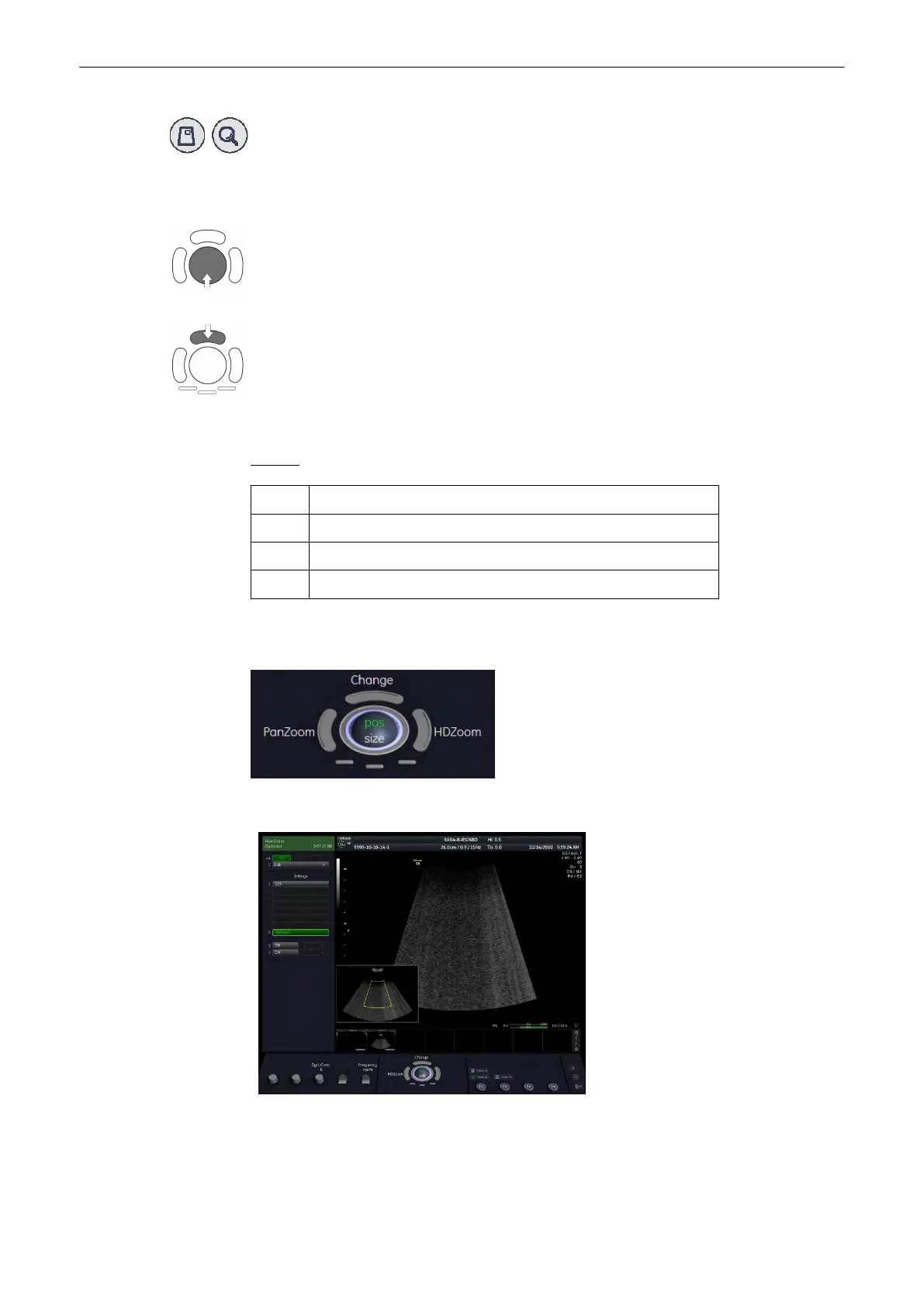
1. Press the [Zoom] digipot to switch to Zoom Pre Mode.
2. Place the zoom box over the region of interest.
The trackball has two functions: adjusting position and size of the zoom box. The activated
function is displayed in the status bar area on the monitor.
Press the upper trackball key to change the function of the trackball from position to size or
vice versa.
3. Change the size of the zoom box by moving the trackball.
Moving:
↑ decrease the box size in vertical direction
↓ increase the box size in vertical direction
→ increase the box size in horizontal direction
← decrease the box size in horizontal direction
4. Place the zoom box and select between PanZoom (left trackball key) and HDZoom (right
trackball key).
5. The overview window appears:
In Pan Zoom the overview image is updated with every Frame. In HD Zoom the overview
image is not updated. It is the last image before HD Zoom was activated.
To readjust overview window settings:
'General'
on page 13-15
2D Mode
6-14
Voluson® S6/S8 Basic User Manual
5433669-100 Revision 4



 To Next Page