13.2.6.1.6 Working with external USB-Devices
When an external USB-storage device is connected to the system, such as a memory stick or
a hard disk, Windows detects the device and automatically installs a driver. Afterwards the
device is accessible using the drive letter the system assigned to it (e.g., G:).
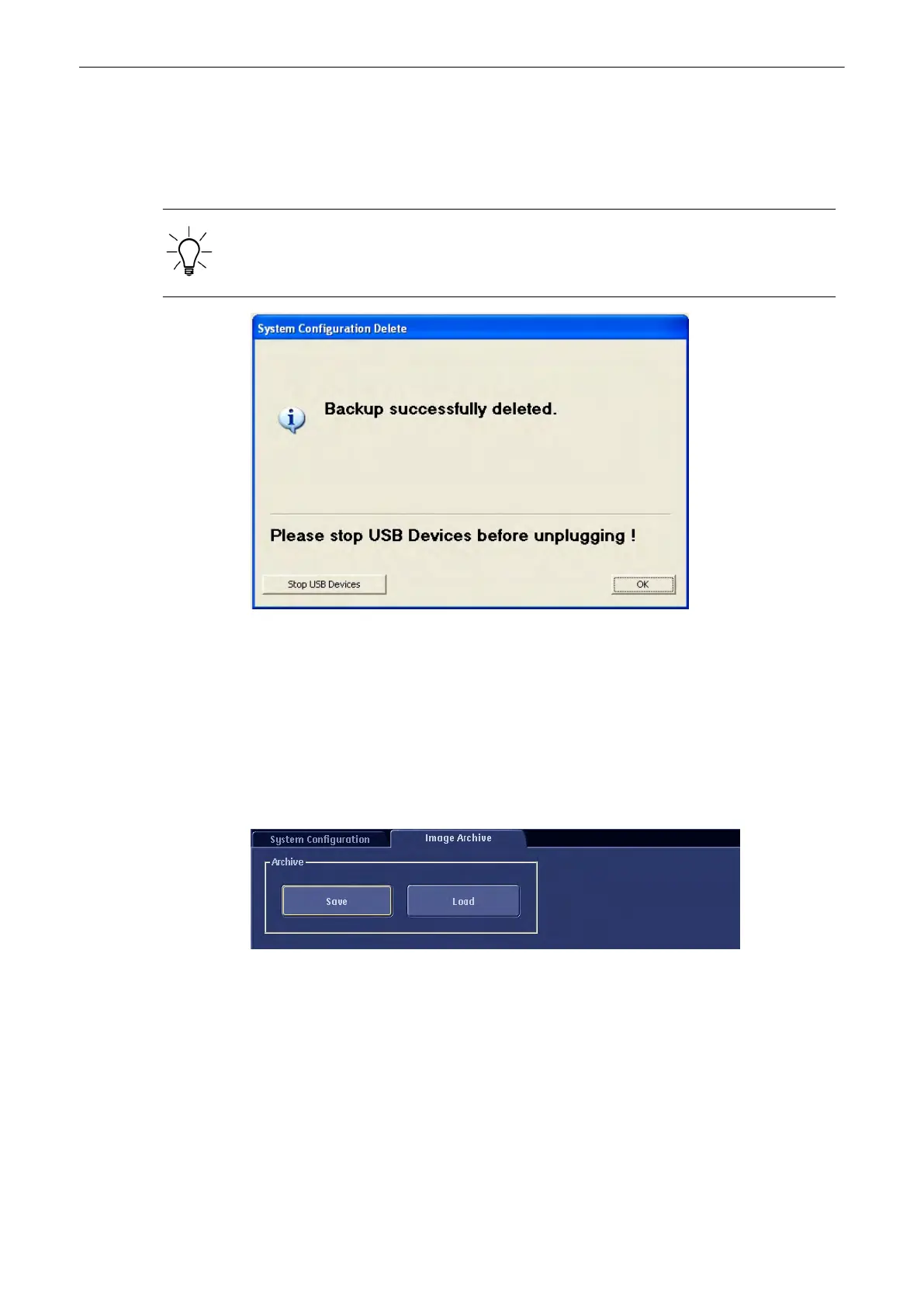
Before an external USB-device (e.g., USB-memory stick) can be disconnected, the system
has to be informed about the removal of the device! For this purpose every last dialog of “Full
System Configuration Save” and “Full System Configuration Delete” has a [Stop USB Devices]
button. This button can also be found on the Backup filing card in the System setup.
Note
USB devices can also be stopped by pressing the [Remove USB devices] key on on the
keyboard, see
'Remove USB Devices'
on page 3-15.
By clicking the [Stop USB Devices] button, the Windows „Unplug or Eject Hardware“ dialog is
started. Using this dialog, the USB-devices can be stopped before they are physically
disconnected.
This button starts the Stop USB process, see'Remove USB Devices'
on page 3-15
13.2.6.2 Image Archive
To load an Archive 'How to Load an Archive'
on page 13-56
To save an Archive 'How to Save an Archive'
on page 13-59
13.2.6.2.1 How to Load an Archive
1. Press the [Load] button. The following menu appears:
Utilities and System Setup
13-56
Voluson® S6/S8 Basic User Manual
5433669-100 Revision 4



 To Next Page