13.2.5 Connectivity
13.2.5.1 Peripherals
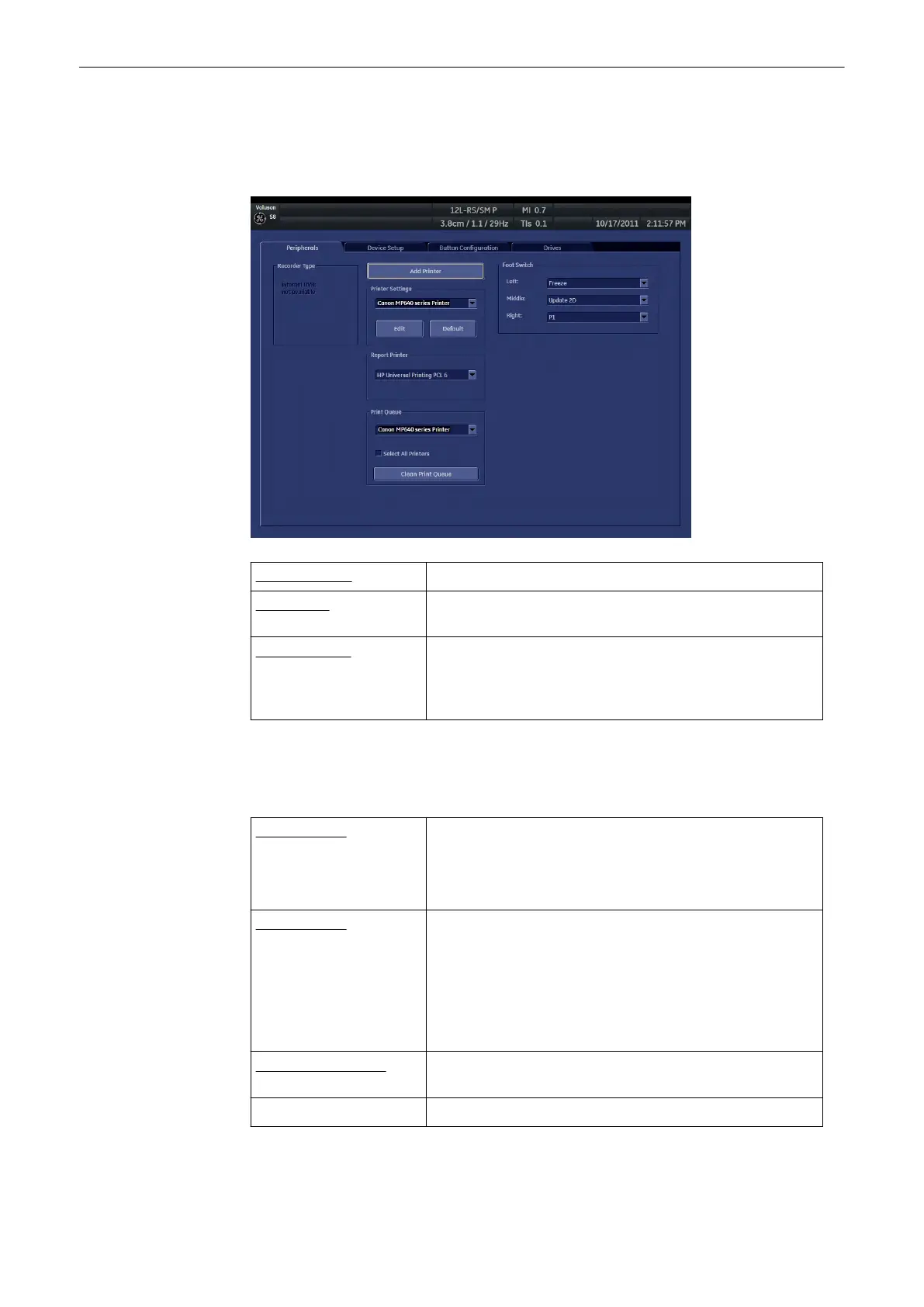
Recorder Type: Only internal DVR is possible.
Add Printer: Allows you to install a new printer and opens the Windows”
Add Printer Wizard”.
Printer Settings Select a printer from the drop down menu and then press
[Edit], to edit the printer settings under “Windows Properties”.
If you want to restore default values, select the printer and
press the [Default] button.
Note
These printer settings solely refer to printing jobs initiated with the [End Exam] button. If you
want to change the settings for print jobs initiated with the Px buttons or from Archive, please
refer to
'Data Transfer Menu'
on page 12-25
Report Printer: Select the desired Report Printer from the drop-down menu.
Only one selection is possible.
The selected printer is used for printing reports and images
from Archive.
Printer Queue: Select a printer from the drop down menu and press [Clean
Print Queue] to delete all jobs on the selected printer.
If you select the checkbox [Select All Printers] the drop down
menu will no longer be available. Press [Clean Print Queue] to
delete all jobs on all printers installed on the system. You will
be asked to confirm whether you want delete the printer
queue.
Foot Switch left/right: Selection of the appropriate function. For each Foot Switch
half, only one selection is possible.
Default Load the default printer settings.
Utilities and System Setup
13-30
Voluson® S6/S8 Basic User Manual
5433669-100 Revision 4



 To Next Page