Clear text on
Unfreeze:
If this checkbox has been selected all annotation will be cleared, when you untoggle
the [Freeze] key.
Zoom Key: While in Zoom Pre Mode, select which Zoom Mode (Pan Zoom or HD Zoom) is
activated automatically, if the Zoom hardkey is pressed again.
Allows you to dim the clipboard. Select either of the radio buttons:
•
Off
•
On (constantly
•
On (off on Freeze)
•
On (off on Image select)
Choose the dimming value from the pull down menu.
10% to 100%
At 100% no information is visible.
Question Message
Boxes:
Click this button and all hidden message boxes will be displayed again.
Use Space key to
switch “Abc” on
When this checkbox is activated the image annotation “Abc” can be activatedby
pressing the space bar on the keyboard.
User programm
select
Scan geometry does not change when switching to another programm in Run mode.
Vascular Auto
Frequency Change:
If this box is checked (default), an algorithm is used to change the frequency and the
PRF for vascular applications depending on the color box depth or gate depth.
13.2.3.2.1 Clipboard
Clipboard Reload Save:
Copy: Save an additional
copy
Save as a copy. Choose whether the file should be saved to the end of the
Clipboard or right after the reloaded image.
Overwrite reloaded image Overwrite the reloaded image with the new one.
Show dialog: Copy or
overwrite
When saving the reloaded image a dialog will pop up and let the user choose
between copy or overwrite.
Clipboard Dim Function: Allows you to dim the clipboard. Select either of the radio buttons
Off Clipboard dim function deactivated
On(off on Freeze) Choose the desired dim percent in the dropdown menu
13.2.3.2.2 To Save a User Program
This tool saves the current settings of the system under a program key.
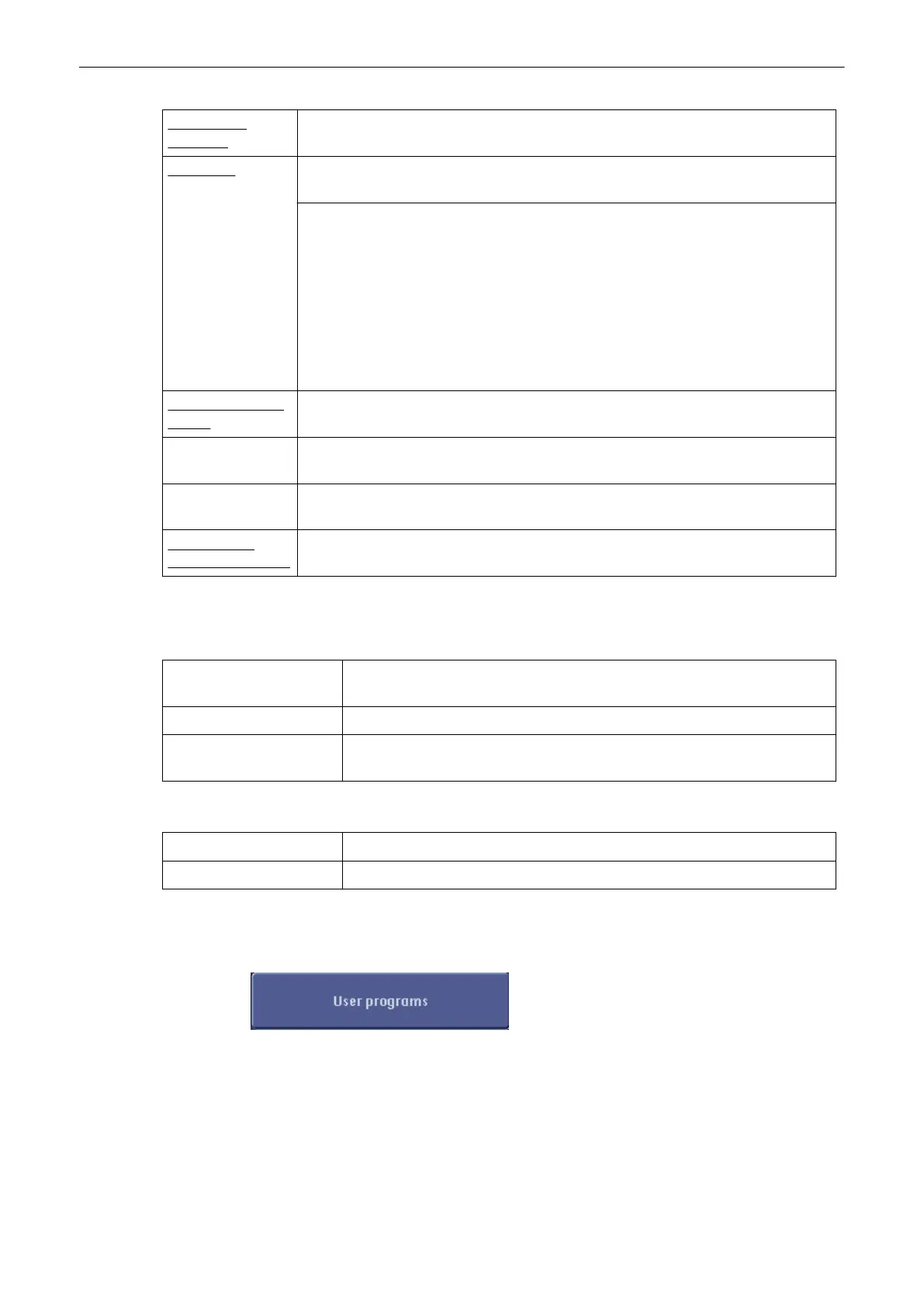
Select the [User programs] button (in the System Setup – User Settings page).
The “Settings” menu appears on the monitor.
Utilities and System Setup
13-20
Voluson® S6/S8 Basic User Manual
5433669-100 Revision 4



 To Next Page