Define and switch between different network settings for all your work environments to further
improve Voluson© S6/S8’s portability. The following settings are stored in a network profile:
•
All DICOM settings and configurations
•
Static IP address, gateway, network mask, DNS
•
Printer settings
•
Button configuration
•
Hospital name
•
Network-Drive mappings
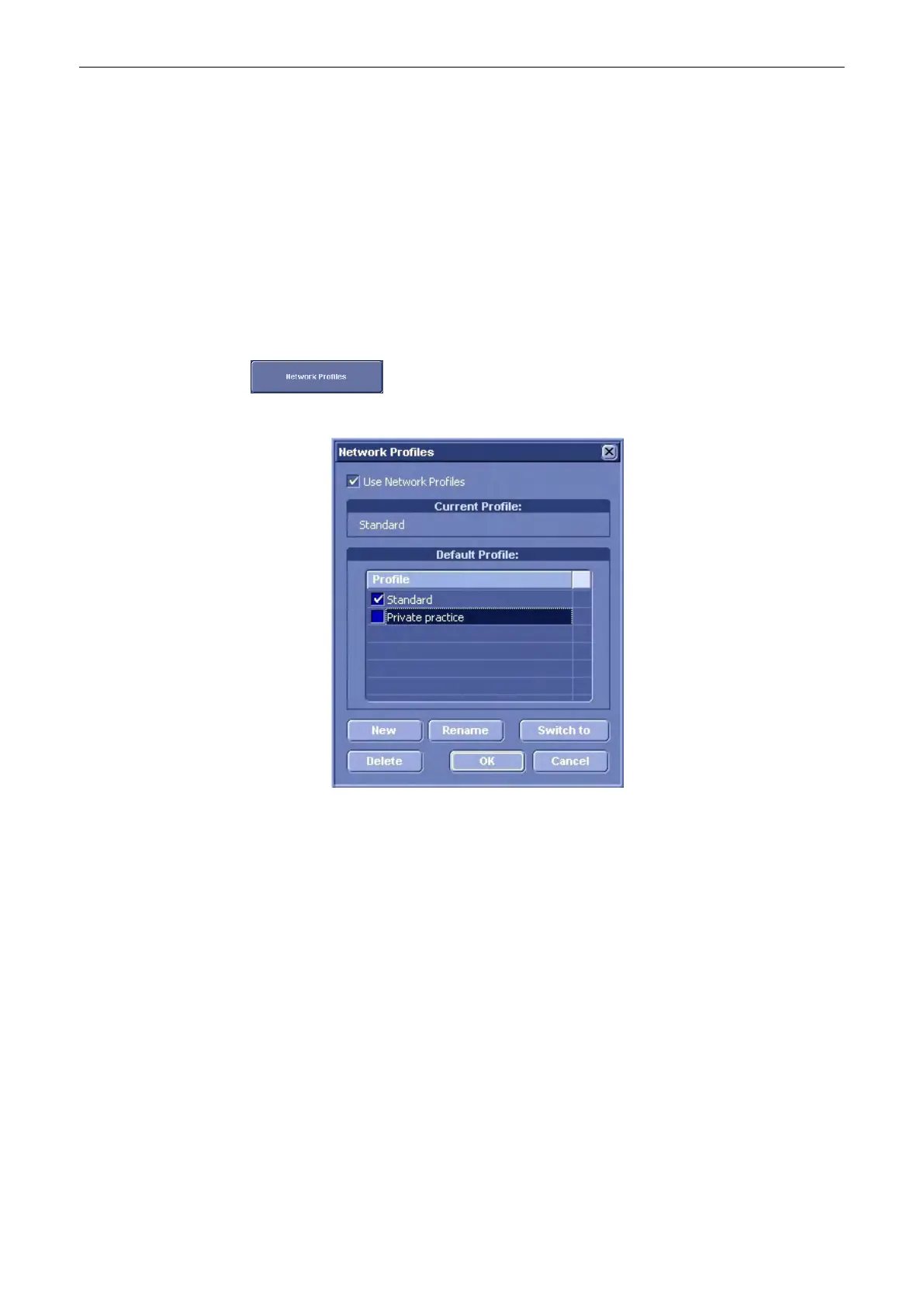
Network profiles dialog
Click the
Network Profiles
button in the network tab of the system setup. The following dialog
box appears:
To start using network profiles, set the
Use Network Profiles
option in the upper section of the
dialog. The currenty used profile is displayed in the
Current Profile
textbox.
In the
Default Profile
section click the checkbox next to the profile name which should be
active from boot-up. If no default is set, the system requests the desired network profile
everytime after boot-up.
Click the
New
button to set up a new profile. See below.
Click the
Rename
button to rename the highlighted network profile.
Click
Switch to
to change the currently active network settings to the ones stored in the
highlighted network profile.
Click
Delete
to delete the highlighted network profile.
Click
OK
to confirm changes or
Cancel
to abort the operation.
How to set up network profiles
Utilities and System Setup
Voluson® S6/S8 Basic User Manual
5433669-100 Revision 4 13-43



 To Next Page