2. Press the [Stop Device] button.
To Map the Network Drive
1.
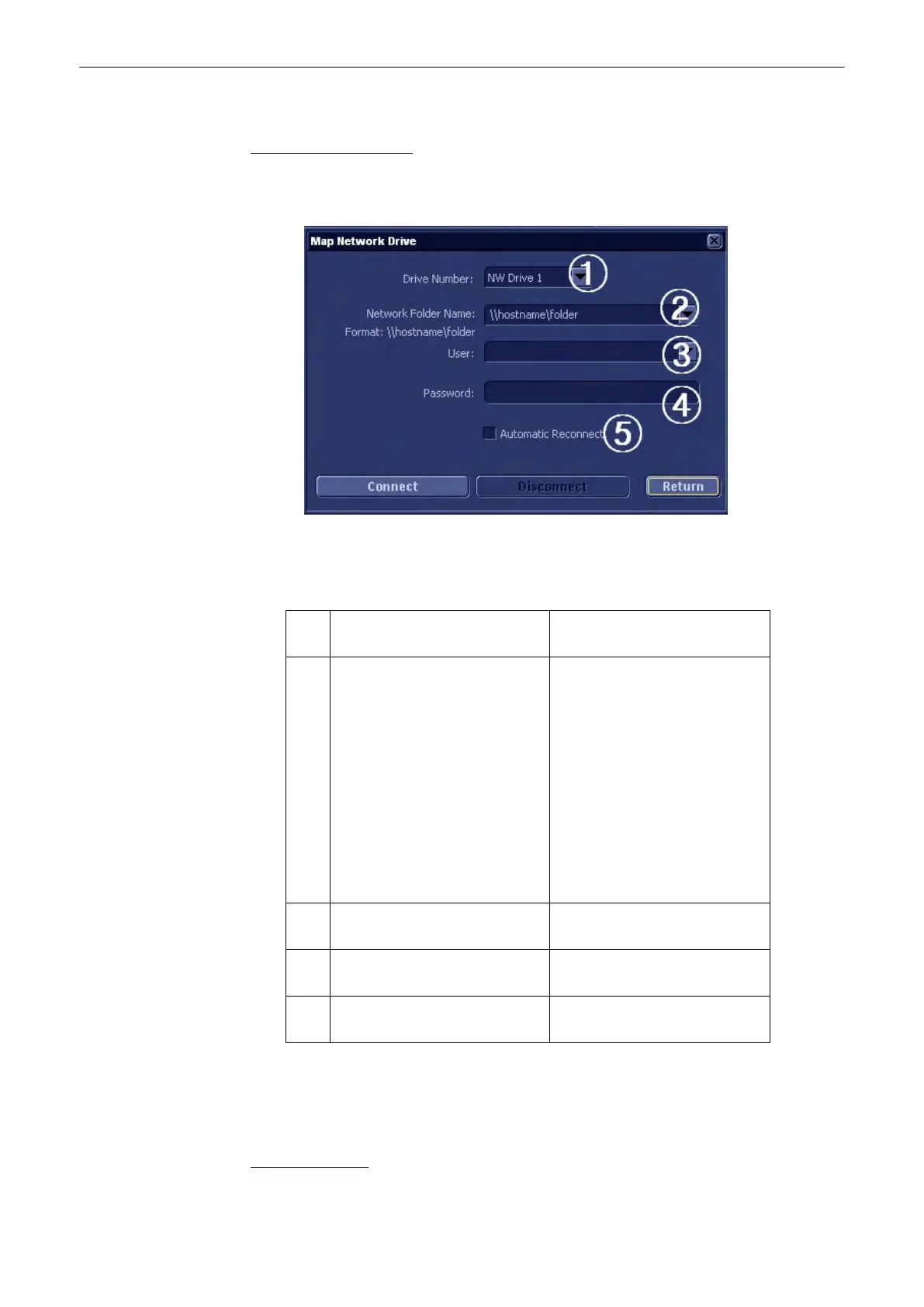
Press the [Map Network Drive] button.
The following window appears:
This button displays a dialog, which is used to map a network drive to the system. (NW 1
- NW 5).
This network destination can then be used to store full backups or Image data to.
1 Drive Number Select the Network Drive that this
drive should be assigned to.
2 Network Folder Name Network connection to be
connected to. Format:\\hostname
(IP)\path
Note: The text in the field is pre-
defined and has to be changed to
the required networkpath!
Note: If you can not type a
backslash ( \ ) on your keyboard,
you can copy and paste the
backslash from this field. Mark
the backslash and use Crtl+C to
copy and Crtl+ V to paste.
3 User User name as used to log onto
the network destination
4 Password Password as used to log onto the
network destination
5 Automatic Reconnect Automatically reconnect to
network destination on startup
2. Press the [Connect] button to connect to network destination.
Press the [Disconnect] button to disconnect from the network destination (Button is only
active if a connection is established.).
Press the [Return] button to close this dialog and return to Drives tab.
To reinstall a drive:
Utilities and System Setup
Voluson® S6/S8 Basic User Manual
5433669-100 Revision 4 13-45



 To Next Page