6. EM GUI orientation
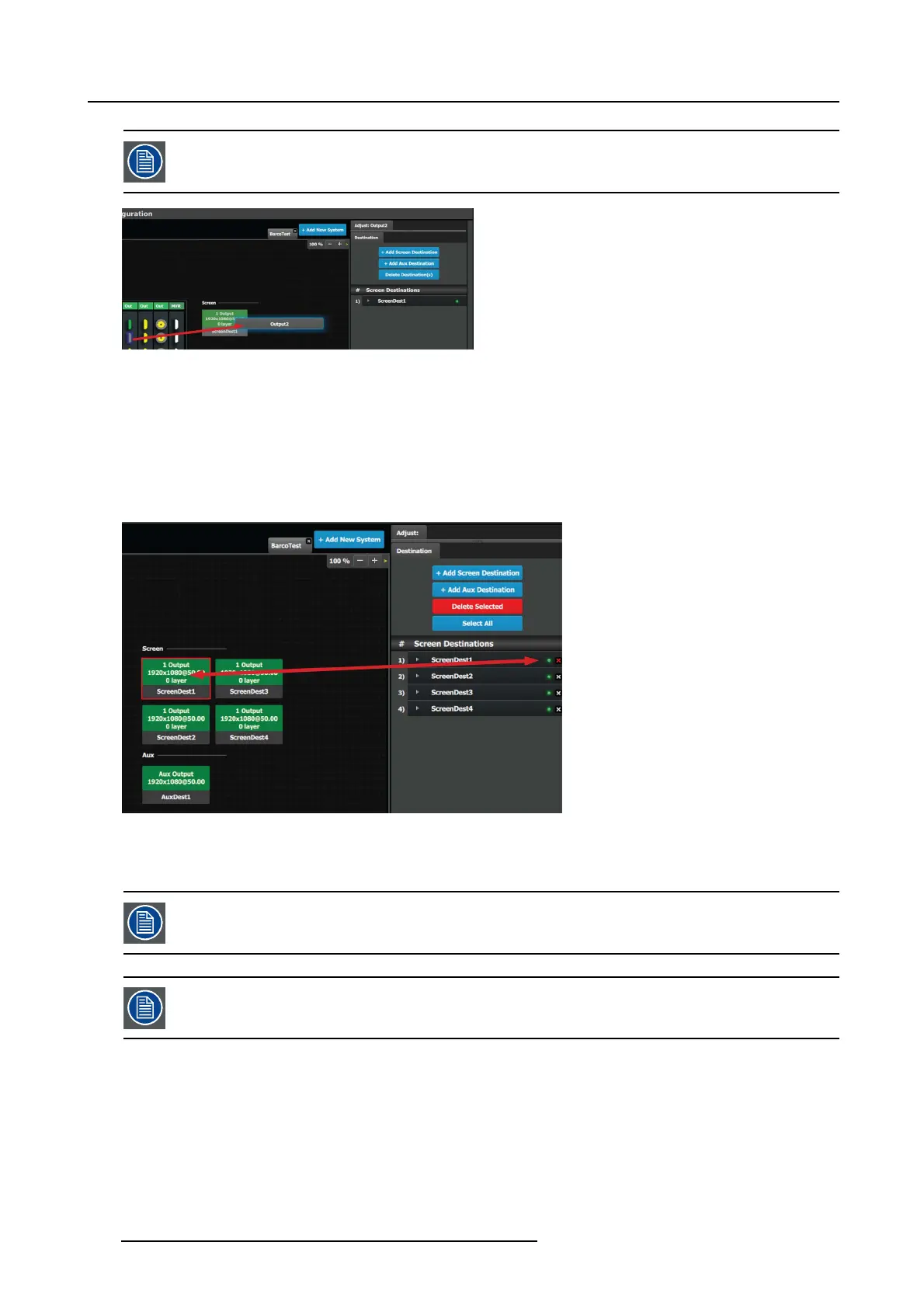
Outputs can be added in reverse order, or e ven un even order allowing for correction of wrongly connected
wires
Image 6-25
How to delete Destination
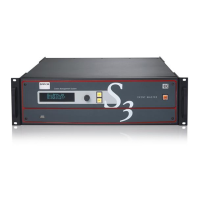
1. Click on the Delete Des tination(s) button
The Delete Destination(s) button is replaced b y the Delete Selected button (highlighted in red) and the un it diagram is greyed
out, except the area dedicated to destinations (Screen and Aux ).
2. Click on des tination in the grap hical area.
Or,
click in the “x” on the right hand side in the destination configu ration list.
Image 6-26
Destination(s) is immediately outlined in red.
3. The deletion is completed by clicking the Delete Selected button.
Any ou tput can b e deleted from a destination at any time. For exam ple, if the output that is automatically
assigned to a destination is not the d esire
d one, then it can be deleted.
All destinations can be deleted the same time by clicking the “Select All” button.
How to access to the Destination co
nfiguration adjustments
Adjustments to Destinations a re performed in the “Adjust” panel:
1. Select the destination from the configuration list
Or,
clicking o n the grap hic representation the destination in the Diagram area.
A Destination is selected.
2. Click on the Adjust tab that is on the top
of the Adjustment area.
128
R5905948 EVENT MASTER DEVICES 17/07/2017



 To Next Page