6. EM GUI orientation
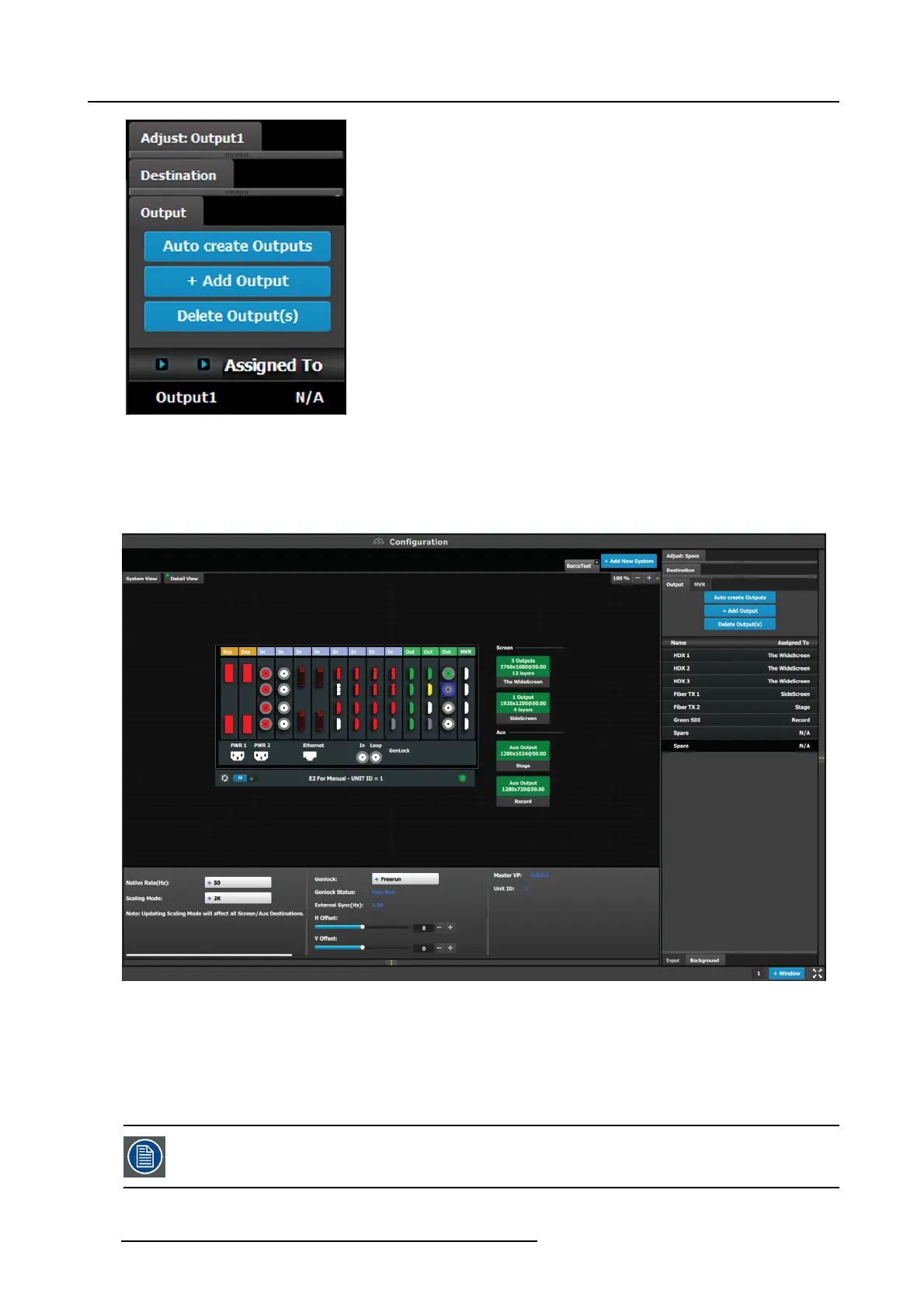
This menu provides:
• A list of all the outputs already created on the system (e.g. Ou tput1)
• A button to automatically allocate all unassigned output connec tors to an
output.
• A button to manually allocate output connector(s) to an output.
• A button to delete unused or obsolete output(s).
How to Auto create Outputs
The “Auto Create Outputs” button allows all 2K outputs that are not as signed to an output c
onfiguration to automatically assign to an
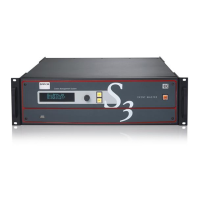
output configura tions. O utput connectors that are already assigned to output configurations will not be affected. The picture below
shows w hat occurs when the button is pressed. Since there are 12 output connectors not assigned, all 12 O utput configurations a re
automatically assigned. Out1 contains the output connector
on the 1st output card in slot 1, etc
Image 6-22
Since the software assigns a utomatically only 2K outputs, Dual link o r 4K outputs nee d to be configured manually. See How to add
output s ection below.
The unit will query the connected device on its output for a preferred EDID and try to assign that as the output resolution and fram e
rate. If no dev ices are connec ted, a standard H D resolution with the native rate of the EM P is as signed as frame rate.
Next to the config uration name is the name of the Destination w here the output is assigned. If the Output is not assigned to any
Destination, then the name will be “ N/A”.
The software by default names outputs as “O utput 1, 2, 3 ...” The user can rename each o utput by double
clicking on the name and t ype in the n ew n ame in t he blue bo x.
120 R5905948 EVENT MASTER DEVICES 17/07/2017



 To Next Page