6. EM GUI orientation
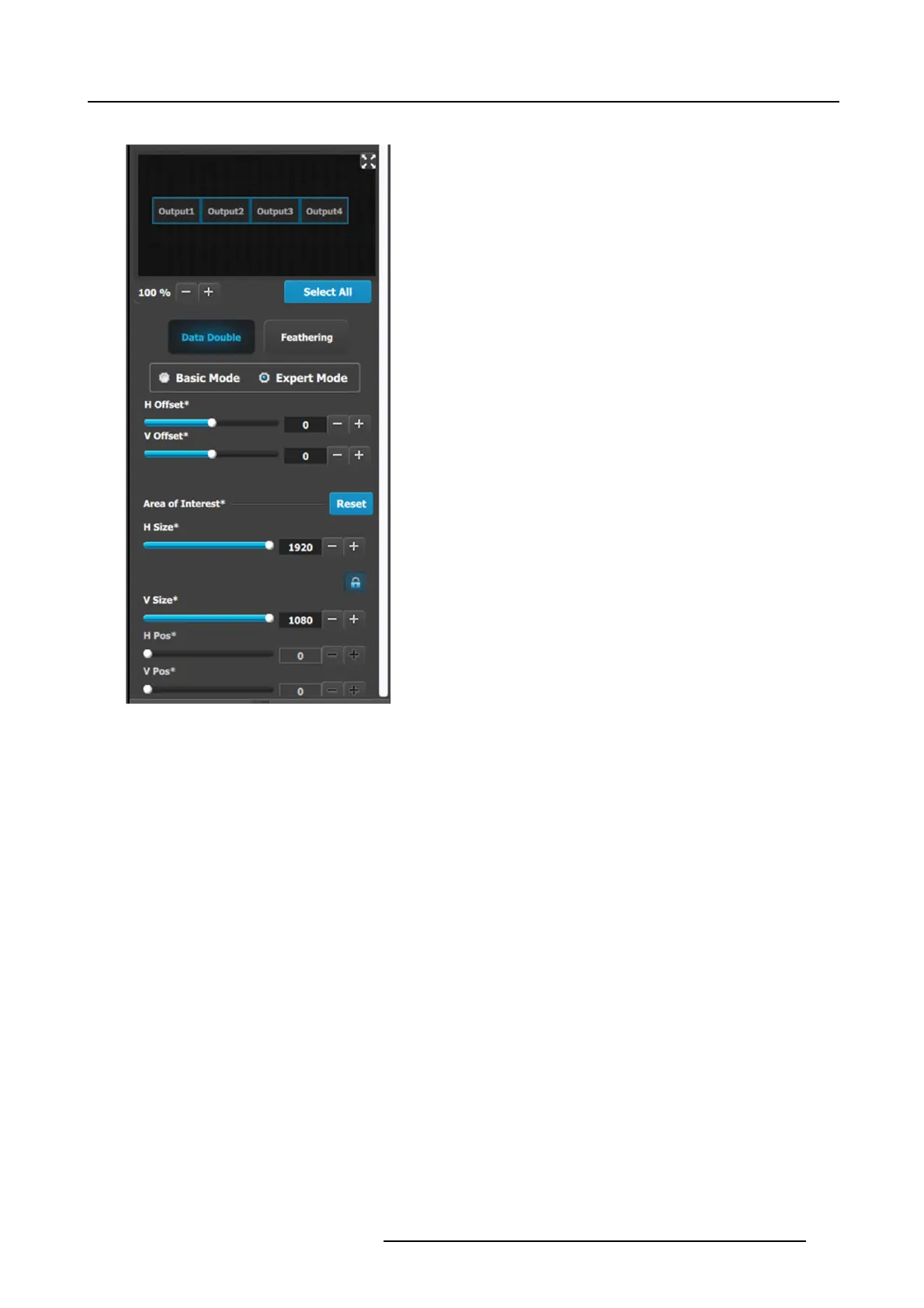
Data-doubling submenu—Expert Mode
The top pa rt of the panel is the same in Expert Mode as it is in
Basic M ode. Expert Mod e, however, offers greater control o ver
horizontal a nd vertical Offset and Size. Expert M ode also allows
the user to add Outputs without increasing the canvas size and
to place those Outputs anywhere within the canvas.
• Data Doub ling H or V O verlap w idth: T he adjustment can
be m ade by moving the slider, entering the value m anually
in the box, or clicking on the plus and minus.
Note: The Overlap sliders are disabled, until at least one
overlapping area is selected. Gra y overlaps are uns elected;
blue overlaps are selected. Individual overlaps can be se-
lected by clicking on the desired ov erlap in the ou tput im-
age. All overlaps can be s elected by clicking on the Select
All button.
• Once an overlap is created, H and V offset can be adjusted
for Left, Right, or Center justification over the Background.
• The Area of Interest (including H Size and V Size) is
duplicated here from the Output tab, so that the user can
adjust the AOI and the X/Y Offset together.
• The icons above the sliders are shortcuts for the offset.
R5905948 EVENT MASTER DEVICES 17/07/2017
137



 To Next Page