GBC AdvancedPunch Pro 09/11/2018 General Procedures and Information
6-3
General Procedures
User Interface
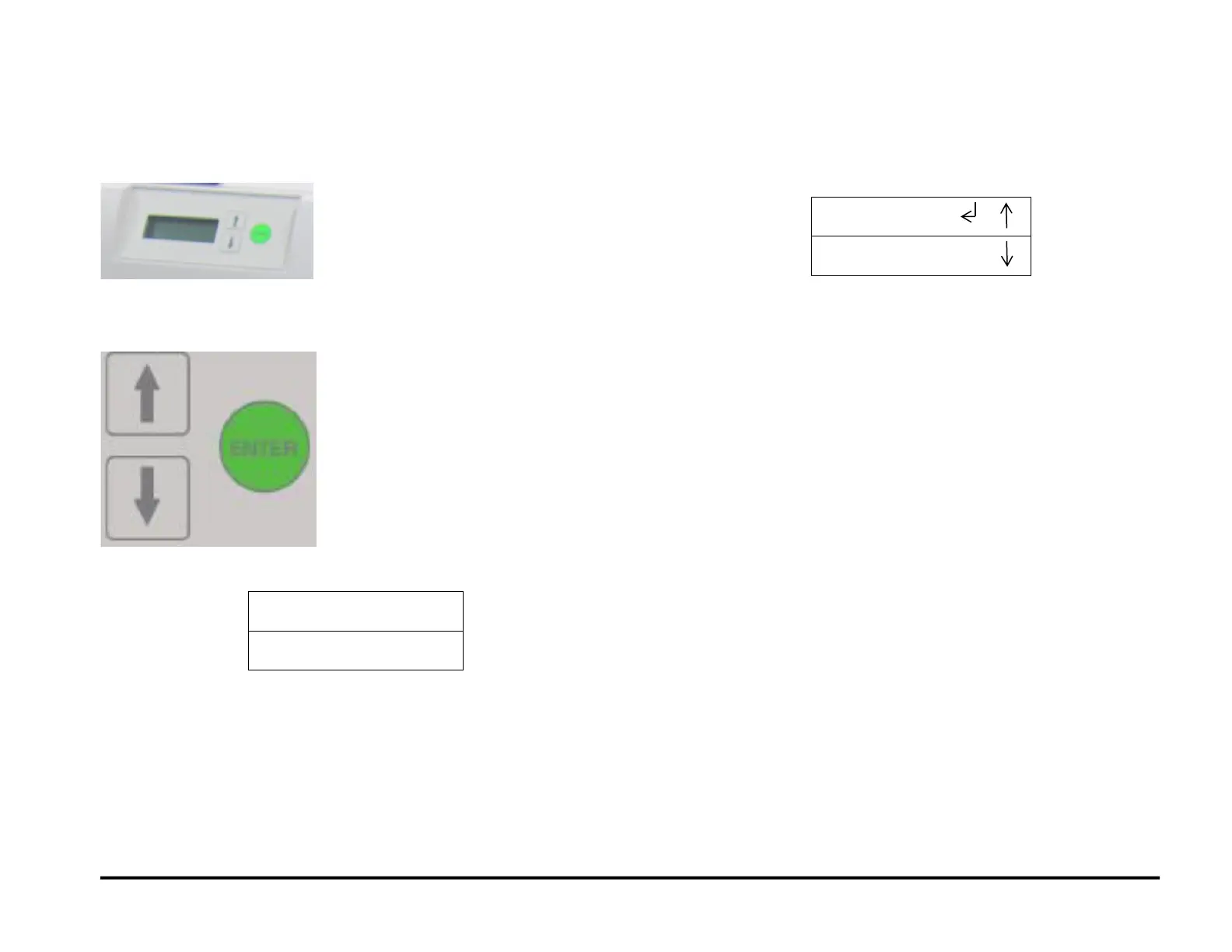
The User Interface consists of an LCD screen, an Up Arrow button, a
Down Arrow button and an Enter Button.
The buttons on the User Interface allow you to change the punch mode,
the Backgauge, alignment, language, and the units.
The User Interface displays status messages and fault codes on two rows
of text.
In the User Interface, the top row of text displays the status of the Punch
(Ready, Close Door). The bottom row of text displays the options selected
on the User Interface (Single Punch).
To change the settings on the User Interface:
1. From the top level screen, press either the up arrow button or the
down arrow button then press the ENTER button to display the
SETTINGS/ INFORMATION screen.
The up arrow indicates that there is a menu option above the
option displayed.
The down arrow indicates that there is a menu option below the
option displayed.
The return symbol indicates the option that will open when you
press the ENTER button.
2. To select SETTINGS, press the ENTER button when the return
symbol is next to the word Settings.
3. To select INFORMATION, press the down arrow button to move the
return symbol down until it is next to the word Information, then press
the ENTER button.



 To Next Page