General Procedures and Information 09/11/2018 GBC AdvancedPunch Pro
6-38
GP 6.2.8 I/O SIGNALS Procedure
The I/O SIGNALS feature allows you to view the status of the
communication signals.
Procedure
Do the following to check the signals
1. At the top level screen,
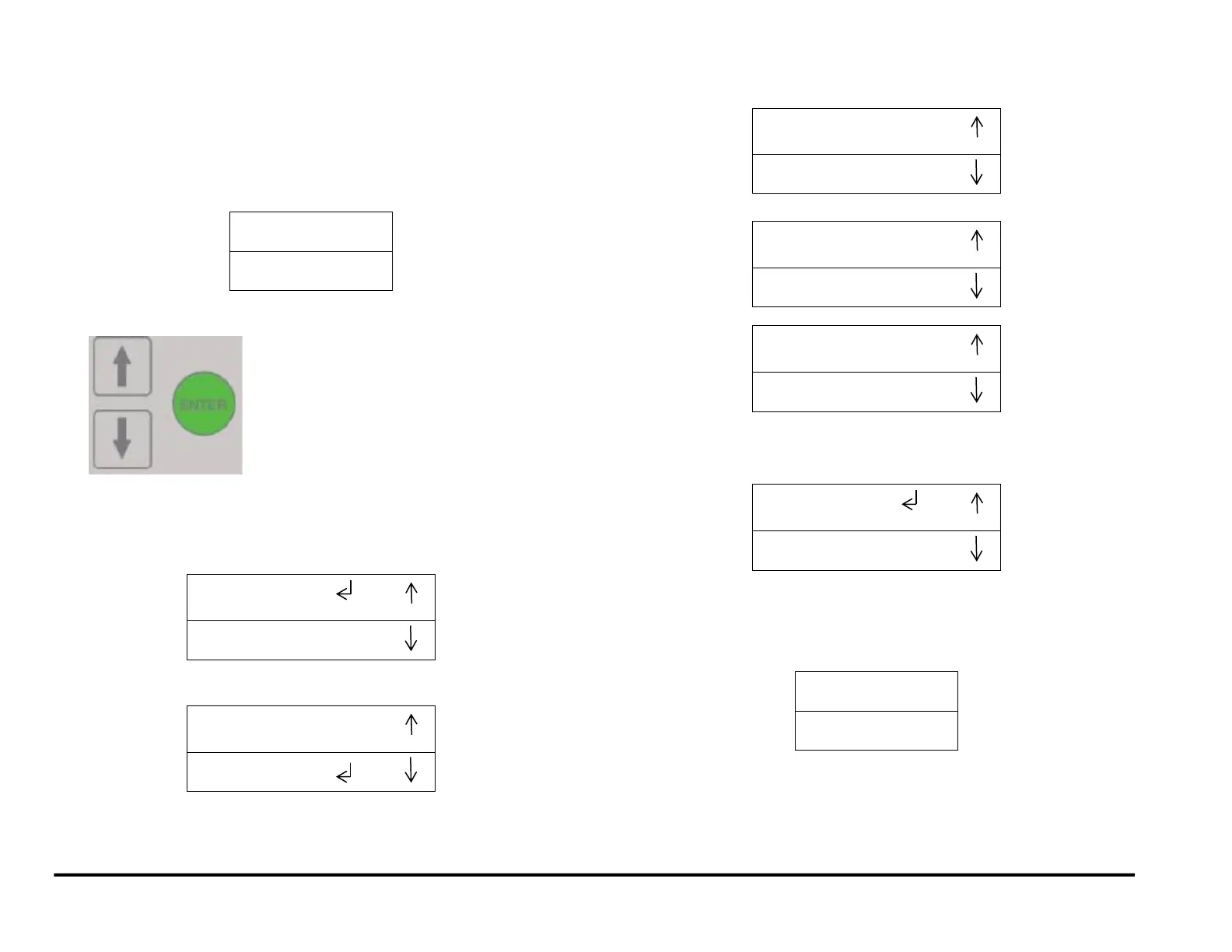
Press and hold both the Up Arrow button and the Down Arrow button
for 5 seconds.
Then while still holding down the Up Arrow button and the Down
Arrow button, press the Enter button.
The Service User Interface screen will appear.
2. Press the down arrow so the return symbol is next to the words DFA
STATUS.
3. Press the ENTER button when the return symbol is next to the word
DFA STATUS.to display the display the first DFA STATUS screen.
4. Press the down arrow to scroll through the DFA STATUS options.
5. If you use the down arrow to scroll through the complete list:
When you scroll down from the S3=0 S4=0 S5=0 screen, the system
displays the Previous Menu / EXIT screen.
You can:
Press the up arrow to return to the last sensor screen.
Press the down arrow to move the return symbol is next to the
word EXIT. Then press the ENTER button to return to the top
level screen



 To Next Page