General Procedures and Information 09/11/2018 GBC AdvancedPunch Pro
6-14
GP 6.1.4 TAB/COVER MODE Procedure
Do the following to select the TAB/COVER mode. This options enables
you to distinguish between sheets that have equal width, but unequal
lengths.
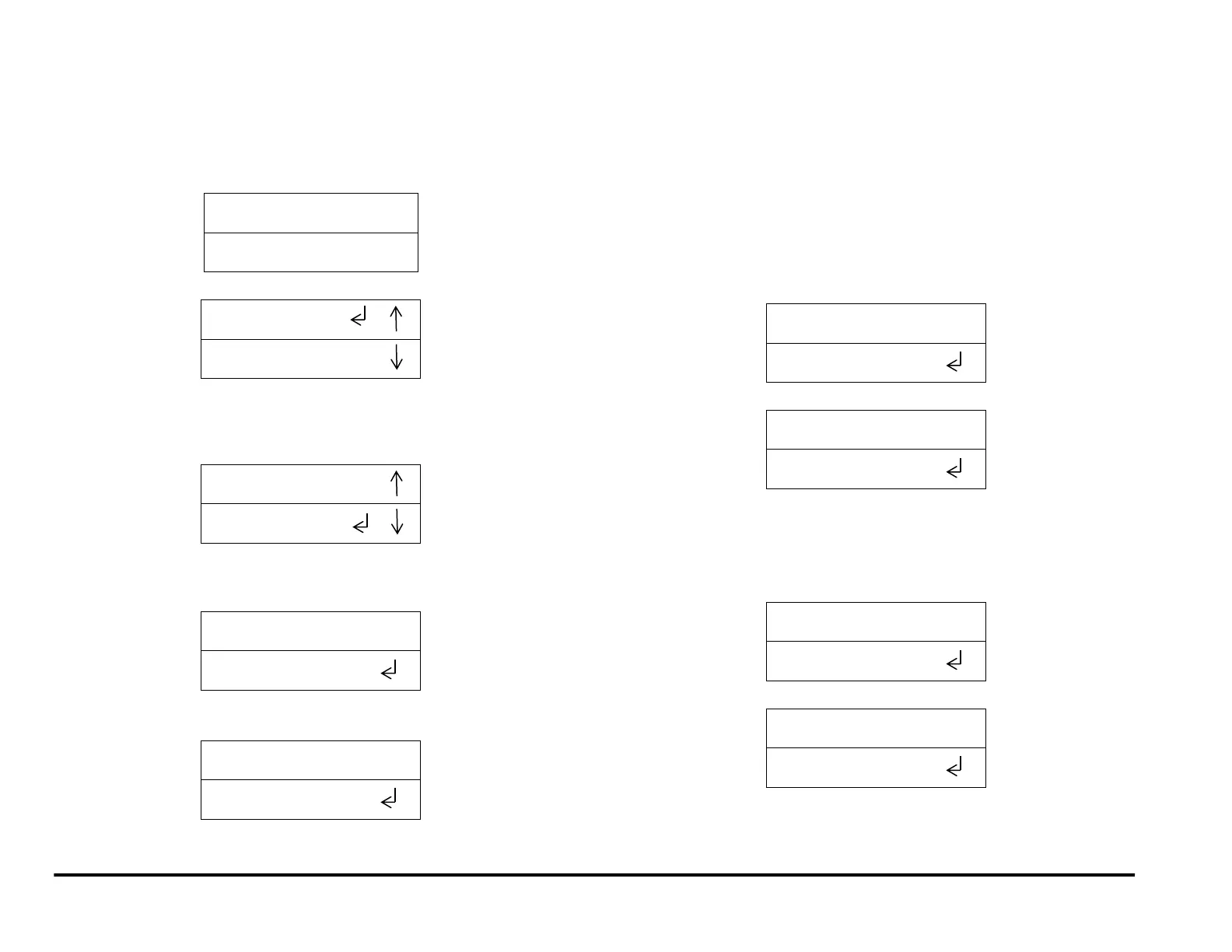
1. From the top level screen, press either the up arrow button or the
down arrow button.
This displays the SETTINGS - INFORMATION screen
2. Press the ENTER button when the return symbol is next to the word
SETTINGS.
3. Press the down arrow button until the return symbol is next to the
word TAB/COVER MODE.
4. Press the ENTER button when the return symbol is next to the word
TAB/COVER. to display the TAB/COVER screen.
If PAPER SIZE selected is ISO:
If PAPER SIZE selected is ANSI:
The options are:
TAB / COVER
SRA4(if PAPER SIZE is ISO); 9x12 (if PAPER SIZE is ANSI)
5. Press either the up arrow button or the down arrow button to change
Tab/Cover setting.
If PAPER SIZE is set to ISO:
If the 225mm wide sheet is a Tab/Cover, select Tab/Cover (Width of
A4 tab sheet is 225mm; some covers are 225mm wide and 297mm
long)
If the 225mm wide sheet is SRA4 size, select SRA4.
If PAPER SIZE is set to ANSI:
If the 9” wide sheet is a Tab/Cover, select Tab/Cover (Width of LTR
tab sheet is 9”; some covers are 9” wide and 11” long)
If the 9” wide sheet is 9”x12” size, select 9x12.



 To Next Page