374
────────────────────────────────────────────────────
16.3 Waveform GO/NG Evaluation (MEM, FFT)
────────────────────────────────────────────────────
16.3.1 Setting the Waveform Area
s1431-1, 2
NOTE
To evaluate the waveforms, a evaluation area is required. Two methods are
available: one is to load the already created evaluation area and settings, and
the other is to create a new evaluation area.
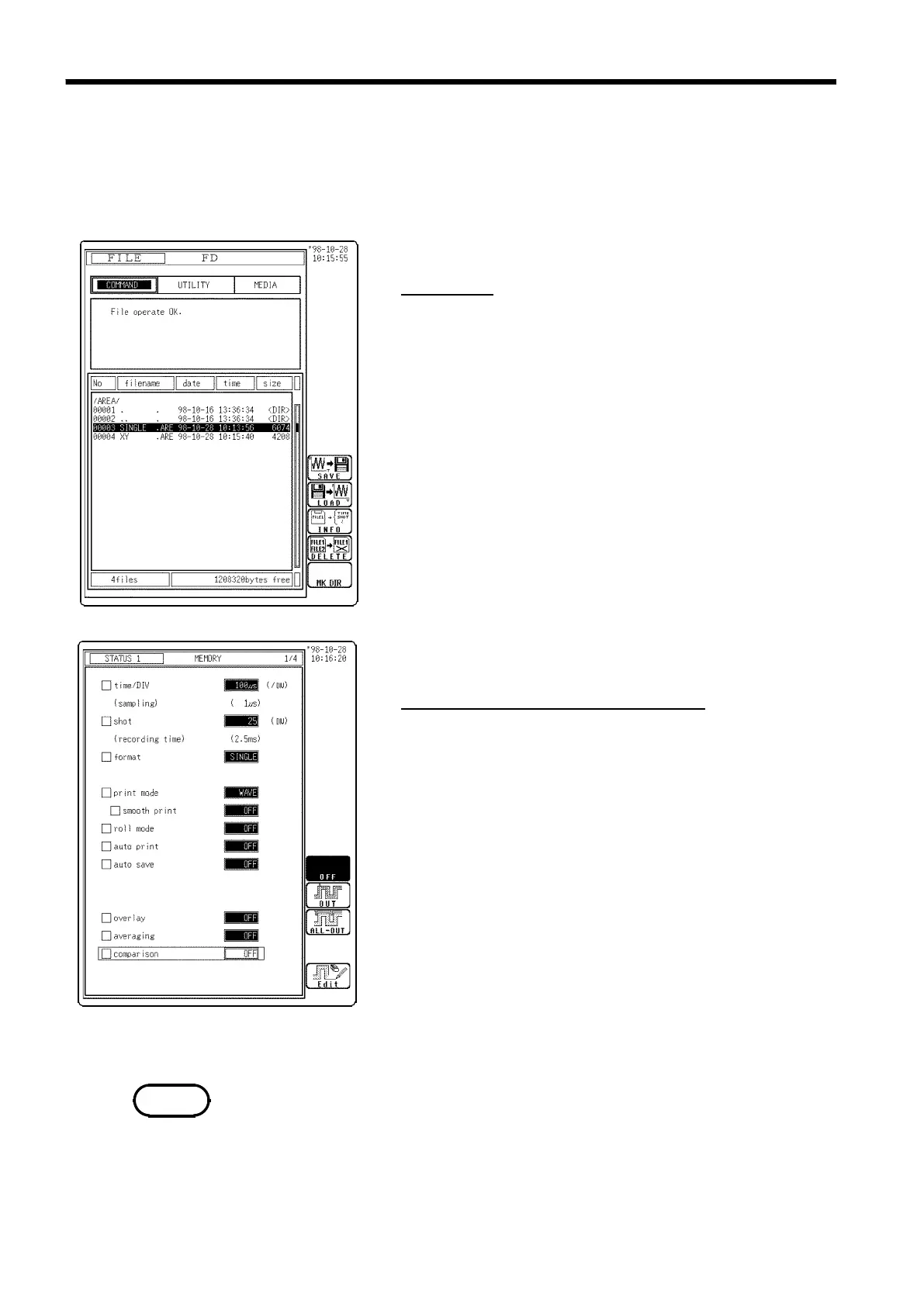
(1) Loading the already created evaluation area
Screen: FILE
1. Press the FILE key to call the FILE screen.
2. Select the media for loading.
3. Use the bar cursor to select the desired file.
4. Use the function key to select LOAD.
5. Use the function key to select
(exec)
.
6. When no more changes need be made to the loaded
settings, press the DISP key to make the Waveform
display screen appear, and then press the START key
to initiate measurement.
To change the settings, first change the contents,
press the DISP key to make the Waveform display
screen appear, and then press the START key to
initiate measurement.
For details on load, see Section 14.8.
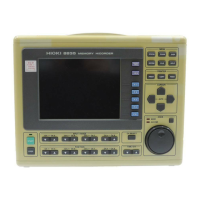
(2) Creating a new evaluation area
Screen: STATUS1 (MEM), STATUS2 (FFT)
1. Press the STATUS key to call the STATUS1 screen
(STATUS2 in FFT).
2. Move the flashing cursor to
comparison
.
3. Use the function key to select Edit.
4. Make the new evaluation area.
See Section 16.3.4.
5. Store the new evaluation area in the internal memory.
6. After setting the parameters for "comparison" and
"stop mode," press the DISP key to make the
Waveform display screen appear, and then press the
START key to initiate measurement.
7. Save the evaluation area on the FILE screen, if it is
necessary. See Section 14.7.
Only one waveform evaluation area is stored in internal memory. For
example, when operation is changed from the Memory recorder function to
the FFT function and the FFT waveform evaluation area is stored, the
waveform evaluation area created for the Memory recorder function is lost.



 To Next Page