Tracks and Track Groups : Automation Tracks
5 - 101
All automatable functions can be displayed. Fader Gain and Mute can be selected directly while other functions
are grouped logically into sub-menus. Clicking on
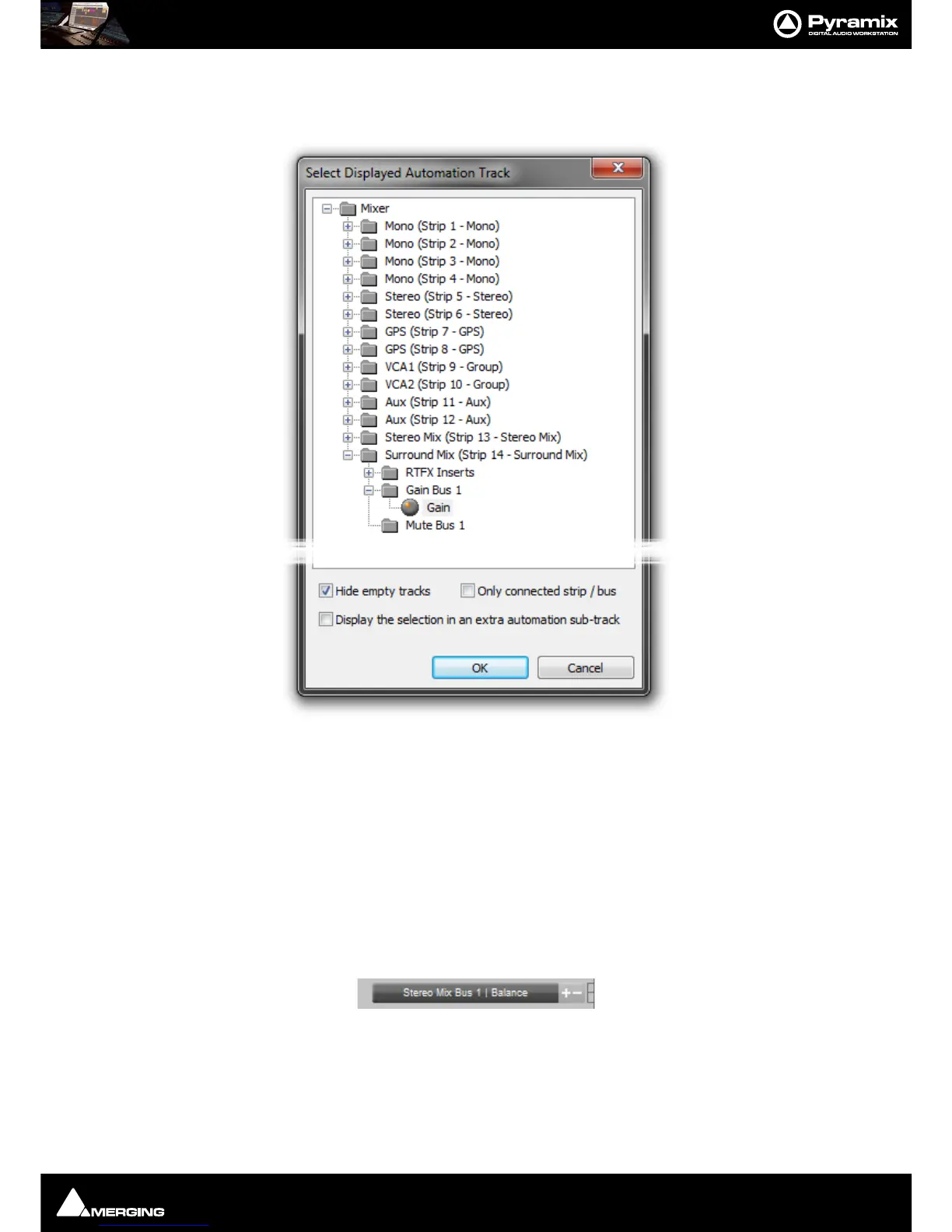
All... at the bottom of the list opens the Select Displayed
Automation Track
dialog:
All automatable parameters for the entire Project are shown in a tree.
Hide Empty Tracks When ticked only Tracks with existing Automation Date will be present in the tree.
Display the selection in an extra automation sub-track When ticked a new Automation Sub-Track is created
to contain the automation curve for the selected parameter when the
OK button is
clicked.
OK Confirms selection and closes the dialog
Cancel Cancels the selection and closes the dialog.
The selected parameter curve is displayed in a new Automation Sub-track below the current normal
Track.
The main button in the Automation Sub-track Header pops up the list of automatable parameters for the Track.
Selecting
More... opens the Select Displayed Automation Track dialog with access to every automatable
parameter in the Project. The smaller [
+] and [-] buttons on the right of the main button create a new Automation
Sub-track
and delete the current one, respectively. The icon to the right indicates the number of audio channels
controlled by the automation in the
Sub-track.



 To Next Page