File and Project Interchange : Import / Export
18 - 441
AKAI DD/DR
Pyramix is capable of recognizing disks recorded in the Akai DD-Series format and importing their data.
Preparing the system
Connect the Aka disk to your PC. Usually this will be a hard disk drive via a SCSI interface, but can also be a Mag-
neto-Optical or Jaz disk.
Project > Import or Export opens the appropriate Project Interchange dialog box. Choosing AKAI DD/DDR
from the list opens the
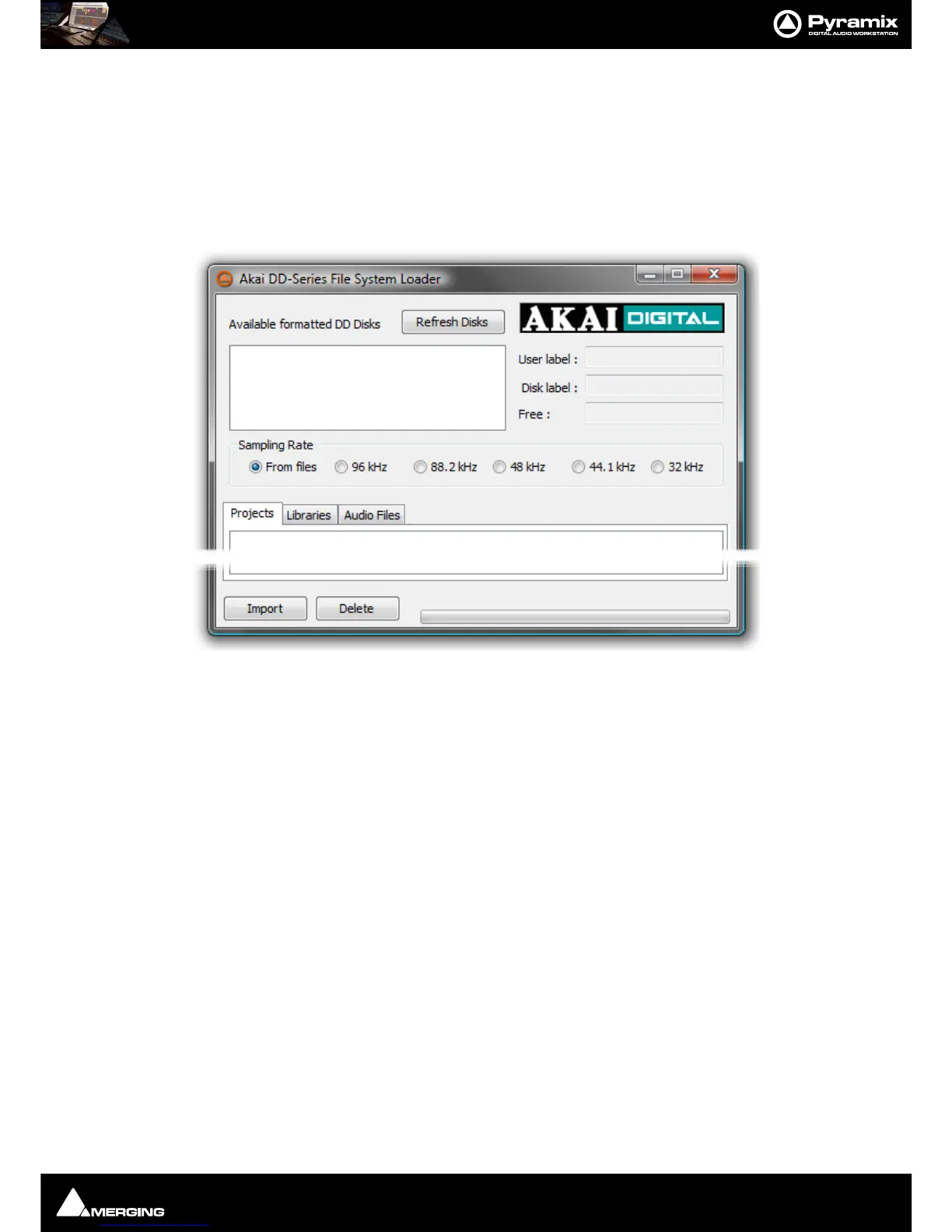
AKAI DD-Series File System Loader dialog box
When the dialog is opened, Pyramix searches for available Akai disks and displays them in the upper left part of
the dialog box. Choose the disk you want to work with by selecting it with the mouse.
The
Refresh Disks button restarts the search for available Akai disks.
The lower part of the dialog box shows the data found on the selected Akai disk. Following the data structure of
Akai disks this panel has three Tabs named Project, Libraries and Audio Files.
Import Button
To import the data into your Pyramix session, simply select the desired data and click the Import button. The
behavior is the same as ‘Quick Import’; All the files are imported and stored into a mounted media folder.When an
Akai library is imported, a new Pyramix project library will be created.
Delete Button
Deletes selected files from the Akai media providing this is not write protected.
Audio File import
Since Pyramix is capable of reading the audio data directly from an Akai disk, it is not necessary to import the
actual audio files into a local Windows drive. Thus, when you click the Import button, a dialog box is displayed:
Do
you want to import the Audio Files used by this/those projects?
If the answer is No, only references to the
audio files will be stored in the local Windows Media folder instead of copies of the actual audio data. The audio
will play correctly but no waveforms will be displayed.
Closing the Akai loader dialog



 To Next Page