Tracks and Track Groups : Track Groups
5 - 110
Track Groups
Track Groups, as the name implies, enable a number of logical function linkages between Tracks and several
other useful methods of improving efficiency. Track groups can be created and manipulated by the user. Track
Groups are also created by default when Recording or Rendering operations occur on more than one Track at the
same time.
Note: To add Tracks to a Track Group us e the drop-down list menu in the Group field in the
Tracks Tab pane.
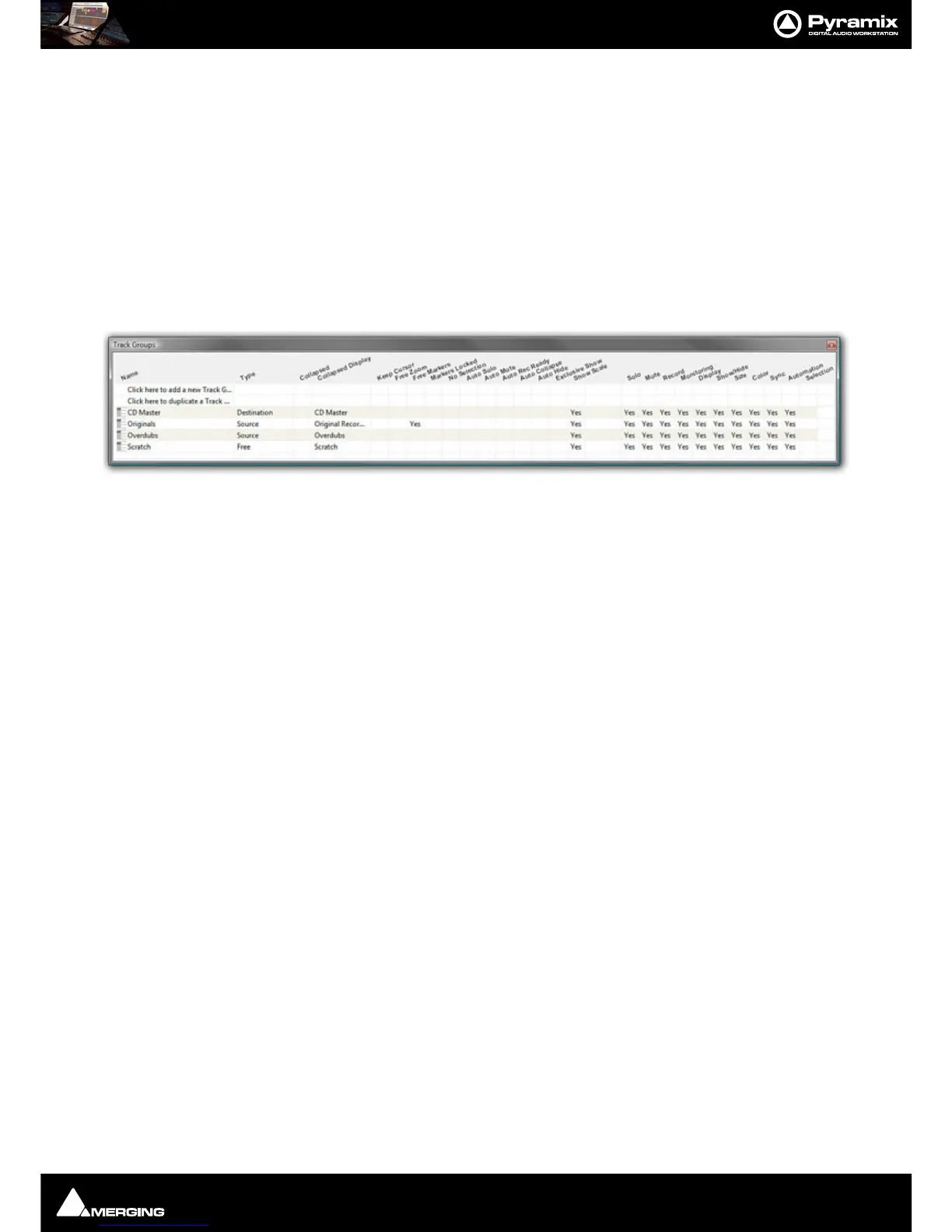
Track Groups Tab Window
Opens a table where each row contains information about a single Track group and each column contains Infor-
mation and function selection fields.
The first two rows enable new Track Groups to be created and existing ones to be duplicated by clicking on the
Name field.
To create a new Track Group, click on
Click here to add a new Track Group. A text entry box replaces the Name.
Enter a suitable name and press Enter. A new Track group will appear at the bottom of the list.
To duplicate an existing Track Group, click on the Track Group you wish to duplicate then click on
Click here to
duplicate a Track Group
. A text entry box replaces the Click here to duplicate a Track Group. Type a suitable
name and press
Enter. The duplicate Track Group appears in the row below the Track Group you have just cop-
ied. Subsequent rows are moved down the table. The
Track Group entries can be re-ordered by clicking on the
symbol at the far left of the
Name field and dragging to the desired row.
When Tracks are assigned to a
Track Group a small Group Track is shown in the Timeline immediately above the
first assigned Track.
Track Groups can be collapsed/expanded by clicking the little [-] or [+] on the Track Group Track header.
Track Group Column Fields
Name
The name of the Track Group. Up to 29 characters are visible in this field but longer names are accepted. Click in
the field or
F2 to edit the name.
Type
Clicking in this column field drops down a list box with current choices of Free, Source, or Destination.
Free is used to create General purpose Track Groups
Source is used for grouping Tracks to be Sources in the Source/Destination model.
Destination is used for grouping Tracks to be Destinations in the Source/Destination model.
Collapsed
Track Groups can be collapsed, so only one of the Tracks of the group is displayed. When set to Ye s , only the Track
chosen and shown in the
Collapsed Display field is displayed in the Timeline. This field has the same function as
the little [-] or [+] on the Track Group header.
If the single visible Track is selected the group is expanded.
Collapsed Display



 To Next Page